
Swipe to delete, keep or favorite
PrunePic turns your photo library into a feed of full-screen cards. Swipe left to send a photo to the trash, up to keep it, or right to add it to Favorites or an album. One decision per photo, a few seconds each.
Three gestures, one decision each
Open PrunePic and your library appears one photo or video at a time, full screen. Each card needs one gesture, and the card shows what will happen before you let go.
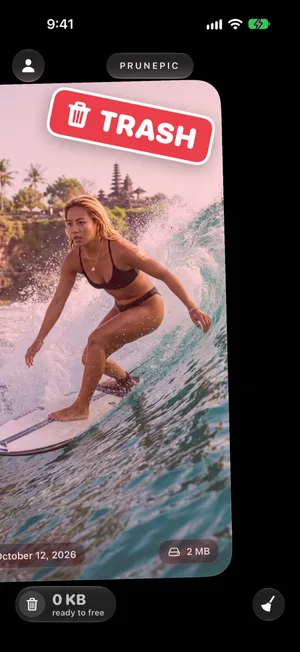
- Swipe left to delete. The card turns red and a TRASH stamp appears. The photo goes to the PrunePic Trash, where you check it before anything is removed.
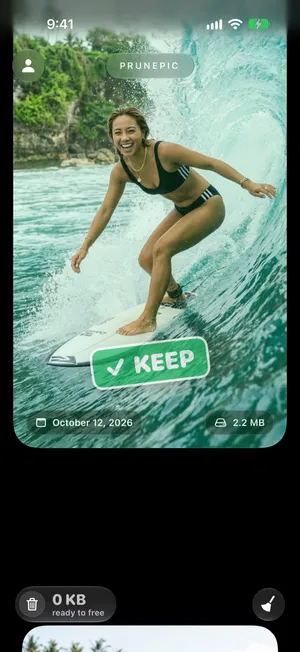
- Swipe up to keep. A green KEEP stamp appears and the next photo slides up. PrunePic remembers you kept it, so it will not come back.
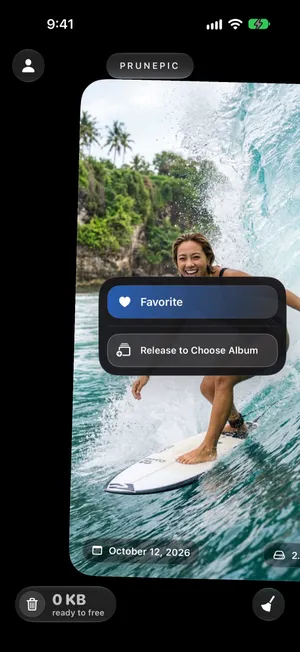
- Swipe right to favorite or file. A panel appears: drop the card on Favorite to add it to Favorites in the Photos app, or release to choose one of your albums.
Because PrunePic remembers every decision, you can stop at any time and pick up where you left off. A few minutes a day is enough to work through a library of thousands of photos.
Look closer before you decide
Some photos need a second look. Pinch or double-tap a card to zoom in and check focus, faces or small details. Videos play right in the card.
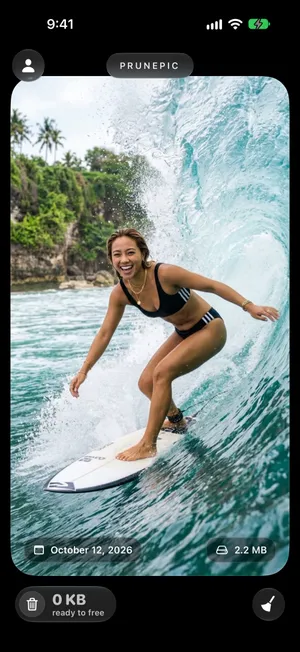
You choose what each card shows in its corners: the date, the file size, the resolution, the media type, or the length of a video. Photos and videos have separate settings, so you could show file size on videos and the date on photos. Seeing the size on every card makes it obvious which items are worth deleting first.
Why swiping is faster than the Photos app
In the Photos app, cleaning up means tapping Select, picking photos from a grid of thumbnails, then deleting them, and it is easy to lose track of what you already checked. Thumbnails also hide the differences between near-identical shots.
PrunePic shows every photo full screen and asks for one decision at a time. There is no selecting and no scrolling back to find your place. The library gets smaller with each swipe, and the trash counter shows how much space is ready to free.
Fix mistakes in one tap
Swiped the wrong way? Tap Undo in the bottom bar to reverse the last keep, trash or favorite.
And nothing you trash is deleted on the spot. It waits in the PrunePic Trash until you empty it, so you can put anything back.
Pick what to clean first
By default the feed covers your whole library. When you want to focus, cleaning modes narrow it to screenshots, videos, photos taken on this day in past years, or a recent trip.
Frequently asked questions
Does swiping left delete the photo right away?
No. Swiping left moves the photo to the PrunePic Trash. Nothing leaves your library until you empty that trash, and even then the photos go to Recently Deleted in the Photos app for 30 days.
Can I change my mind after a swipe?
Yes. Tap Undo in the bottom bar to reverse your last keep, trash or favorite, or put a photo back from the PrunePic Trash before you empty it.
Does PrunePic work with videos and Live Photos?
Yes. Videos play in the card so you can check them before deciding, and Live Photos, screenshots and other media types show up in the same feed.
Can I stop in the middle and continue later?
Yes. PrunePic remembers every photo you already kept or trashed, so the next session starts where you left off.
Keep reading
- FeaturesA trash you empty when you are surePhotos you swipe away in PrunePic wait in a trash you can review, restore or empty in one go. Then they sit in Recently Deleted for 30 more days.
- FeaturesCleaning modes for every kind of clutterShuffle your whole library, review everything newest first, or focus on photos, screenshots, videos, On This Day or a recent trip. Pick a mode and swipe.
- FeaturesFile photos into albums as you swipePin your favorite albums to PrunePic's swipe tray and drop keepers into them while you clean, so your library ends up organized, not just smaller.
- GuidesHow to free up storage on iPhoneFind what fills your iPhone in Settings, then clear the biggest items first: videos, Messages attachments, unused apps and Recently Deleted. Steps for iOS 26.