
PrunePic for iPhone
Clean up your iPhone photos with a swipe



Left to delete. Up to keep. Right to favorite. PrunePic turns a cluttered camera roll into a few minutes of swiping, and nothing is deleted until you say so.
Free on the App Store. Your photos never leave your iPhone.
One photo, one swipe, one decision
PrunePic shows your library full screen, one photo or video at a time. No selecting, no scrolling back to find your place. It remembers every decision, so you can stop whenever you like.
Swipe left to delete
The photo goes to the PrunePic Trash, where you can check it before anything is removed.
Swipe up to keep
It stays in your library and the next photo slides in. Photos you keep never come back.
Swipe right to favorite
Drop your best shots on Favorites, or straight into one of your albums.
What your camera roll is quietly hoarding
5 GB
is all the free iCloud storage you get, the same as when iCloud launched in 2011. That is about 1,700 photos at 24 MP.
Source: Apple, iCloud storage plans
190 MB
for one minute of 4K video at 30 fps, the space of more than 60 photos at 24 MP.
Source: iPhone Settings › Camera › Record Video
440 MB
for one minute of 4K video at 60 fps. The default 1080p setting uses 65 MB, less than a sixth.
Source: iPhone Settings › Camera › Record Video
30 days
Deleted photos wait in Recently Deleted before they are really gone, and keep using storage until then.
Source: Apple, Recover deleted photos
6 GB
for one minute of 4K ProRes video at 30 fps on an iPhone Pro, more than all the free iCloud storage.
Source: iPhone Settings › Camera › Formats
Still there
The boarding pass from two trips ago, the parking spot from last spring, the meme you sent once.
75 MB
for one 48 MP ProRAW photo, as much as 25 regular photos at 24 MP.
Source: iPhone Settings › Camera › Formats
5 min
a day is enough. At a photo every couple of seconds, that is thousands of photos cleared in a month.
Nothing is gone until you are sure
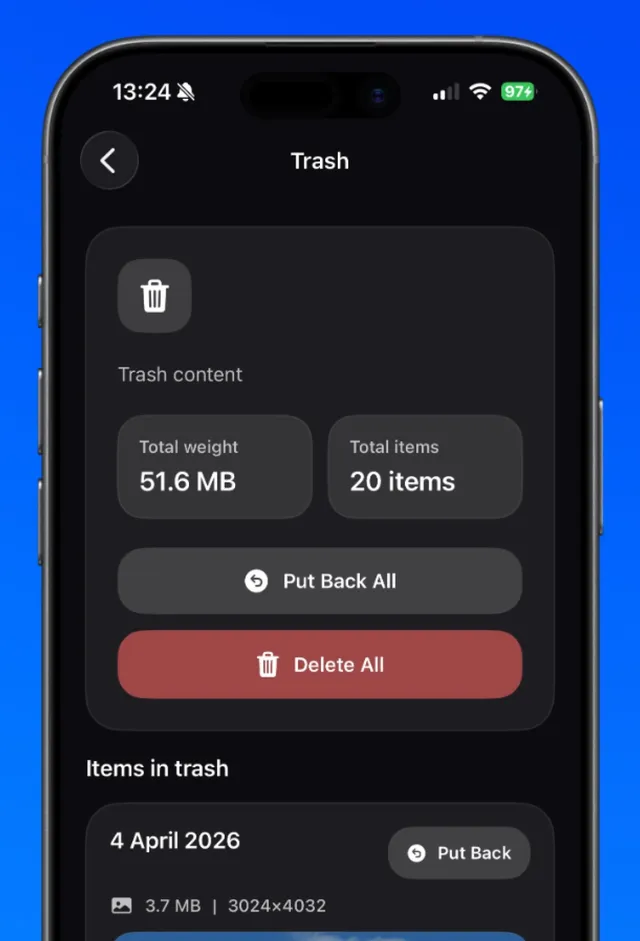
Swiping is fast because no single swipe is final. Everything you trash waits in the PrunePic Trash, and emptying it sends photos to Recently Deleted in the Photos app for 30 more days.
- Review the trash, put one item back or restore everything.
- Undo your last keep, trash or favorite in one tap.
- iOS asks you to confirm before anything leaves your library.
Go straight to the clutter
Shuffle your whole library or focus on what takes the most space: screenshots, long videos, old photos from this day, or the trip you just got back from.
- Swipe to delete photos, one at a timeOne photo at a time. Left to delete, up to keep, right to favorite, and nothing is gone until you empty the trash.
- Undo any swipe before a photo is deletedNothing is deleted when you swipe. Undo, swipe back or Put Back, then empty the PrunePic Trash in one batch you confirm in iOS.
- Photo cleanup modes for screenshots, videos and tripsEverything, Photos, Screenshots, Videos, Batch, On This Day, Random and Trips & Moments. Choose what to clean before you swipe.
- Clean up old screenshots without losing the ones you needOnly your screenshots, one at a time. Swipe away the memes and expired codes, keep the tickets and receipts you still need.
- Review long videos and delete the ones you no longer needOnly your videos, longest first, with the length and size on every card. Watch a clip full screen, then swipe.
- Relive your On This Day photos, then keep only the bestPhotos and videos from today's date in every past year, one at a time. A set you can finish, and a new date tomorrow.
- Sort iPhone photos by location, one trip at a timeTrips and moments found from where and when you took your photos. Clean up one at a time and file the keepers in an album.
- Sort photos into albums while you swipeSwipe right and drop keepers on a pinned album, or search your albums and create new ones. Clean up and organize in the same pass.
- Track your photo cleanup progressItems deleted and their file size since you installed, charts by media type, live library counts and 20 cleanup badges.
- Photo cleanup widgets for your Home ScreenCleanup Progress shows your total space saved and your last cleanup. Recent Photos shows your four newest images.
- Choose what each photo card shows while you cleanThe date and file size on every card, the length on videos. Choose what each corner shows, separately for photos and videos.
Keepers end up where they belong
Pin your favorite albums to the swipe tray and drop photos into them while you clean. Your library gets smaller and better organized in the same session.

Your photos stay on your iPhone
PrunePic works through Apple's Photos framework on your device. Your photos and videos are never uploaded, there is no account to create, and the app works without an internet connection. The app measures how it is used, never what is in your photos. Privacy policy
Processed on your iPhone
Reviewing, sorting and filing happen on your device. There is no PrunePic server for your photos.
Works offline
Clean up on a plane or anywhere else. Your library is already on your phone.
Your history stays local
What you reviewed and the space you saved are stored on your device, never uploaded.
Free to start, Pro when you want more
PrunePic is free to download and you can start cleaning right away. Upgrade when you want to clean without a daily limit or go straight to one kind of clutter.
Free
Free download
- 10 decisions a day
- Random and Everything modes
- The PrunePic Trash and Undo
- Favorites
- Home Screen widgets
- Insights for the last 30 days
PrunePic Pro
Weekly or yearly subscription
- Unlimited decisions every day
- Photos, Screenshots and Videos modes
- Batch, On This Day and Trips & Moments modes
- Insights for the last 3 months, year and 3 years
How the free limit works
- Every photo you keep, trash or add to Favorites counts as one decision. The counter at the top of the feed shows how many are left.
- The count starts again at midnight, in your iPhone's time zone.
- Everything you reviewed stays saved when you reach the limit, so you continue where you stopped.
The app shows the price for your country, and any free trial, before you buy. You can cancel at any time in the Settings app.
Frequently asked questions
Does PrunePic delete photos immediately?
No. Photos you swipe left go to the PrunePic Trash first. They only leave your library when you delete them from that trash and confirm, and even then they stay in Recently Deleted in the Photos app for 30 days, unless your iCloud storage is over its limit.
Do my photos leave my iPhone?
No. PrunePic works through Apple's Photos framework on your device and does not upload your photos or videos to any server. It even works offline.
Does PrunePic work with iCloud Photos?
Yes. PrunePic works with your Photos library whether it is stored on your iPhone or in iCloud Photos. If iCloud Photos is on, deleting a photo in PrunePic deletes it from iCloud and your other devices too.
Can I undo a swipe?
Yes. Tap Undo to reverse your last decision, swipe back to the previous card, or restore anything from the PrunePic Trash before you empty it.
Which iPhones does PrunePic work on?
PrunePic works on any iPhone running iOS 26 or later.
How much does PrunePic cost?
PrunePic is free to download, and you can start cleaning right away. A subscription unlocks unlimited cleaning every day.