
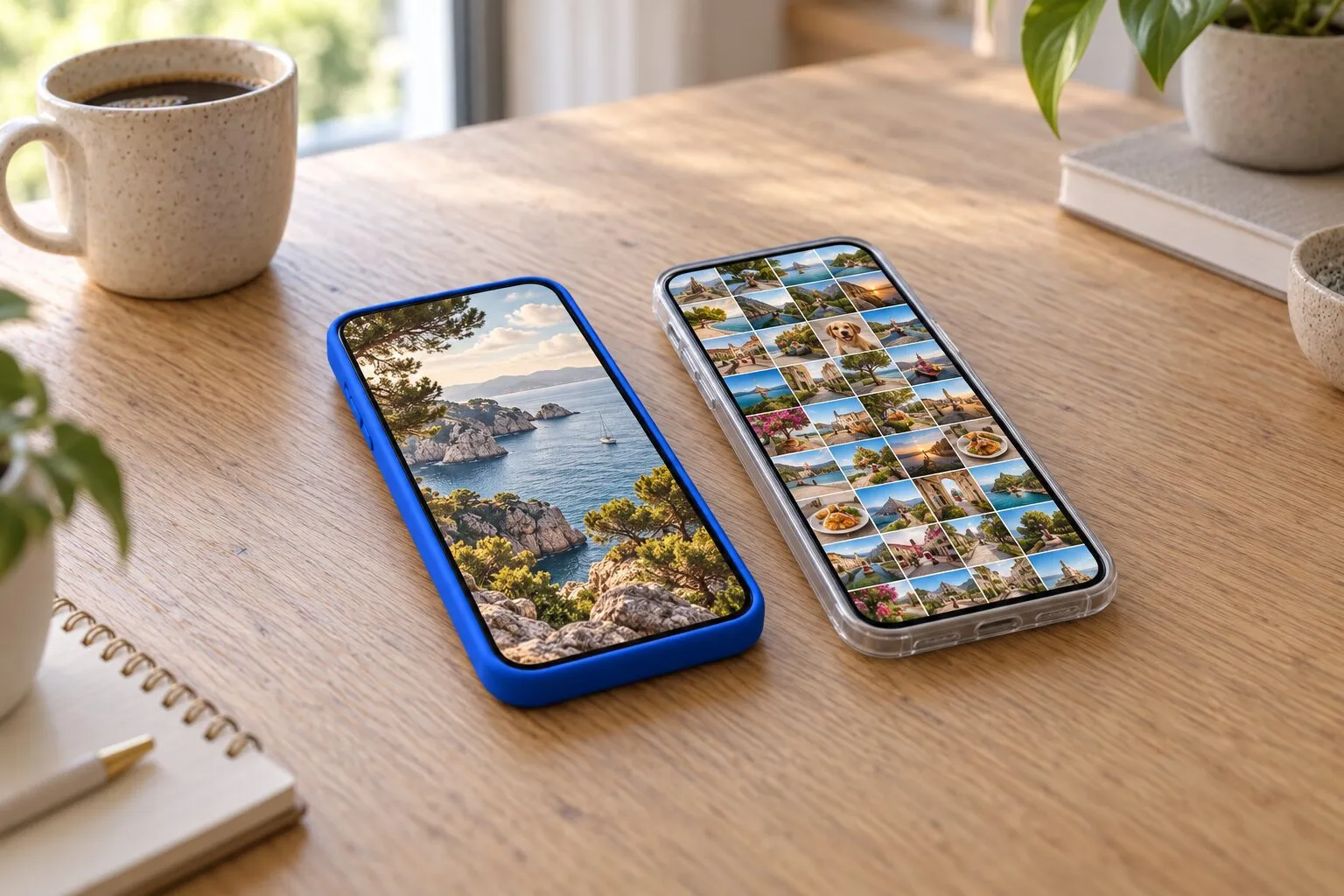
PrunePic vs Apple Photos
For most cleanups, the Photos app is enough: it can delete all your screenshots at once, merge exact duplicates, and show only your videos, for free. A photo cleaner app such as PrunePic helps when you have thousands of photos to go through one by one, because it shows them full screen, remembers where you stopped and lets you file keepers into albums as you go.
| Feature | PrunePic | Apple Photos |
|---|---|---|
| Price | Free with 10 decisions a day; PrunePic Pro (weekly or yearly) removes the limit | Free, built into iOS |
| How you review | One item at a time, full screen: swipe left, up or right | A grid of thumbnails: select, then act on all at once |
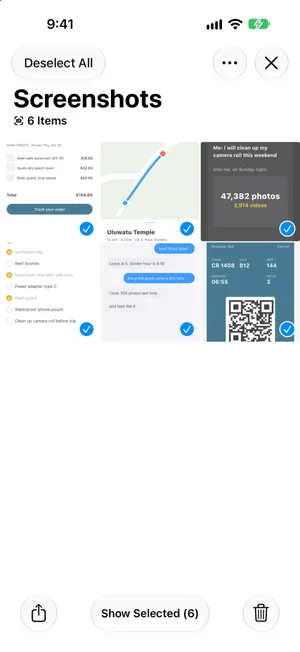
| Delete many at once | No: one swipe per item, then empty the PrunePic Trash in one go | Yes, for example Select All in the Screenshots collection |
| Before anything is deleted | The PrunePic Trash first, then the iOS confirmation and Recently Deleted | The iOS confirmation, then Recently Deleted for 30 days |
| Remembers where you stopped | Yes, reviewed items never come back | No |
| Find big videos | Videos mode, longest first, with the size on every card (Pro) | Lengths in the Videos collection; sizes one video at a time |
| Duplicates | No duplicate finder | Yes: Utilities › Duplicates merges copies |
| Albums | File into Photos albums while you swipe | Albums, folders, keywords and captions |
| Trips and dates | Clean one trip or one date at a time (Pro) | Map, Trips, Recent Days, Years and Months |
| Editing | None | Full editing, video trimming included |
| Privacy | Photos stay on your iPhone; app usage analytics, no photo content | Built in; with iCloud Photos, your library is in iCloud |
PrunePic is our app, so read this with that in mind. We wrote it the way we would want it written: the Photos app is good at cleaning up, it is free, and many people do not need anything else. Here is where each one is better, tested on iOS 27 with the same demo library.
The short version
Use the Photos app when the job is clear-cut and in bulk: delete every screenshot, merge duplicates, remove a handful of long videos, empty Recently Deleted. It is free, it is already on your iPhone, and it can select hundreds of items at once.
Use PrunePic when the job is deciding, photo by photo, across a big library: the camera roll of the last three years, a trip with 400 shots, the videos you are not sure about. Seeing each photo full screen and deciding with one swipe is faster than squinting at a grid, and PrunePic picks up where you stopped.
You can use both: Photos for the bulk jobs, PrunePic for the decisions.
What the Photos app does well
- Bulk deletion. In Collections › Media Types › Screenshots, Select then Select All picks every screenshot in one tap. See how to delete all screenshots on iPhone.
- Duplicates. Utilities › Duplicates finds exact copies and near-exact versions and merges them, keeping the best quality. See how to delete duplicate photos on iPhone.
- Organizing. Albums, folders and, new in iOS 27, keywords. Plus views PrunePic does not have: the Map, Trips, Recent Days, and Years and Months. See how to organize photos on iPhone.
- Editing. Trimming a long video and saving it as a new clip often beats deleting it. PrunePic does not edit.
Where the Photos app gets slow
The Photos app is built for browsing and bulk actions, not for reviewing a backlog one item at a time:
- Decisions on thumbnails. Telling apart five similar shots, or reading a receipt, means opening each one, deciding, then finding your place in the grid again.
- No memory. Select mode forgets everything when you leave. Stop halfway through 3,000 photos and tomorrow you start from the top, with no way to tell what you already checked.
- No ranking of videos by size. The Videos collection sorts by date. Each video’s size is in its own details, one at a time. Finding large videos covers the workarounds.
- Cleaning and filing are separate passes. Deleting the misses and putting the keepers in albums means going through the same photos twice.
What PrunePic does differently
PrunePic shows your library one photo or video at a time, full screen. Swipe left to delete, up to keep, right to favorite or drop it into an album.
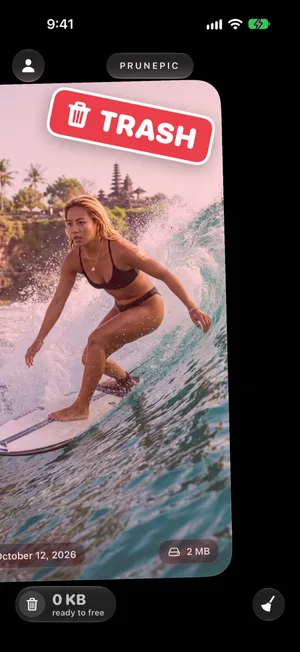
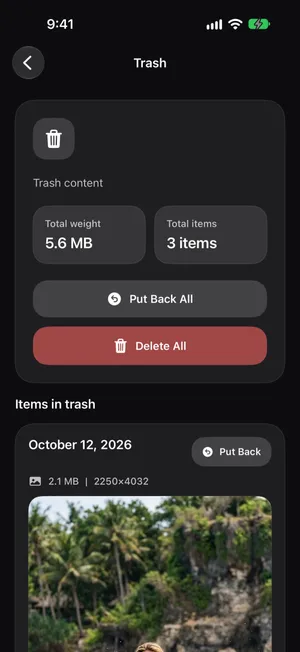
- A trash you check first. Nothing leaves your library on a swipe. The PrunePic Trash shows what you will delete and how much it weighs, and Put Back returns anything.
- It remembers. Every keep and delete is saved, so items you reviewed never come back and you can clean five minutes at a time.
- Focused modes. Cleaning modes line up one kind of clutter: Screenshots, Videos sorted longest first, a single trip, today’s date in past years.
- File while you clean. Drag a keeper right and drop it on a pinned album. Album filing puts it in a regular Photos album.
- The details on the card. Each card shows the date and the file size, and you can choose what the corners show in the card settings.
Pricing
The Photos app is free. PrunePic is a free download: on the free plan you can make 10 decisions a day in the Everything and Random modes, with the trash, Undo, Favorites and widgets included. PrunePic Pro, a weekly or yearly subscription, removes the daily limit and unlocks the Photos, Screenshots, Videos, Batch, On This Day and Trips & Moments modes. The app shows the price for your country before you buy. See Support for plan details.
Privacy
Both work on the same library. PrunePic reads your photos through Apple’s Photos framework, processes them on your iPhone, and never uploads them. Its deletions go through Photos, so they sync to iCloud like any deletion when iCloud Photos is on.
To be precise about the difference: PrunePic records how the app is used, with Firebase Analytics and Mixpanel, and measures which ads bring people to it with the Meta SDK. Those events never include your photos or what is in them. The privacy policy lists them.
The bottom line
If your cleanup is “delete all screenshots and merge duplicates”, the Photos app is all you need. If it is “finally go through years of photos and keep only what matters”, a swipe-based app saves hours. Try the Photos steps first; if you find yourself giving up halfway through the grid, that is when PrunePic is worth it.
Frequently asked questions
Do I need a photo cleaner app for my iPhone?
Not always. The Photos app can delete all your screenshots, merge exact duplicates, list your videos and empty Recently Deleted for free. A cleaner app is worth it when the job is deciding photo by photo across a big library, which is slow in a grid of thumbnails and has to start over each time.
What can Apple Photos do that PrunePic cannot?
Merge duplicates, select and delete hundreds of items at once, edit and trim photos and videos, manage folders, keywords and captions, and browse your library by map, trip, year and month. PrunePic does none of that; it works alongside Photos.
What does PrunePic add to Apple Photos?
A full-screen, one-at-a-time review with a swipe per decision, a trash you check before anything leaves your library, focused modes such as Videos sorted by length, filing into albums while you swipe, and progress that is saved between sessions.
Does PrunePic replace the Photos app?
No. PrunePic works on your Photos library through Apple's Photos framework. Albums it files into are regular Photos albums, and deleted items go to Recently Deleted in the Photos app like any other deletion.
Is it safe to delete photos with a third-party app?
With PrunePic, nothing is deleted on a swipe. Items wait in the PrunePic Trash until you empty it, iOS asks you to confirm, and the Photos app keeps them in Recently Deleted for 30 days, unless your iCloud storage is over its limit.
Keep reading
- FeaturesSwipe to delete photos, one at a timePrunePic shows your iPhone photos and videos one at a time. Swipe left to delete, up to keep, right to favorite. Nothing is gone until you empty the trash.
- FeaturesUndo any swipe before a photo is deletedPrunePic never deletes a photo when you swipe. Undo it, swipe back or Put Back from the PrunePic Trash, then delete the rest in one batch you confirm in iOS.
- FeaturesPhoto cleanup modes for screenshots, videos and tripsClean your iPhone camera roll by category: screenshots, videos longest first, a batch, a trip or today's memories. Photos you reviewed stay out of every mode.
 GuidesHow to delete all screenshots on iPhoneDelete every screenshot at once from the Screenshots collection in Photos, keep the few you still need, and stop them piling up again. Steps for iOS 27.
 GuidesHow to delete duplicate photos on iPhoneMerge duplicates with the built-in Duplicates collection in Photos, then deal with the near-identical shots it skips. Step-by-step for iOS 27.
 GuidesHow to clean up your iPhone photosClean up iPhone photos without burning out: a 10-minute first pass, simple rules for what to keep, a way to never lose your place, and a routine that keeps it clean.