

How to clean up your iPhone photos
Start with the clutter that is easy to judge: screenshots, duplicates and long videos. Then go through the rest in short sessions, always in the same order so you never lose your place. Before you delete much, keep a copy of the photos you care about outside iCloud Photos, which syncs deletions instead of backing them up.
Clean up an iPhone camera roll in short sessions10 minutes
- Keep a copy of what mattersBefore a big cleanup, save the photos you would hate to lose to a computer or an external drive. iCloud Photos is not a backup: a photo deleted on your iPhone is deleted there too.
- Clear the easy clutterIn Photos, open Collections. Delete old screenshots from Media Types › Screenshots, merge copies in Utilities › Duplicates and check Media Types › Videos for long clips.
- Pick one order and keep to itGo through the rest of the library month by month, newest first or oldest first, and note where you stopped.
- Decide quicklyKeep one good photo per moment, delete blurry shots, near-identical takes and screenshots you no longer need. When in doubt, keep it.
- Empty Recently Deleted only when you are sureDeleted photos stay recoverable in Collections › Utilities › Recently Deleted for 30 days and keep using storage until then. If you need the space now and are sure, unlock the album, tap Select, then the More button and Delete All.
Three things to know before you delete anything
With iCloud Photos on, a deletion happens everywhere. Deleting a photo on your iPhone also deletes it from iCloud, your iPad and your Mac. If you want to free space on the phone but keep everything in iCloud, read how to delete photos from iPhone but not iCloud first.
iCloud Photos is not a backup. It keeps the same library everywhere, deletions included, and iCloud Backup does not include photos that are already in iCloud Photos. Before a big cleanup, keep your own copy of the photos you would hate to lose: import them to a computer, or save them to an external drive with Save to Files. The iPhone-but-not-iCloud guide shows both.
Deleted photos wait 30 days in Recently Deleted. You can recover them until then, and they keep using storage. That is your safety net while you clean, and the reason storage does not go down right away. One exception: if your iCloud storage is over its limit, photos and videos you delete are removed immediately. If you delete something by mistake, here is how to recover deleted photos.
- 1You swipe leftThe photo is queued. It is still in your library.
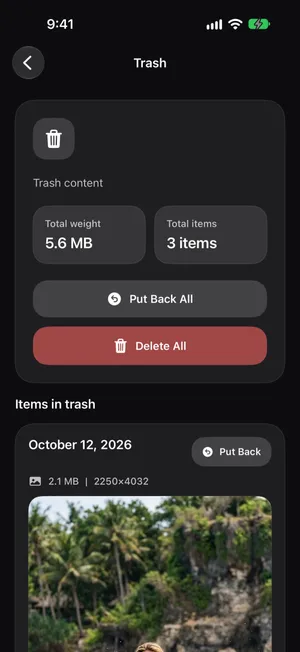
- 2PrunePic TrashPut it back any time. Undo reverses your last swipe.
- 3You empty the trashiOS asks you to confirm the deletion.
- 4Recently DeletedKept in the Photos app for up to 30 days. You can still recover it.
- 5Gone for goodAfter 30 days, or when you delete it from Recently Deleted.
Deleting everything is a different job. If you want an empty library rather than a sorted one, the bulk methods are in how to delete all photos from iPhone. And to size the backlog before you start, see how many photos you have.
Your first session: ten minutes on the easy wins
Start where decisions take no thought. In Photos, open Collections and scroll to Media Types and Utilities: most of the clutter is grouped there for you.
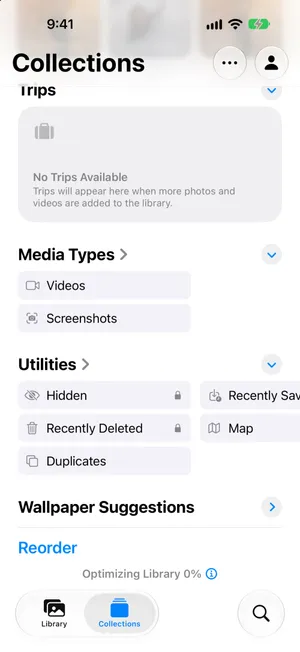
- Screenshots. Open Media Types › Screenshots. Boarding passes, receipts and memes from last year can almost all go. The screenshots guide shows how to select many at once.
- Duplicates. Open Utilities › Duplicates and tap Merge on each set. Photos keeps the best version. The duplicates guide covers the near-identical shots it misses.
- Long videos. Open Media Types › Videos. One minute of 4K video takes as much space as dozens of photos, so a few deletions here free more than an hour of photo sorting. See how to find large videos.
- Empty Recently Deleted, if you need the space now. Open Utilities › Recently Deleted, unlock it, tap Select, then the More button and Delete All. Only then does the space come back, but it also ends your 30 days to change your mind. If you are unsure about anything you deleted, skip this step and let iOS empty it later.
Decide fast: what to keep and what to delete
The rest of the library is photo-by-photo work, and speed comes from rules you do not have to think about:
| Usually delete | Usually keep |
|---|---|
| Near-identical takes, except the sharpest one | One good photo per moment |
| Blurry, dark or accidental shots | People, pets, firsts, places you may not see again |
| Screenshots of things that are done: tickets, codes, directions | Documents you may need again, such as a passport page |
| Photos of a parking spot, a whiteboard or a price tag | Anything you would be upset to lose |
| Memes and images saved from other apps, once shared | Imperfect photos that matter, like the only picture of someone |
When in doubt, keep it. A photo you keep can go next month. A photo you delete is gone 30 days later. And do not organize yet: filing photos you will delete next week is wasted time. The organizing guide is the step after this one.
Work through a big backlog without losing your place
A library of 20,000 photos will not be done in one evening, and trying usually ends with giving up halfway. Short sessions work better, and the numbers are less scary than they look:
| Library size | Total time at 2 seconds a photo | In 10-minute sessions |
|---|---|---|
| 2,000 photos | About 1 hour | 7 sessions |
| 5,000 photos | About 3 hours | 17 sessions |
| 20,000 photos | About 11 hours | 67 sessions |
The real problem is losing your place. The Photos app does not mark which photos you already looked at, so after a few sessions everything blurs together. Two habits fix it:
- Pick one order and keep to it. Newest first keeps today’s clutter under control. Oldest first works through your history once. Switching between them is how you end up reviewing the same photos twice.
- Go month by month. The library is in date order, so work through one month at a time and note the last month you finished, in a note or a reminder. Swipe down on the library and tap Months to jump to one, as in sorting photos by date.
The same method with PrunePic
PrunePic is built for exactly this one-by-one part. It shows one photo at a time, full screen: swipe left to send it to the PrunePic Trash, up to keep it, right to add it to Favorites or an album.


What changes compared with the Photos app:
- Your place is saved. PrunePic records every photo you keep or delete, in every mode. A photo you kept never comes back, so the next session starts with photos you have not seen. When everything has been reviewed, PrunePic says so.
- The order is built in. In the Everything mode, choose newest or oldest first. Because reviewed photos never come back, each session starts at the first photo you have not seen. Random shuffles the whole library when you want variety.
- Nothing is deleted on a swipe. Photos wait in the PrunePic Trash until you empty it, and iOS asks you to confirm.
With PrunePic Pro, Screenshots and Videos modes cover the first session above, with videos sorted longest first. The free plan includes 10 decisions a day: enough to try the method on a few photos a day, while a backlog of thousands needs Pro to go at the pace in the table.
Keep it clean with a small routine
Once the backlog is gone, a few minutes keep it from coming back:
- Every day, a few photos. A small batch is easy to judge. With PrunePic Pro, On This Day serves photos from today’s date in past years, which are also nice to see again.
- After every trip, while it is fresh. You still remember which shots matter. With PrunePic Pro, Trips & Moments groups a trip’s photos together.
- Once a month, screenshots and videos. They pile up fastest and are the quickest to judge.
- Let Recently Deleted empty itself after 30 days, unless you need the space sooner and are sure about everything in it.
Common mistakes
- Trying to finish in one weekend. Ten minutes a day gets further than one exhausting Sunday.
- Deleting without a copy. iCloud Photos mirrors deletions, so keep your own copy of anything precious before a big cleanup.
- Forgetting Recently Deleted, then wondering why storage did not move.
- Deleting on the iPhone to save iCloud space without knowing they are linked. With iCloud Photos on, both go down together. That is fine if it is what you want.
- Organizing before cleaning, and filing photos that will be deleted anyway.
The bottom line
Keep a copy of what matters, clear screenshots, duplicates and long videos first, then go through the rest in short sessions, always in the same order. Keep when in doubt, and empty Recently Deleted only when you are sure and need the space. The Photos app can do all of it. PrunePic makes the one-by-one part faster and remembers where you stopped. PrunePic vs Apple Photos explains when the built-in tools are enough.
Frequently asked questions
How long does it take to clean up 20,000 photos?
At about two seconds a photo, roughly 11 hours in total. In ten-minute daily sessions that is around two months. Clearing screenshots, duplicates and videos in bulk first takes a large share off the top.
Should I start with the oldest or the newest photos?
Newest first if new clutter keeps piling up, because the photos you just took are the easiest to judge. Oldest first if you want to work through your history once and for all. What matters most is keeping the same order every session.
Will cleaning my iPhone camera roll delete photos from iCloud?
Yes, if iCloud Photos is on. Deleting a photo on your iPhone deletes it from iCloud and your other devices too, right away, and it stays recoverable in Recently Deleted for 30 days. To delete only from the phone, see the guide on deleting photos from iPhone but not iCloud.
Should I back up my photos before cleaning up?
Yes, for any photos you would hate to lose. iCloud Photos syncs deletions, so it is not a backup, and iCloud Backup does not include photos that are already in iCloud Photos. Import them to a computer or save them to an external drive before a big cleanup.
How do I know which photos I already reviewed?
The Photos app does not track it, so work month by month and note the last month you finished. PrunePic remembers every photo you kept or deleted, so the next session starts with photos you have not seen.
Do I need an app to clean up my camera roll?
No. The Photos app can do everything in this guide. A swipe app such as PrunePic makes the one-by-one part faster and remembers where you stopped.
Where is the Camera Roll on iPhone?
iOS no longer has an album called Camera Roll. Everything it used to show is in the Library in the Photos app: open Photos and tap Library to see every photo and video you have, in date order.
Keep reading
- FeaturesSwipe to delete photos, one at a timePrunePic shows your iPhone photos and videos one at a time. Swipe left to delete, up to keep, right to favorite. Nothing is gone until you empty the trash.
- FeaturesPhoto cleanup modes for screenshots, videos and tripsClean your iPhone camera roll by category: screenshots, videos longest first, a batch, a trip or today's memories. Photos you reviewed stay out of every mode.
- FeaturesUndo any swipe before a photo is deletedPrunePic never deletes a photo when you swipe. Undo it, swipe back or Put Back from the PrunePic Trash, then delete the rest in one batch you confirm in iOS.
 GuidesHow to organize photos on iPhoneOrganize iPhone photos with albums and folders without creating duplicates, see what Photos already sorts for you, and file a big library in short sessions.
 GuidesHow to delete all screenshots on iPhoneDelete every screenshot at once from the Screenshots collection in Photos, keep the few you still need, and stop them piling up again. Steps for iOS 27.
 GuidesHow to delete photos from iPhone but not iCloudWith iCloud Photos on, a deletion on your iPhone deletes everywhere. Here are the two safe ways to clear photos from your iPhone and keep them in iCloud.