
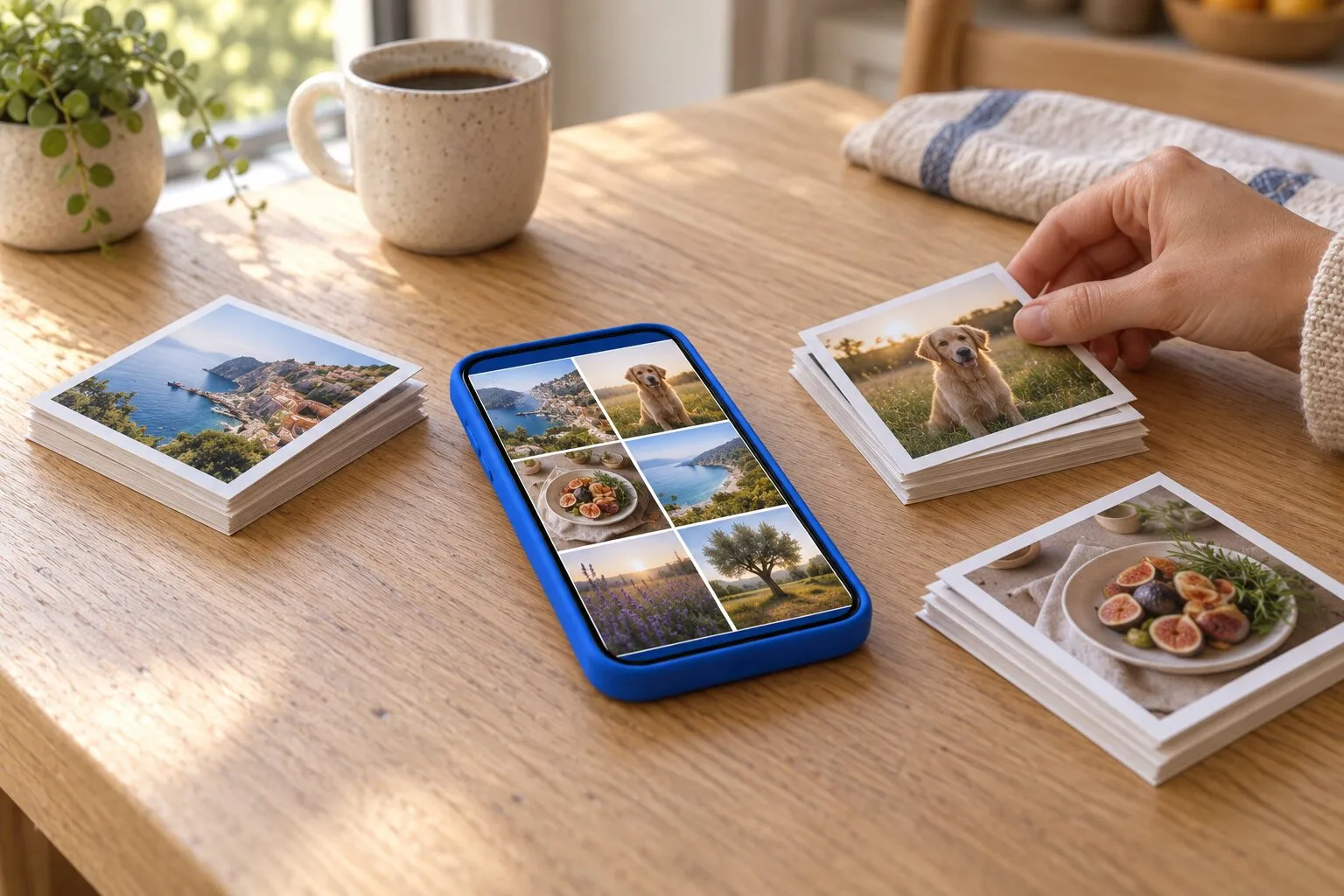
How to organize photos on iPhone
Put photos into albums and group albums into folders. In Photos, open Collections, tap Albums, then tap the add button and choose New Album. An album only points to photos, so the same photo can be in several albums without taking more space. With a big library, delete the clutter first and file what is left a few minutes at a time.
Create an album and add photos to it on iPhone2 minutes
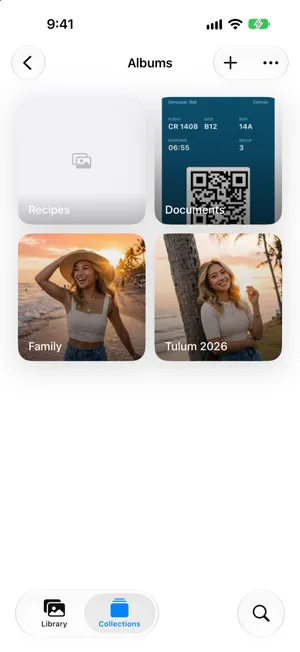
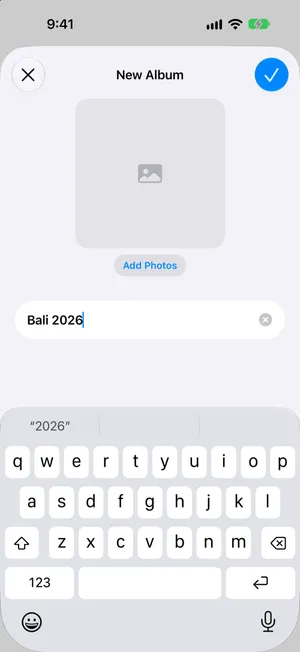
- Create the albumOpen Photos, tap Collections, then tap Albums. Tap the add button, choose New Album and type a name.
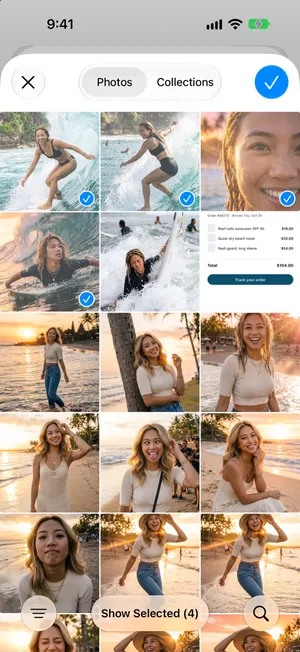
- Pick the photosTap Add Photos, tap the photos you want in the album and tap the checkmark. Tap the checkmark again to create the album.
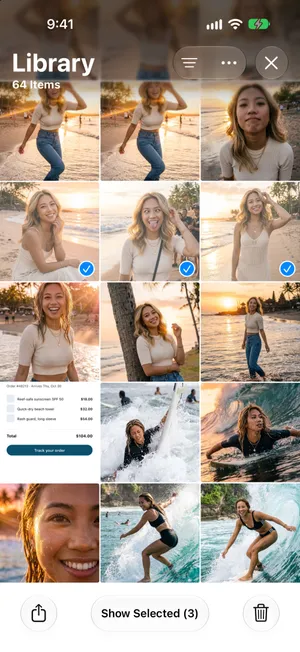
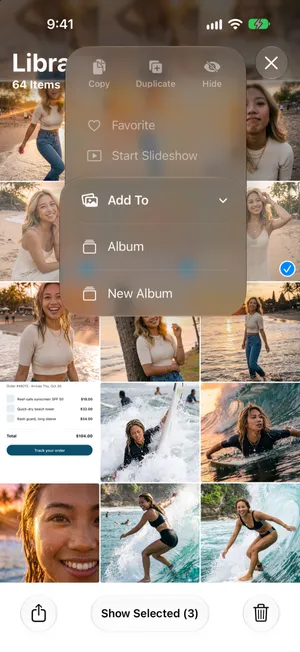
- Add more photos laterIn the library, tap Select and tap the photos. Tap the More button, then Add To, then Album, and choose the album.
Albums are how you organize photos on iPhone
The Photos app keeps every photo and video in one place, your library. Albums are the collections you fill yourself: a trip, a person, recipes, documents you need to keep. Everything else in Photos, such as Recent Days, Trips or the Screenshots collection, is sorted for you. Before you start, it helps to know the size of the job: our guide shows how many photos you have on iPhone.
Create an album
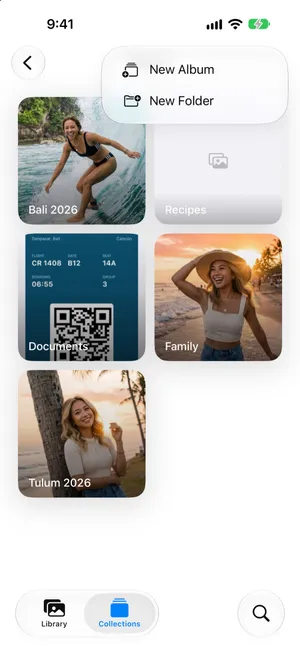
- Open Photos, tap Collections, then tap Albums. Tap the add button at the top right and choose New Album.
- Type a name, then tap Add Photos.
- Tap the photos that belong in it and tap the checkmark. Tap the checkmark again to create the album.
Add photos to an album you already have
- In your library, tap Select and tap the photos.
- Tap the More button at the top, then Add To › Album.
- Choose the album.
Albums point to photos, they do not copy them
This is the part that worries people most, and the answer is reassuring: an album is a list of references to photos in your library. Putting a photo in three albums does not make three copies.
Library
One photo, stored once
- Family
- Summer 2026
- Favorites
- Add to an album: no copy is made and no space is used.
- Remove from an album: the photo stays in your library.
- Delete from the library: the photo disappears from every album.
What that means in practice:
- Organizing never fills your storage. Add photos to as many albums as you like.
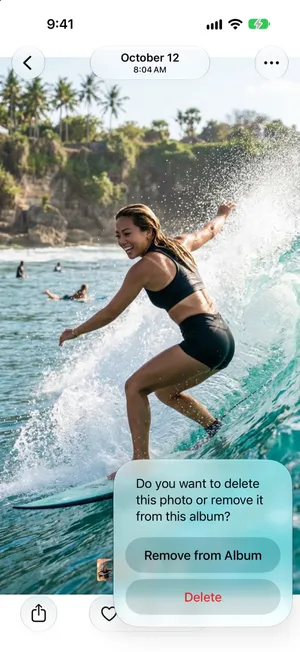
- Removing a photo from an album does not delete it. Inside an album you made, the delete button asks whether to Remove from Album or Delete. Only Delete removes the photo from your library, and so from every album.
- Deleting a photo from the library removes it from every album, and with iCloud Photos from your other devices too.
- Real duplicates come from elsewhere: saving the same picture twice from a chat app, importing a card twice, or the Duplicate command in Photos. The duplicate photos guide shows how to find and merge them.
Folders hold albums, not photos
Once you have more than a dozen albums, folders keep the list short. A folder named Trips can hold an album per trip, and a folder can hold other folders.
Folder
Trips
- AlbumBali 2026
- AlbumTulum 2026
- FolderFamily trips
Library
Every photo, stored once
- A folder holds albums and other folders. You cannot put a photo straight into a folder.
- An album points to photos in your library. The same photo can be in several albums.
- Deleting a folder deletes the albums inside it. The photos stay in your library.
Create a folder
To create one, open Albums, tap the add button and choose New Folder. Type a name, tap Add Albums to move albums you already have into it, then tap the checkmark. Inside a folder, the add button creates new albums right there. To move more albums into a folder later, touch and hold the folder and choose Edit Title and Albums. Be careful with Delete Folder: it also deletes the albums inside, though not their photos.
What Photos already organizes for you
Before you create albums, check what Photos does on its own. You may not need an album for it at all.
| What you want to find | Where Photos already groups it |
|---|---|
| A photo from a given month or year | The library, in date order: swipe down for Years and Months (sort by date) |
| Everyone in your photos, and pets | Collections › People & Pets |
| Holidays and places | Collections › Trips and Map, and search by place name (vacation photos) |
| Screenshots, videos, selfies, Live Photos | Collections › Media Types |
| Receipts, documents, a word in a photo | Search: type what is in the photo, or the text on it |
| Exact copies | Collections › Utilities › Duplicates |
So the iPhone does organize photos automatically, but only into these views. It never files photos into albums you made. Use albums for what Photos cannot know: the people you think of as family, the recipes you want to cook, the photos for a project.
A routine for thousands of photos
Filing a library of 20,000 photos one by one is not realistic, and most of those photos do not deserve an album anyway. This order keeps the work small:
- Delete before you organize. Every photo you delete is one less to file. Start with screenshots (keep the useful ones in an album, as in organizing screenshots), duplicates and long videos. The camera roll cleanup guide has a full method.
- Keep the list of albums short. Five to ten albums you will actually open beat fifty you will not. Name them after what you will look for later: a person, a place, a project.
- Let Photos handle the rest. Dates, places, people and media types are already sorted. Do not rebuild them by hand.
- File in short sessions, newest photos first. New photos then never pile up, and you work back through the backlog when you have a few minutes.
- Pin what you use. Touch and hold an album and tap Pin: it appears under Pinned, near the top of Collections.
How to archive photos on iPhone
Photos has no Archive button. Depending on what you want, archiving means one of three things:
- Out of sight, still on your iPhone. Select the photos, tap the More button, then Hide. They leave the Library and wait in Hidden, under Collections › Utilities, locked with Face ID or your passcode.
- Grouped, still in the Library. Create an album named Archive and add them. An album only points to its photos, so they stay in the Library too.
- Off your iPhone. Copy them to a computer, or to an external drive with Save to Files, check the copy, then delete them from Photos. With iCloud Photos on, deleting also removes them from iCloud, so read how to delete photos from iPhone but not iCloud first.
Organize while you clean, with PrunePic
In Photos, deleting and filing are two separate passes through the same photos. PrunePic does both in one: each photo appears full screen, and one gesture decides where it goes.
- Swipe left to put it in the PrunePic Trash, up to keep it.
- Swipe right and a tray slides in: drop the photo on Favorite, on one of your pinned albums, or on More Albums to choose from all your albums. Until you pin an album, that last button reads Add to Album.
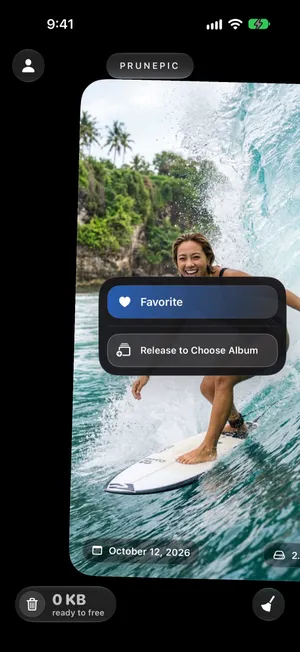
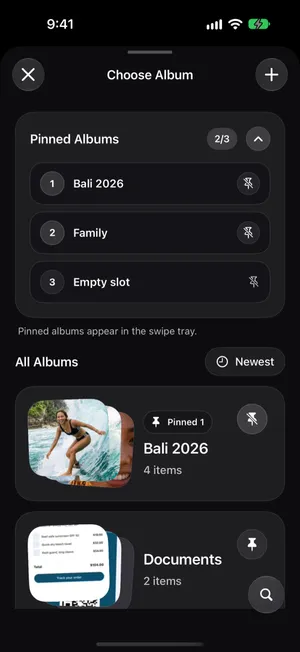
In the Choose Album sheet, the search button finds an album by name, which matters once you have dozens. The add button creates a new album in Photos without leaving the feed, and the pin on an album card puts it in the swipe tray, up to three albums. Filed photos land in regular Photos albums, so they show up in Photos and on your other devices. Album filing covers the details.
After a trip, Trips & Moments, part of PrunePic Pro, shows the photos from one place together. When you finish, PrunePic offers to put everything you kept into a new album named after the trip, in one tap.
Common mistakes
- Duplicating photos to put them in two places. Add the same photo to both albums instead.
- Deleting an album to free space. It frees nothing: the photos stay in the library.
- Tapping Delete inside an album when you only meant Remove from Album.
- Creating an album for everything. If Photos already groups it by date, place or type, you do not need an album for it.
- Organizing before cleaning. Filing photos you will delete next month is wasted time.
The bottom line
Use a few albums for what matters to you, folders once the list gets long, and let Photos sort the rest by date, people and place. Albums never duplicate photos, so organize freely. With a big library, clear the clutter first, then file in short sessions, or swipe through it once with PrunePic and file as you go.
Frequently asked questions
Does adding a photo to an album duplicate it?
No. An album only points to photos in your library. Adding a photo to an album makes no copy and uses no extra space, and the same photo can be in as many albums as you like.
Does deleting an album delete its photos?
No. Deleting an album removes the album only. The photos stay in your library and in any other album they belong to.
Can I organize iPhone photos into folders?
Yes, but folders hold albums, not photos. Create a folder in Photos, then add albums you already have to it or create new ones inside it. You cannot put a photo straight into a folder.
Can the iPhone organize photos automatically?
Partly. Photos groups your library by date, people, places, trips and media types such as screenshots and videos, and you can search for what is in a photo. It never files photos into your own albums: those you fill yourself.
What is the fastest way to organize thousands of photos?
Delete first, then file. Clear screenshots, duplicates and long videos, keep a short list of albums, and file what is left in short sessions, newest photos first so new ones do not pile up.
Where are photos stored on iPhone?
In the Photos library on the iPhone itself: the Library shows every photo and video you have, and albums only point to them. With iCloud Photos on, the same library is kept in iCloud, and with Optimize Storage the iPhone may keep smaller versions while the full-size originals stay in iCloud. Photos do not show up in the Files app unless you save a copy there.
Keep reading
- FeaturesSort photos into albums while you swipePrunePic is a photo organizer for iPhone that files keepers as you clean: swipe right, drop the photo on a pinned album, or search your albums or create a new one.
- FeaturesSwipe to delete photos, one at a timePrunePic shows your iPhone photos and videos one at a time. Swipe left to delete, up to keep, right to favorite. Nothing is gone until you empty the trash.
- FeaturesSort iPhone photos by location, one trip at a timeTrips & Moments sorts your iPhone photos by location and date into trips and moments. Swipe through one at a time and file the best shots in an album.
 GuidesHow to clean up your iPhone photosClean up iPhone photos without burning out: a 10-minute first pass, simple rules for what to keep, a way to never lose your place, and a routine that keeps it clean.
 GuidesHow to delete duplicate photos on iPhoneMerge duplicates with the built-in Duplicates collection in Photos, then deal with the near-identical shots it skips. Step-by-step for iOS 27.
 GuidesHow to delete all screenshots on iPhoneDelete every screenshot at once from the Screenshots collection in Photos, keep the few you still need, and stop them piling up again. Steps for iOS 27.