

My iPhone storage is full and I leave tomorrow
Delete a handful of long videos, then empty Recently Deleted in Photos, because deleted items keep using space for 30 days: that is the fastest way to get several gigabytes back tonight. Then clear the biggest Messages attachments and offload the apps you will not use while you are away. Leave iCloud's Optimize Storage for later; it frees space gradually, not in an evening.
The suitcase is packed, the alarm is set, and the iPhone says Storage Almost Full. You do not need a tidy library tonight. You need enough room for a week of photos and a few videos, and you need it without deleting anything you will regret. Here is the order that gets there fastest, with the steps in the guides linked along the way. Everything is written for iOS 27 and works the same on iOS 26.
The quick answer
Ten minutes, in this order:
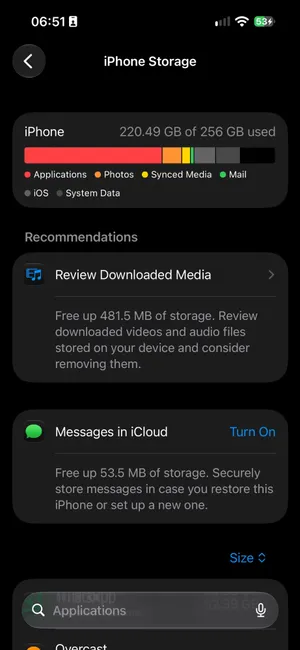
- See what is full. Open Settings, tap General, then iPhone Storage and let the bar load. If Photos is the biggest block, the rest of this page is for you. Our guide to checking iPhone storage explains the screen. Apple’s storage page describes each category.
- Delete five long videos. In Photos, tap Collections, scroll to Media Types and open Videos. The longest clips are usually the biggest; five minutes of 4K is about a gigabyte. Our guide to finding large videos has the ways to spot them, and deleting screen recordings covers the recordings you forgot to stop.
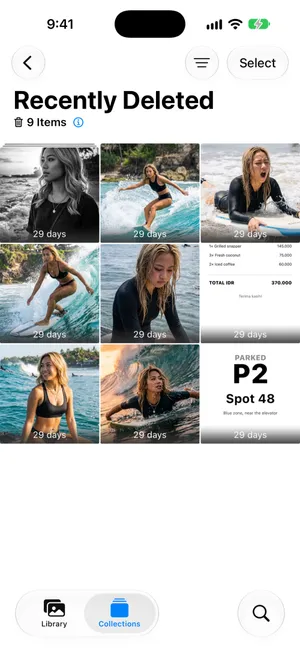
- Empty Recently Deleted. Tap Collections, open Recently Deleted below Utilities, tap View Album and unlock. Tap Select, then the More button, then Delete All. Until you do this, the videos you just deleted still take their space. The steps, with screenshots, are in iPhone storage full.
- Clear one busy group chat. In Messages, open the chat, tap the name at the top, tap Photos, then Edit and Select Photos to delete the attachments in bulk.
- Offload the apps you will not use for a week. In iPhone Storage, tap an app, then Offload App. Its data stays, and one tap reinstalls it when you are back.
- Check again. Back in iPhone Storage, the figures take a moment to settle.
Why this happens the night before
A trip is when the iPhone gets its heaviest use, so the alert tends to arrive just before one. Three things pile up:
- Video. Recent iPhones record with HDR Video on by default and 4K is one tap away: a minute of 4K at 30 fps takes about 190 MB according to the sizes listed in Settings › Camera › Record Video. The last trip’s clips are probably still on the phone.
- Recently Deleted. Everything deleted in the last 30 days is still there, counted against you. This is the most common reason “I deleted photos and nothing changed”, and it is a two-minute fix.
- Downloads for the road. Offline maps, playlists and shows downloaded for the last trip are still cached in their apps. Each app’s row in iPhone Storage shows what it holds.
What it costs you if you ignore it
A full iPhone away from home is more than an alert. The Camera cannot save a photo or video once storage runs out. Boarding passes, tickets and offline maps cannot download. Apps that need to write data slow down or close. And the usual fix, deleting as you go, is slow when you are standing in front of the thing you wanted to photograph.
Freeing space while traveling also has a trap: with iCloud Photos on, a deletion on the iPhone is a deletion in iCloud and on your other devices. Recently Deleted gives you 30 days to change your mind, unless your iCloud storage is over its limit, in which case iOS removes deleted items at once. To keep copies in iCloud while clearing the phone, read how to delete photos from iPhone but not iCloud first. If iCloud is the one that is full, our iCloud storage full guide covers that side.
What not to count on tonight
- Optimize Storage. Turning it on is a good idea, and Apple’s iCloud Photos page explains how it keeps originals in iCloud and smaller versions on the phone. But it frees space gradually, as the phone needs room, and only if your iCloud plan can hold your library. It is the way to keep the phone clear after this trip, not the way to clear it tonight.
- Buying iCloud storage. It adds space in iCloud, not on the iPhone. The phone’s capacity never changes.
- A cleaner app for System Data. No app can clear iOS’s own caches. The space you can recover is almost always in Photos, Messages and app downloads.
For the complete list of what else is worth clearing, see how to free up storage on iPhone.
How PrunePic helps
The built-in steps above get the space back, but the Photos app cannot tell you which videos to delete, and Select mode forgets your place when you leave. PrunePic shows your library one photo or video at a time: swipe left to delete, up to keep, right to favorite.
- Heavy clips first. Videos mode shows only your videos and can sort them longest first, with each clip’s length and file size on the card, and plays a clip full screen before you decide.
- Last trip’s screenshots. Screenshots mode shows only screenshots, so the old boarding passes and confirmation codes go in a few swipes.
- Nothing lost in a hurry. Everything you swipe left waits in the PrunePic Trash, which shows how many items are waiting and how much space they take. Put anything back, then empty it in one go; iOS asks you to confirm and moves the items to Recently Deleted, where you delete them again to get the space tonight.
The free plan gives you 10 decisions a day in the Everything and Random modes; Videos and Screenshots modes are part of PrunePic Pro. Your photos never leave your device.
Checklist for tonight
- Settings › General › iPhone Storage: note what is biggest.
- Photos › Collections › Videos: delete the longest clips you will not watch again.
- Photos › Collections › Recently Deleted: Select, More, Delete All.
- Messages: clear the attachments of one or two busy chats.
- iPhone Storage: offload the apps you will not open this week.
- Check iPhone Storage again; aim for 10 GB free, more if you film in 4K.
- Optional: turn on Optimize Storage (Settings › [your name] › iCloud › Photos, then iPhone Storage on iOS 27) so the phone stays clear after the trip.
- When you are back, file the trip into one album with organize vacation photos.
Video hook
“Leaving tomorrow and your iPhone says storage is full? Delete five videos, then empty Recently Deleted. Here is why that second step is the one everyone misses.”
Frequently asked questions
How much space do I need for a week of photos?
It depends on how much video you shoot. A photo at the default 24 MP setting takes a few megabytes, so a thousand photos is roughly 3 to 4 GB. Video is the variable: Apple's camera settings put a minute of 1080p at 30 fps at about 65 MB and a minute of 4K at 30 fps at about 190 MB, so an hour of 4K is around 11 GB. Aim for 10 GB free before a week away, more if you film a lot.
Should I turn on Optimize Storage the night before I leave?
You can, but do not count on it for tomorrow. With iCloud Photos on and Optimize Storage selected, your iPhone keeps smaller versions of photos and keeps the originals in iCloud, but it swaps them gradually, as the phone needs room, and only if your iCloud plan can hold your whole library. Free the space by hand tonight, and let Optimize Storage keep it clear afterwards.
Will my camera stop working if my iPhone is full on the trip?
When storage runs out, the Camera cannot save new photos or videos, and the Storage Almost Full alert appears before that. Deleting a few long videos and emptying Recently Deleted in Photos gets you going again in a couple of minutes, even without a connection.
If I delete photos while traveling, can I get them back?
For 30 days, from Recently Deleted in Photos. The exception is an iCloud account over its storage limit: then deleted items skip Recently Deleted and are removed at once. If you deleted something you wanted, recover it before you empty Recently Deleted.
Can I move photos off my iPhone before the trip instead of deleting them?
Yes. Import them to a Mac or PC with a cable, check that the import is complete, then delete them from the iPhone. If iCloud Photos is on, deleting on the iPhone deletes from iCloud too, so read our guide to deleting photos from iPhone but not iCloud first.
Keep reading
- FeaturesReview long videos and delete the ones you no longer needPrunePic's video cleaner for iPhone puts your longest clips first, shows each one's length and file size, and lets you watch it full screen before you swipe.
- FeaturesClean up old screenshots without losing the ones you needPrunePic's screenshot cleaner shows only your iPhone screenshots, one at a time. Swipe away the clutter and keep the tickets and receipts you still need.
- FeaturesUndo any swipe before a photo is deletedPrunePic never deletes a photo when you swipe. Undo it, swipe back or Put Back from the PrunePic Trash, then delete the rest in one batch you confirm in iOS.
 GuidesiPhone storage full: what to do right nowiPhone storage full and blocking photos or updates? Get space back in minutes, find out why deleting photos did not help, and stop it filling up again.
 GuidesHow to free up storage on iPhoneFind what fills your iPhone in Settings, then clear the biggest items first: videos, Messages attachments, unused apps and Recently Deleted. Steps for iOS 27.
 GuidesSort iPhone videos by size? How to find the biggest onesThe Photos app cannot sort videos by size. Here is how to find the biggest ones anyway: the Videos collection, the info panel, a shortcut and Files. iOS 27.