
How to check iPhone storage
Open Settings, tap General, then iPhone Storage. The bar at the top shows how much of the iPhone is used and by what: Applications, Photos, Synced Media, Mail, iOS and System Data on our test iPhone. Below it, apps are listed biggest first, and the Photos row shows the space your library takes on this iPhone. iCloud storage is a different number, in Settings under your name.
Check the storage on your iPhone2 minutes
- Open iPhone StorageOpen Settings, tap General, then iPhone Storage. Wait a moment for the bar at the top to finish calculating.
- Read the bar and the listThe bar shows used and free space by category. Below it, apps are listed biggest first with the date you last used them; the Photos row shows what your library takes on this iPhone.
- Check iCloud separatelyOpen Settings, tap your name, then iCloud. The bar there is your iCloud plan, shared by backups, photos and other devices. It is not the same as the space on the iPhone.
Checking the storage takes a few taps. Reading the screen correctly is the useful part: which number is the phone and which is iCloud, what System Data is, why Photos shows what it shows, and why nothing moves right after a cleanup. This guide covers the storage screen on iOS 27, the quick glance in About, the iCloud screen, and how to see the one thing the storage screen never shows: which photos and videos are the heavy ones. The Settings screens were captured on an iPhone with a 69,373-item library; the screens are the same on iOS 26.
Open iPhone Storage in Settings
- Open Settings and tap General.
- Tap iPhone Storage. The bar at the top takes a moment to calculate; wait until it stops changing.
- Read the bar: it shows how much of the iPhone is used, 220.49 GB of 256 GB on our test iPhone, in colored segments for the categories your iPhone has: here Applications, Photos, Synced Media, Mail, iOS and System Data. Other iPhones add Messages or Media when those hold enough to matter.
- Scroll down. Apps are listed biggest first, each with the space it takes and when you last used it. Tap one to see its own size separately from its documents and data, with Offload App and Delete App buttons under it.
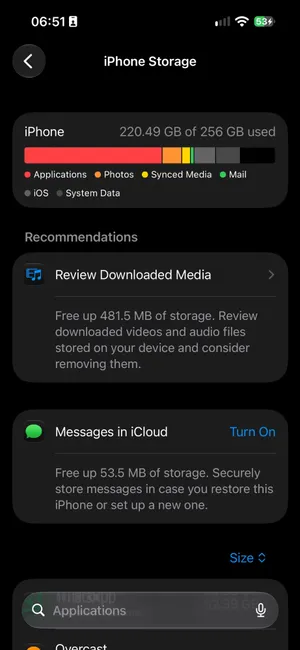
Above the list, iOS makes Recommendations based on what it finds. Our test iPhone got two, Review Downloaded Media, worth 481.5 MB, and Messages in iCloud; others such as Offload Unused Apps and Review Large Attachments appear only when they would free space. Apple’s own guide to checking the storage notes that cached and temporary data may not be counted as usage, which is one reason the segments do not always add up to the total.
What the categories mean
| Category | What it holds | Where to act |
|---|---|---|
| Applications | Each app plus its documents and data | The app list below the bar |
| Photos | Your photo library as stored on this iPhone, Recently Deleted included | The Photos app, or a cleaner app |
| Synced Media | Music, films and other media synced from a computer | Finder or iTunes on the computer |
| Downloaded messages and attachments | Mail accounts in Settings | |
| iOS | The system itself | Nothing to do |
| System Data | Caches, logs, temporary files, Siri voices, fonts | Nothing direct; iOS clears caches when it needs room |
iPhones with large conversations or downloads also show Messages (attachments in conversations) and Media (music and video downloaded from Apple’s apps).
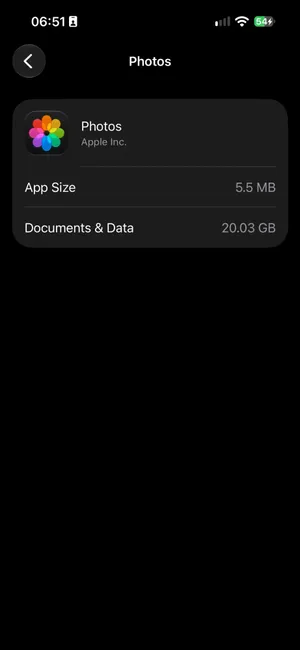
The Photos segment is the one most people are checking for. Tap the Photos row: its screen has two lines, App Size, the app itself at 5.5 MB, and Documents & Data, your library as stored on this iPhone. On our test iPhone that is 20.03 GB for a library of 69,373 photos and videos, and two things explain a figure that small. With iCloud Photos and Optimize Storage on, the iPhone keeps smaller versions of most photos and the full-size originals live in iCloud, so the segment is far smaller than the library. And deleted photos and videos stay in Recently Deleted for 30 days, still counted here, until you delete them there as well.
The quick glance: About
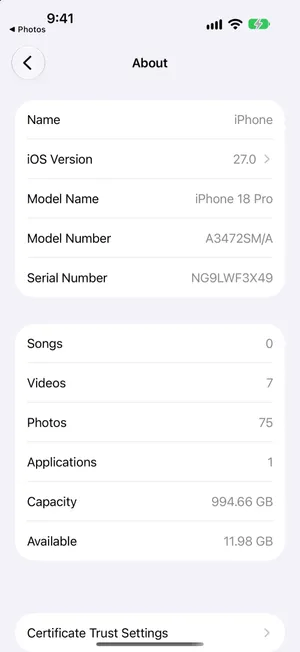
For the total without the breakdown, open Settings > General > About and scroll to the second group. Two rows do the job: Capacity, the size of the model you bought, and Available, the free space right now. The same group counts your Photos and Videos separately, which the Photos app never does. The Available figure can differ slightly from the iPhone Storage screen, because the two are calculated at different times.
iPhone storage is not iCloud storage
A full iPhone and a full iCloud are two different problems, and paying for one does not fix the other. iPhone storage is the space on the phone, fixed by the model. iCloud storage is space in your Apple Account, shared with your backups, iCloud Drive and your other devices. Apple explains the difference in device storage versus iCloud storage.
iPhone storage
Space on the phone itself
- Fixed by the model you bought: 128 GB, 256 GB and up
- Shared by apps, photos, messages and iOS
- Shown in Settings > General > iPhone Storage
iCloud Photos links them
Originals are stored in iCloud. With Optimize Storage, the phone keeps smaller versions and downloads originals when you open them. Deleting a photo removes it from both.
iCloud storage
Space in your Apple Account
- 5 GB free, more with an iCloud+ plan
- Shared by iCloud Photos, backups, iCloud Drive and Mail
- Shown in Settings > your name > iCloud
To check iCloud, open Settings, tap your name, then iCloud. The Storage row at the top shows the bar and the plan, 1.3 of 2 TB on our test iPhone; tap it for the split between Photos, Backups and the rest. Under Saved to iCloud, the Photos tile counts the items iCloud holds, 69,373 here, and the iCloud Backup row shows when this iPhone was last backed up. If that bar is the full one, our guide to a full iCloud storage covers what to do.
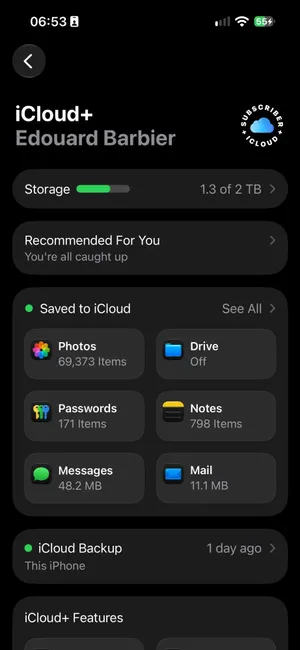
The two meet in one setting. With iCloud Photos on, Optimize Storage (in Settings > [your name] > iCloud > Photos, under iPhone Storage on iOS 27) lets iCloud hold the full-size originals while the iPhone keeps smaller versions, so a bigger iCloud plan can indirectly free space on the phone. It only works as long as the iCloud plan has room for the whole library.
From a Mac or PC
Connect the iPhone with a cable and open a Finder window on the Mac. Click the iPhone in the sidebar: the bar at the bottom of the General tab shows the storage by category, and hovering over a segment names it and gives its size. On Windows, iTunes shows the same bar when the iPhone is selected. It is the same information as the iPhone Storage screen, useful when you are already at the computer.
What the storage screen does not tell you
iPhone Storage says how much space Photos takes. It does not say which photos and videos take it, and the Photos app cannot sort by file size either. Our guide to finding large videos shows the ways around that in Photos; for the general plan once you know the numbers, see how to free up storage on iPhone, and if the bar is already red, iPhone storage full is the ten-minute version.
See the size of every photo and video with PrunePic
PrunePic shows each photo and video full screen with its file size on the card, and anything of 50 MB or more gets a badge, so you see what each item costs before you decide. The Videos mode plays your clips longest first, which is where the gigabytes usually are, and the card layout settings let you show the date, resolution or size on every card.
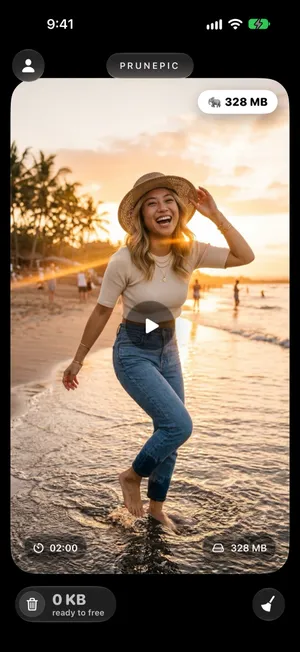

Swipe left to send an item to the PrunePic Trash, up to keep it, right to add it to Favorites or an album. The trash shows the total size waiting in it, and the cleanup insights total the size of everything you deleted, which is the file size your library reports, not a reading of the free space in Settings: the two differ while Recently Deleted holds the items. Your photos never leave your device.
Common mistakes
- Reading the iCloud bar as the iPhone’s. Settings > [your name] > iCloud is your plan in the cloud; Settings > General > iPhone Storage is the phone.
- Judging a cleanup too soon. The storage screen recalculates slowly, and Recently Deleted keeps the space for 30 days.
- Chasing System Data. It shrinks on its own or after a restart; photos, videos and Messages are where the recoverable space is.
- Buying iCloud space to fix a full iPhone. It only helps with iCloud Photos and Optimize Storage on, and gradually.
The bottom line
Settings > General > iPhone Storage is the screen: the bar, then the apps biggest first, with Photos as its own row. About gives the total in a glance, and the iCloud screen under your name is a different space altogether. The screen tells you how much Photos takes, never which photos; for that, the Photos app’s info panel works one item at a time, and PrunePic puts the size on every card.
Frequently asked questions
Where is storage in iPhone settings?
Settings > General > iPhone Storage. For a quick glance at the total, Settings > General > About lists Capacity and Available, along with how many photos and videos you have. iCloud storage is somewhere else: Settings > [your name] > iCloud.
What is System Data and can I delete it?
System Data is caches, logs, temporary files and other things iOS manages itself, such as Siri voices and downloaded fonts. There is no delete button for it. iOS clears cached files on its own when space runs low, and a restart often shrinks it. Photos, videos and Messages are almost always where the space you can actually recover is.
Why does iPhone Storage not change after I delete photos?
Two reasons. Deleted photos and videos stay in Recently Deleted for 30 days and keep using space until you delete them there too. And the figures on the iPhone Storage screen are calculated, not live: give it a few minutes, or restart the iPhone, before deciding nothing changed.
Is iCloud storage the same as iPhone storage?
No. iPhone storage is the space on the phone itself, fixed by the model you bought. iCloud storage is space in your Apple Account, shared with your backups, iCloud Drive and your other devices. Buying more iCloud storage does not add space to the iPhone, although with iCloud Photos and Optimize Storage on, iCloud can hold your full-size originals so the iPhone keeps smaller versions.
How do I check iPhone storage from a Mac?
Connect the iPhone with a cable and open a Finder window. Click the iPhone in the sidebar; the bar at the bottom of the General tab shows the storage by category, and hovering over a segment names it. iTunes on Windows shows the same bar.
How much free space should I keep on an iPhone?
Apple does not publish a number, but iOS updates need several gigabytes to download and install, and the camera, apps and iOS itself slow down or fail when the iPhone is nearly full. Keeping a few gigabytes free is a sensible rule.
Keep reading
- FeaturesTrack your photo cleanup progressSee how many photos and videos you deleted with PrunePic and their total file size, with charts by media type, live library counts and 20 cleanup badges.
- FeaturesReview long videos and delete the ones you no longer needPrunePic's video cleaner for iPhone puts your longest clips first, shows each one's length and file size, and lets you watch it full screen before you swipe.
- FeaturesChoose what each photo card shows while you cleanPrunePic shows the date and file size on every photo card, and the length on videos. Pick other details for each corner, separately for photos and videos.
 GuidesiPhone storage full: what to do right nowiPhone storage full and blocking photos or updates? Get space back in minutes, find out why deleting photos did not help, and stop it filling up again.
 GuidesHow to free up storage on iPhoneFind what fills your iPhone in Settings, then clear the biggest items first: videos, Messages attachments, unused apps and Recently Deleted. Steps for iOS 27.
 GuidesiCloud storage full? How to free up spaceSee what fills your iCloud, delete old backups, shrink your photo library and clean Messages and Mail before upgrading. Steps for iPhone with iOS 27.