
How to delete screen recordings on iPhone
Open Photos, tap Collections, scroll to Media Types and tap Screen Recordings. Tap Select, then the recordings you want to delete, or Select All. Tap the trash button and confirm. The recordings move to Recently Deleted for 30 days, so delete them there too to get the space back right away.
Delete screen recordings with the Photos app3 minutes
- Open Screen RecordingsOpen Photos, tap Collections, scroll to Media Types and tap Screen Recordings.
- Select the recordingsTap Select, then tap each recording to delete, or tap Select All.
- Delete themTap the trash button, then confirm with Delete, for example Delete 3 Videos.
- Empty them from Recently DeletedIn Collections, open Recently Deleted under Utilities, tap View Album and unlock it. Tap Select, choose the recordings, then tap the More button and Delete.
A screen recording is easy to start and easy to forget. One you meant for a few seconds can run for ten minutes, and the ones you made to show someone a bug or a route stay in your library long after you shared them. Here is how to find them all and delete them in the Photos app, tested on iOS 27. The steps are the same on iOS 26.
Find every screen recording
iOS saves screen recordings in the Photos app, mixed with your other videos. Photos also gives them their own collection:
- Open Photos and tap Collections.
- Scroll to Media Types and tap Screen Recordings.
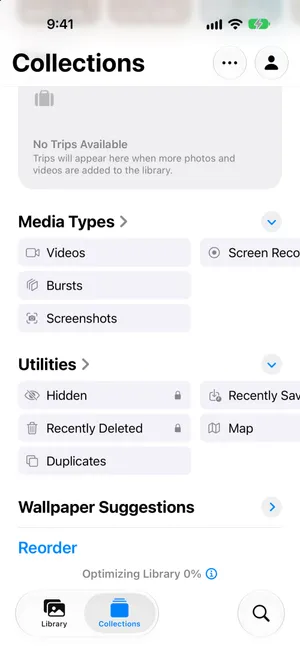
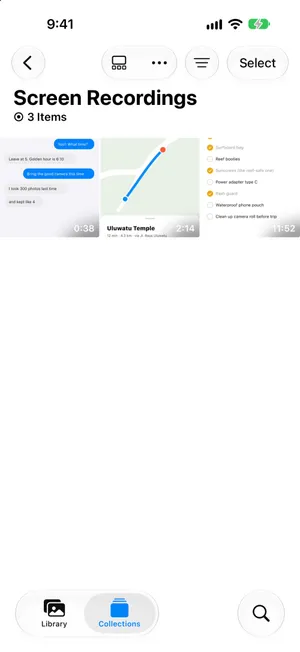
The collection only appears when your library holds at least one recording. Each thumbnail shows its length, which is the quickest clue to which ones take the most space. Recordings are videos, so they also show up in the Videos collection and in your library.
Check how much space a recording takes
Open a recording, then swipe up or tap the info button. The details say Screen Recording, and list its resolution, file size, frame rate and length.
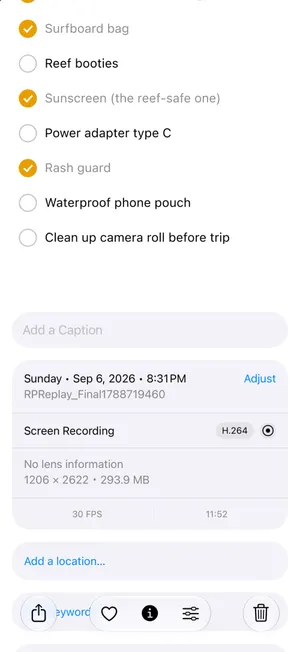
The one above ran for almost 12 minutes, recording a packing list nobody was looking at. That is the kind of recording to look for: long, and with nothing in it you need.
Delete some or all of them
- In Screen Recordings, tap Select.
- Tap each recording you want to delete, or tap Select All at the top left.
- Tap the trash button at the bottom right.
- Confirm with the red button, which counts what you picked, for example Delete 3 Videos.
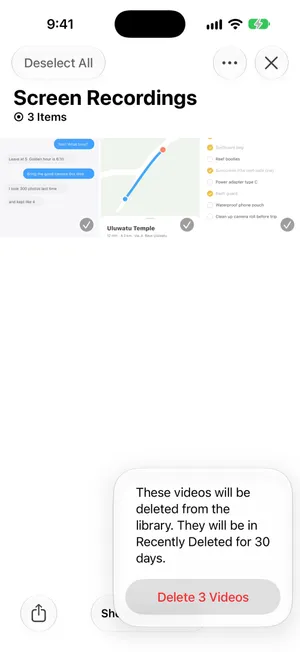
To delete a single recording, you can also open it and tap the trash button, or touch and hold its thumbnail and tap Delete.
Free the space: empty Recently Deleted
Deleting a recording does not free its space yet. Photos keeps it in Recently Deleted for 30 days in case you change your mind, and it still counts against your storage there.
- Tap Collections, scroll to Utilities and tap Recently Deleted.
- Tap View Album and unlock it with Face ID or your passcode.
- Tap Select, pick the recordings, then tap the More button and Delete.
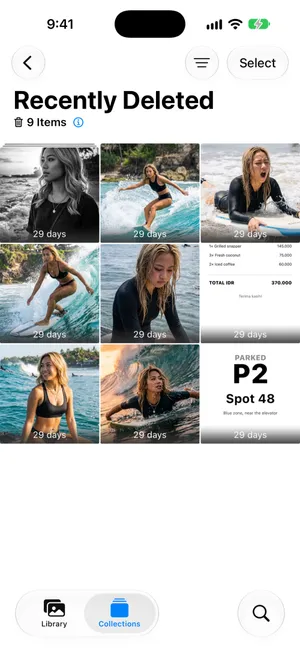
With iCloud Photos on, the recordings are also deleted from iCloud and your other devices, which frees iCloud storage as well.
Keep the useful part of a recording
Some recordings hold a few seconds you need: a step in an app, a route, a moment in a video call. Keep those seconds and delete the rest:
- Trim it. Open the recording, tap the edit button, drag the ends of the frame viewer to the part you need, tap the checkmark and choose Save Video as New Clip. Then delete the long original. A plain Save Video keeps the full recording so the trim can be undone, so it frees little or nothing.
- Keep a still. If one frame is enough, such as a code or an address, pause on it, tap the More button and choose Save Video Frame as Photo, new in iOS 27. On iOS 26, take a screenshot instead.
The steps are the same as for any long video. Our guide to finding large videos on iPhone shows the trim screen.
Why recordings pile up, and how to stop them
- A recording you forgot to stop. While one runs, a red indicator shows at the top of the screen. On an iPhone with the Dynamic Island, tap the red circle, then the stop button. On other models, tap the red timer at the top left and tap Stop.
- Recordings you shared and no longer need. Once you have sent a recording to someone, it usually has no reason to stay in your library.
- Recordings that started by mistake from the Screen Recording control in Control Center. If that happens often, open Control Center and tap the add button at the top left to move the control or remove it.
There is no setting that deletes screen recordings automatically, so a quick look at the Screen Recordings collection once a month keeps them from piling up.
Find long recordings with PrunePic
PrunePic has no separate filter for screen recordings. Its Videos mode shows them together with your other videos, and Longest first puts the forgotten ten-minute recording at the top, where you will see it first.
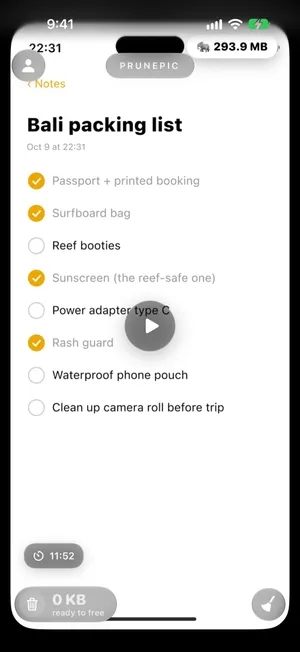
Each card shows the length and the file size, and anything of 50 MB or more gets a large-file badge. You can choose other details for the corners in the card settings. Tap play to check what a recording holds, then swipe left to send it to the PrunePic Trash, or up to keep it. Nothing is deleted until you empty that trash, and iOS then keeps the items in Recently Deleted for 30 days.
Videos mode is part of PrunePic Pro. Your photos and videos never leave your device.
Common mistakes
- Stopping at Recently Deleted. The space only comes back once you delete the recordings there too, or after 30 days.
- Select All without a look. A recording of a bug report or a booking confirmation may still matter. Check the short ones before you delete them all.
- Trimming without a new clip. Save Video keeps the full recording, so it takes the same space.
- Forgetting other videos. Screen recordings are rarely the only large items. See how to free up storage on iPhone for the rest, and how to delete all screenshots for their still cousins.
The bottom line
Open Photos › Collections › Media Types › Screen Recordings, check the long ones in the details, select what you no longer need and delete it. Then empty Recently Deleted to get the space back. Keep the few seconds that matter with Save Video as New Clip before you let the rest go.
Frequently asked questions
Where are screen recordings saved on iPhone?
In the Photos app, with your other photos and videos. To see only them, open Photos, tap Collections, scroll to Media Types and tap Screen Recordings.
Why don't I see Screen Recordings in Photos?
The Screen Recordings collection only appears under Media Types when your library holds at least one recording. If it is missing, your library has no screen recordings: iOS saves every recording to Photos.
Do screen recordings take up a lot of storage?
They can. A screen recording is a video at your screen's resolution, and it keeps growing for as long as it runs. Open a recording and swipe up to see its exact size and length in the details.
Does deleting a screen recording delete it from iCloud?
Yes, if iCloud Photos is on. The recording is deleted from iCloud and your other devices at the same time. It stays recoverable in Recently Deleted for 30 days, unless your iCloud storage is over its limit, in which case iOS removes it immediately.
How do I get back a screen recording I deleted?
Open Photos, tap Collections, then Recently Deleted under Utilities, and unlock it. Tap Select, choose the recording, then tap the More button and Recover. After 30 days, or once you delete it from Recently Deleted, it is gone for good.
Can I keep only part of a screen recording?
Yes. Open it, tap the edit button, drag the ends of the frame viewer to the part you need and tap the checkmark. Choose Save Video as New Clip, then delete the long original.
How do I stop a screen recording on iPhone?
On an iPhone with the Dynamic Island, tap the red circle at the top of the screen, then tap the stop button. On other models, tap the red timer at the top left and tap Stop. The recording is saved to Photos.
Keep reading
- FeaturesReview long videos and delete the ones you no longer needPrunePic's video cleaner for iPhone puts your longest clips first, shows each one's length and file size, and lets you watch it full screen before you swipe.
- FeaturesUndo any swipe before a photo is deletedPrunePic never deletes a photo when you swipe. Undo it, swipe back or Put Back from the PrunePic Trash, then delete the rest in one batch you confirm in iOS.
- FeaturesChoose what each photo card shows while you cleanPrunePic shows the date and file size on every photo card, and the length on videos. Pick other details for each corner, separately for photos and videos.
 GuidesSort iPhone videos by size? How to find the biggest onesThe Photos app cannot sort videos by size. Here is how to find the biggest ones anyway: the Videos collection, the info panel, a shortcut and Files. iOS 27.
 GuidesHow to delete all screenshots on iPhoneDelete every screenshot at once from the Screenshots collection in Photos, keep the few you still need, and stop them piling up again. Steps for iOS 27.
 GuidesHow to free up storage on iPhoneFind what fills your iPhone in Settings, then clear the biggest items first: videos, Messages attachments, unused apps and Recently Deleted. Steps for iOS 27.