
How to organize vacation photos on iPhone
Find the trip's photos, delete the misses, and put what is left in one album named after the trip. In Photos, the Map in Collections gathers photos by place: tap the trip's location, tap Select, select the photos, then More › Add To › New Album. Do it in the week after you get home, while you still remember which shots matter.
Put a trip's photos into one album on iPhone15 minutes
- Find the trip's photosOpen Photos, tap Collections and open Map, in Pinned at the top or under Utilities. Zoom to where you traveled and tap a group of photos to see them all.
- Clear the misses firstDelete the blurry shots, near-identical takes and screenshots you no longer need, so the album only holds keepers.
- Select the keepersTap Select, then tap the photos to keep, or Select All.
- Create the trip albumTap the More button, then Add To and New Album. Name it after the trip, such as Bali 2026, and tap the checkmark.
- Add the rest of the tripFor photos taken elsewhere on the trip, open Recent Days or the Map again, select them and use Add To › Album to add them to the same album.
A trip leaves a few hundred photos in your library: the twenty you will show people, and everything around them. Two weeks later they have sunk under new photos, and the good ones are hard to find. The fix is a small routine you do once, right after you get home. We tested it on iOS 27 with a two-day surf trip to Bali from the demo library we use for every guide. The steps are the same on iOS 26.
Where your trip photos already are
Before you organize anything, know where Photos has put them. Each view answers a different question.
| View | Where | What it shows |
|---|---|---|
| Map | Collections › Map | Photos grouped by the place they were taken |
| Recent Days | Collections › Recent Days | One card per day for the last few days |
| Trips | Collections › Trips | Trips Photos detected, grouped by year |
| Search | The search button | Type the place name, such as Bali |
| Library | Library | Everything, in date order |
All of them except Recent Days and the library rely on the location saved in each photo. Your iPhone saves it when Location Services is on for the Camera. Screenshots and many images saved from other apps have none, so they never appear on the map or in Trips. Trips also depends on Photos analyzing your library in the background, so a recent trip can take a while to show up there.
Gather the trip with the Map
The Map is the most reliable way to pull one trip together, because it only needs the location.
- Open Photos and tap Collections. Tap Map, in Pinned at the top or under Utilities.
- Zoom to where you traveled. The photos appear as stacks with a count.
- Tap a stack. Photos opens Places with every photo taken around that spot.

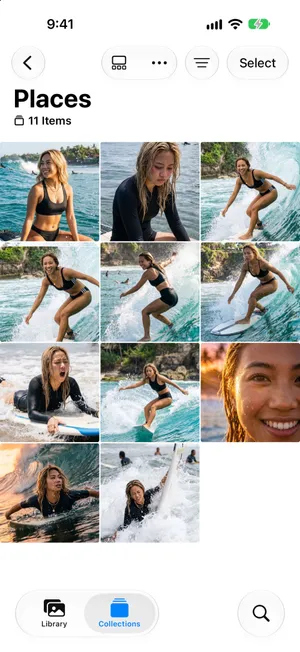
A trip with several stops shows several stacks. Handle them one after the other, adding each to the same album, as below.
For the last few days, Recent Days is even quicker: each card is one day. Open a day to see all its photos, and use Select the same way. The More button in a day also offers Show Map.

Clear the misses before you file
Every photo you delete now is one you do not have to scroll past for years. A vacation produces the same kinds of clutter every time:
- Near-identical shots. Ten takes of the same pose. Keep the sharpest, with everyone’s eyes open.
- Bursts. One thumbnail hides dozens of frames. Delete burst photos shows how to keep only the best frame.
- Screenshots of boarding passes, hotel bookings and maps. Useful during the trip, clutter after. Organize screenshots covers the few worth keeping.
- Long videos you will never watch again. Trim them to the best part. Find large videos explains how.
Do this before you create the album. Deleting a photo also removes it from every album, so cleaning first keeps the album right the first time.
Create one album for the trip
With the misses gone, put the keepers in an album named after the trip.
- In Places or a day from Recent Days, tap Select, then tap the photos to keep, or Select All.
- Tap the More button at the top, then Add To › New Album.
- Name the album after the place and the year, such as Bali 2026, and tap the checkmark.


For the other stops of the trip, select their photos and choose Add To › Album, then pick the same album. The album only points to the photos, so it uses no extra space, and the photos stay in your library and on the map.
Once you have several trips, put their albums in a Trips folder. The guide to organizing photos on iPhone shows how folders work.
When photos have no location
Photos that have no saved location are missing from the map and from Trips, but you can add one:
- In the library, tap Select and select the photos.
- Tap the More button, then Adjust Info › Adjust Location.
- Type the place and pick it from the list.
The same menu has Adjust Date & Time, for photos from a camera whose clock was set to home time. Sorting photos by date explains when that matters.
Clean up the whole trip in one sitting with PrunePic
Clearing the misses means looking at every photo of the trip. PrunePic’s Trips & Moments mode does the gathering for you, from the same saved locations: it lists your trips, and each one opens as a feed of only that trip’s photos, one at a time.
- Swipe left on the misses. They wait in the PrunePic Trash until you empty it.
- Swipe up to keep a photo, right to favorite it or drop it into an album.
- A pill at the top counts down what is left, and you can stop and come back later.

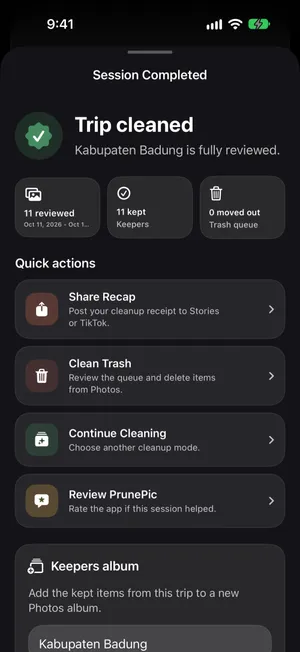
When the last photo is done, Trip cleaned offers a Keepers album: change the name to something like Bali 2026 and tap Create Album. Everything you kept goes into a regular Photos album. Trips & Moments is part of PrunePic Pro. PrunePic never asks for your location, it reads what is saved in the photos, and your photos never leave your iPhone.
Common mistakes
- Waiting months. The sooner you sort a trip, the easier it is to remember which shots matter.
- Filing before deleting. You end up cleaning the album too.
- One album per day. One per trip is enough. Recent Days and the library already sort by day.
- Duplicating photos into several albums. Add the same photo to two albums instead. It takes no extra space.
The bottom line
After each trip: gather its photos with the Map or Recent Days, delete the misses, and save the keepers in one album named after the place and year. It takes fifteen minutes, and the trip stays one tap away for good.
Frequently asked questions
What is the best way to organize vacation photos?
One album per trip, filled right after you get home. Delete the misses first, then add the keepers to an album named after the place and year, such as Bali 2026. Group trip albums in a Trips folder once you have several.
Does the iPhone group vacation photos automatically?
Partly. Photos groups trips under Collections › Trips, and its Map shows photos by place, based on the location saved in each photo. It does not create albums for you: the album is the one place you choose what to keep.
Why are some trip photos missing from the map or from Trips?
They have no saved location. Screenshots, many images saved from apps, and photos taken with location access off for the Camera have none. Select them, tap the More button, then Adjust Info › Adjust Location to add the place.
Should I delete photos before or after making the album?
Before. Deleting the misses first means the album only holds the photos worth keeping, and you do not have to clean the album later. Deleting a photo from the library also removes it from every album.
Does putting trip photos in an album use more storage?
No. An album points to photos in your library, it does not copy them. The same photo can be in a trip album and in Favorites without taking extra space.
How do I organize vacation photos from several people?
Once friends' photos are in your library, add them to the same trip album, like your own. With iCloud, a shared album lets everyone add their photos to one place.
Keep reading
- FeaturesSort iPhone photos by location, one trip at a timeTrips & Moments sorts your iPhone photos by location and date into trips and moments. Swipe through one at a time and file the best shots in an album.
- FeaturesSort photos into albums while you swipePrunePic is a photo organizer for iPhone that files keepers as you clean: swipe right, drop the photo on a pinned album, or search your albums or create a new one.
- FeaturesSwipe to delete photos, one at a timePrunePic shows your iPhone photos and videos one at a time. Swipe left to delete, up to keep, right to favorite. Nothing is gone until you empty the trash.
 GuidesHow to organize photos on iPhoneOrganize iPhone photos with albums and folders without creating duplicates, see what Photos already sorts for you, and file a big library in short sessions.
 GuidesHow to delete burst photos on iPhoneFind every burst in the Bursts collection, keep only the frames you like and send the rest to Recently Deleted. Step-by-step for the Photos app in iOS 27.
 GuidesHow to sort iPhone photos by dateSort your iPhone library by the date photos were taken or added, browse by year and month, and fix photos that show the wrong date. Tested on iOS 27.