
How to organize screenshots on iPhone
Photos already collects every screenshot in Collections › Media Types › Screenshots. To keep the useful ones findable, put them in an album such as Receipts and Tickets, and in iOS 27 add a keyword or a caption so Search finds them. To stop screenshots crowding your library, turn them off under View Options › Show. Then delete the rest.
Organize the screenshots you want to keep10 minutes
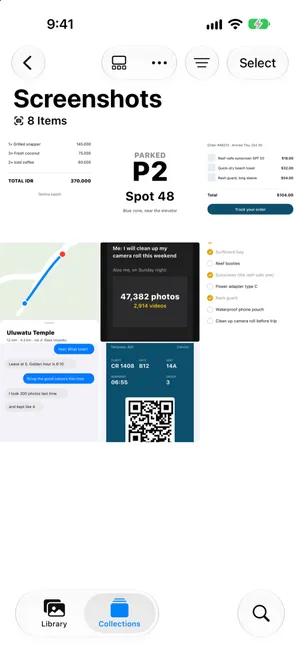
- Open your screenshotsOpen Photos, tap Collections, scroll to Media Types and tap Screenshots.
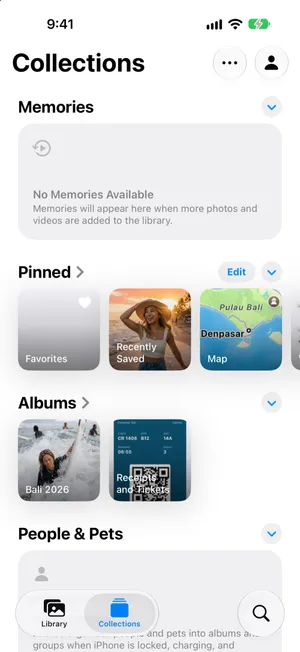
- File the keepers in an albumTap Select, tap the screenshots to keep, then tap the More button, Add To, and Album or New Album. For example, create an album named Receipts and Tickets.
- Add keywordsOpen a screenshot, swipe up and tap Add Keywords. Type a word such as tickets and tap the checkmark. Keywords and captions make the screenshot easy to find in Search.
- Hide screenshots from the libraryIn Library, tap the sort button, then View Options, and tap Screenshots under Show to remove the checkmark. They stay in the Screenshots collection and in your albums.
Screenshots are the iPhone’s notepad: a boarding pass, a receipt, a parking spot, an address someone sent. A few stay useful for months. Most are useless a day later, and they bury the ones you need. This guide is about keeping the good ones organized. If you want to clear them all out instead, see how to delete all screenshots on iPhone. Tested on iOS 27; the album steps are the same on iOS 26, and keywords are new in iOS 27.
Where your screenshots already are
You do not need to gather screenshots: Photos does it for you. Open Photos, tap Collections, scroll to Media Types and tap Screenshots. Every image your iPhone marked as a screenshot is there, newest first, and it stays in the main library too.
On an iPhone that has analyzed your library, Utilities in Collections also groups some screenshots by what is in them, such as Receipts, QR Codes and Documents. Those are a good first stop when you are looking for one specific kind.
Decide what to keep
Before you organize anything, sort the keepers from the clutter. A quick test: will you need this screenshot again, and is it saved anywhere else?
| Keep | Let go |
|---|---|
| Tickets, boarding passes and QR codes for upcoming trips or events | Codes and passes that have expired |
| Receipts and warranties you may need to claim | Order confirmations once the parcel arrived |
| Addresses, instructions and notes you have not saved elsewhere | Directions to places you already went |
| Conversations or confirmations you may need as proof | Memes, jokes and things you already shared |
If the information belongs in another app, move it there and let the screenshot go: an address in Contacts or Maps, a recipe or a list in Notes, a document in Files.
File the keepers in an album
An album turns a pile of screenshots into a short list you can open in a second. One or two are enough, for example Receipts and Tickets and Travel.
- In Screenshots, tap Select and tap the screenshots you want to keep together.
- Tap the More button at the top, then Add To.
- Tap New Album and name it, or Album to add them to one you already have.
The album appears under Albums in Collections. Adding a screenshot to an album makes no copy, so it costs no space. The guide to organizing photos on iPhone explains why.
Add keywords and captions (iOS 27)
iOS 27 lets you tag any photo or screenshot with keywords, which is handy for screenshots you want to find by topic rather than by album.
- Open the screenshot and swipe up, or tap the info button.
- Tap Add a Caption and describe it in a few words, such as “Boarding pass for the Bali flight”.
- Tap Add Keywords, type a word such as tickets, then tap the return key to add another. Tap the checkmark to save.
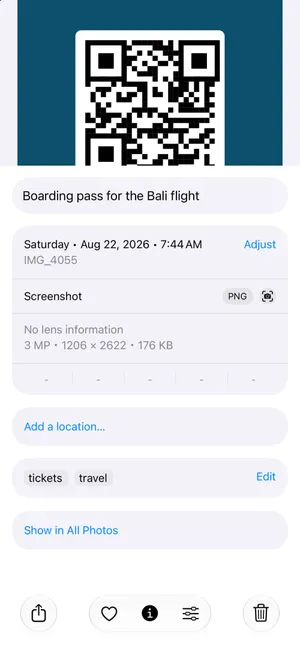
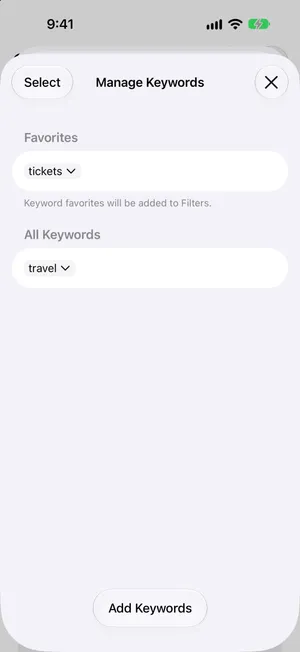
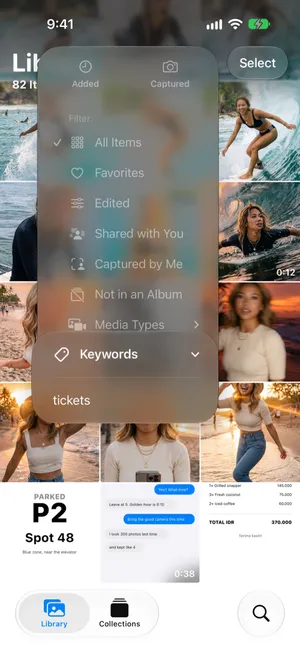
Captions and keywords are what you type in Search later. To use a keyword as a filter, open Collections, tap your account picture at the top right, then Manage Keywords. Tap a keyword and choose Add to Favorite: as the screen says, keyword favorites are added to the library’s filters. In Library, tap the sort button, then Keywords, and pick it.
Keep screenshots out of your library view
If screenshots crowd out your photos when you scroll, hide them from the library grid without deleting anything:
- In Library, tap the sort button at the top.
- Tap View Options.
- Under Show, tap Screenshots to remove its checkmark.
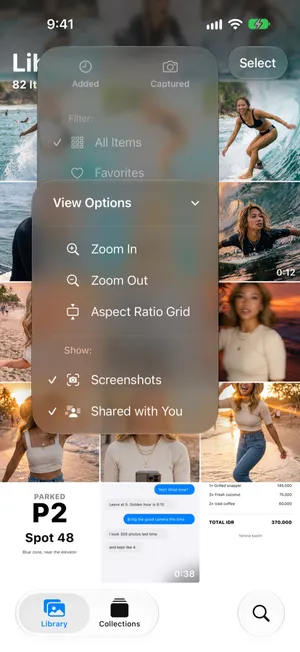
The screenshots stay in the Screenshots collection, in your albums and in Search. Tap the option again to bring them back. Shared with You, in the same list, does the same for images people sent you in Messages.
Then clear the rest
Once the keepers are in an album, the rest of the Screenshots collection is clutter. In the Photos app, tap Select and tap the screenshots to delete, leaving out the ones you filed. Avoid Select All: a screenshot you put in an album is still in the Screenshots collection, and deleting it there removes it from the album too. The guide to deleting all screenshots has the steps, and what to check before you select all.
Sort and file screenshots in one pass with PrunePic
In Photos, choosing what to keep and filing it are two separate passes through the same grid. PrunePic’s Screenshots mode does both at once: it shows only your screenshots, one at a time and full screen, so you read each one before you decide.
- Swipe left on the expired code or the meme. It waits in the PrunePic Trash until you empty it.
- Swipe up to keep a screenshot as it is.
- Drag right and drop it on a pinned album, such as Receipts and Tickets. It goes into that album in Photos.
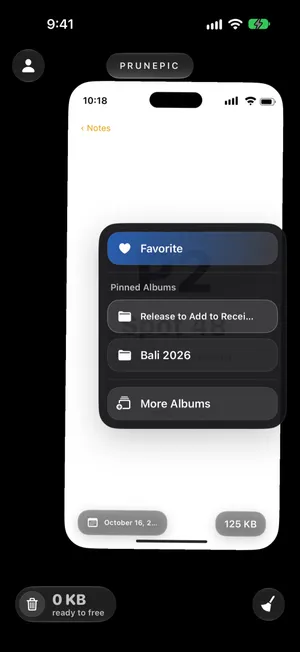
Pin up to three albums from the Choose Album sheet so they are always in the tray. Album filing explains how. Screenshots you keep are saved as reviewed and do not come back, so next time you only see the new ones. Screenshots mode is part of PrunePic Pro, and your screenshots never leave your iPhone.
Common mistakes
- Deleting before filing. A screenshot deleted from the library is gone from every album too.
- Too many albums. One album for receipts and tickets beats ten you never open.
- Keeping screenshots of things saved elsewhere. If the ticket is in your Wallet or the address in Maps, the screenshot is a duplicate.
- Hiding instead of sorting. Hiding screenshots from the library tidies the view but frees no space.
The bottom line
Your screenshots are already in Collections › Media Types › Screenshots. Keep the useful ones in one or two albums, tag them with keywords in iOS 27 so Search finds them, hide screenshots from the library grid if they bother you, and delete the rest.
Frequently asked questions
Should I delete my screenshots?
Most of them, yes, but not all. Keep tickets, boarding passes and QR codes you still need, receipts and warranties, confirmations and anything you have not saved elsewhere. Memes, expired codes, old routes and screenshots of things you already acted on can go.
What happens if I delete a screenshot?
It moves to Recently Deleted for 30 days, then is removed for good. With iCloud Photos on, it is deleted from your other devices too. Albums only point to photos, so a screenshot deleted from your library disappears from its albums as well.
Can I put screenshots in a separate folder on iPhone?
Photos keeps them in their own collection, Screenshots, automatically. For your own groups, use albums, such as one for receipts and one for travel documents. Folders in Photos hold albums, not photos.
How do I find an old screenshot quickly?
Open the Screenshots collection, or type what was on it in Search, such as a store name or a word from a message. In iOS 27, keywords and captions you add also make a screenshot easy to find. Photos lists receipts, QR codes and documents under Utilities too.
How do I hide screenshots from my photo library?
In Library, tap the sort button, then View Options, and tap Screenshots under Show. The screenshots disappear from the library grid but stay in the Screenshots collection and in any album. Tap it again to show them.
Does adding a screenshot to an album make a copy?
No. An album only points to the screenshot in your library, so it uses no extra space. You can put the same screenshot in several albums.
Keep reading
- FeaturesClean up old screenshots without losing the ones you needPrunePic's screenshot cleaner shows only your iPhone screenshots, one at a time. Swipe away the clutter and keep the tickets and receipts you still need.
- FeaturesSort photos into albums while you swipePrunePic is a photo organizer for iPhone that files keepers as you clean: swipe right, drop the photo on a pinned album, or search your albums or create a new one.
- FeaturesSwipe to delete photos, one at a timePrunePic shows your iPhone photos and videos one at a time. Swipe left to delete, up to keep, right to favorite. Nothing is gone until you empty the trash.
 GuidesHow to delete all screenshots on iPhoneDelete every screenshot at once from the Screenshots collection in Photos, keep the few you still need, and stop them piling up again. Steps for iOS 27.
 GuidesHow to organize photos on iPhoneOrganize iPhone photos with albums and folders without creating duplicates, see what Photos already sorts for you, and file a big library in short sessions.
 GuidesHow to sort iPhone photos by dateSort your iPhone library by the date photos were taken or added, browse by year and month, and fix photos that show the wrong date. Tested on iOS 27.