
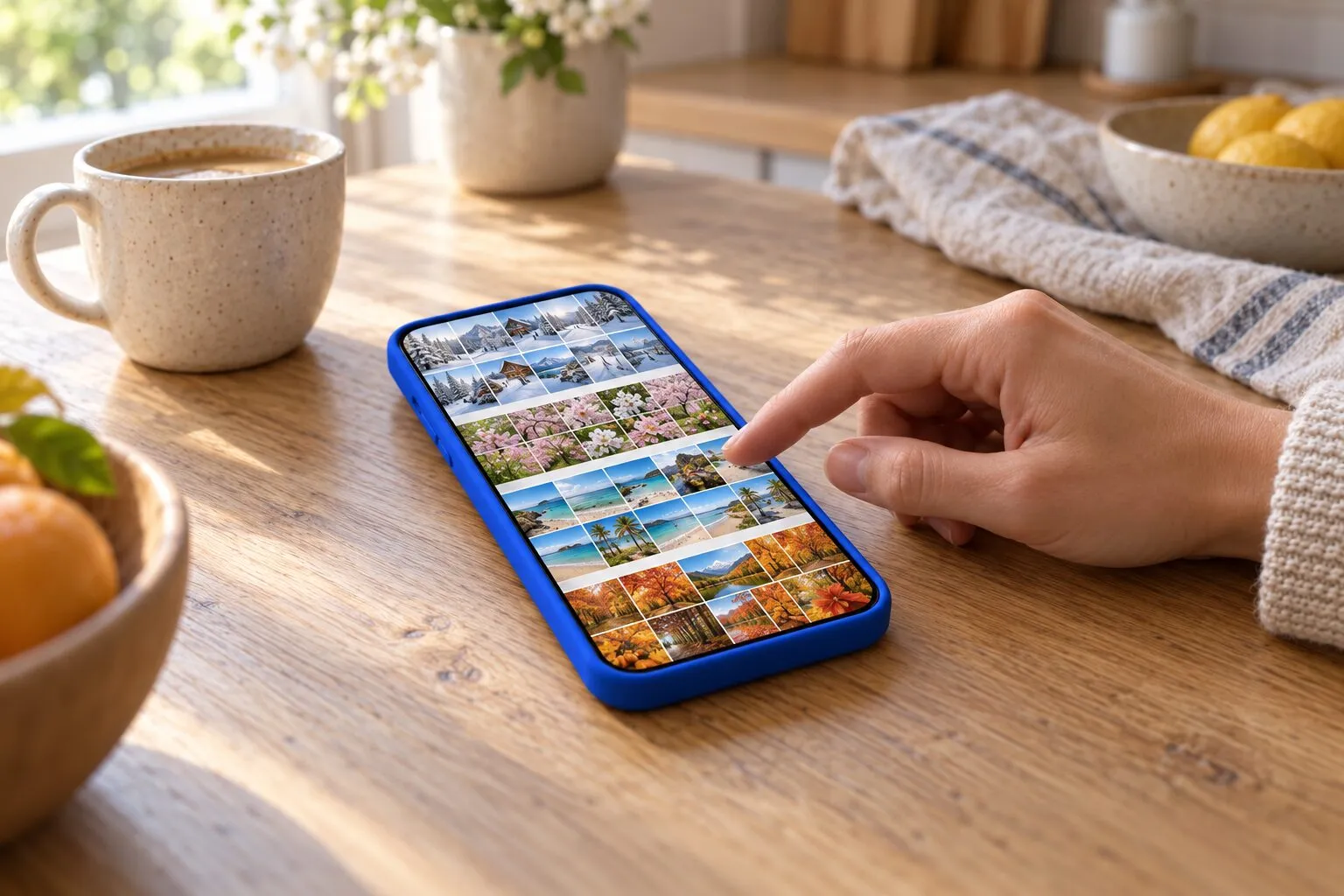
How to sort iPhone photos by date
Your iPhone library is already in date order. To choose which date, open Photos, tap the sort button at the top of the library and pick Captured, the date taken, or Added, the date the photo arrived on your iPhone. To browse by year or month, swipe down on the library and tap Years or Months. A photo in the wrong place usually has the wrong date: swipe up on it and tap Adjust to fix it.
Sort and browse your iPhone photos by date2 minutes
- Choose the date orderOpen Photos, tap Library, then tap the sort button at the top. Pick Captured to sort by the date taken, or Added to sort by the date each item was added to your library.
- Browse by year or monthSwipe down on the library grid until the bar at the bottom shows Years, Months and All. Tap Years or Months, then tap a card to jump to that time.
- Fix a wrong dateOpen the photo, swipe up, and tap Adjust next to the date. Pick the right day and time, then tap Adjust.
The Photos app has never had folders by date, but it does not need them: your whole library is a timeline. What you can choose is which date it follows, and how far you zoom out. Here is how it works on iOS 27, tested in the Simulator against Apple’s own guide. The steps are the same on iOS 26.
Sort by date taken or date added
- Open Photos and tap Library.
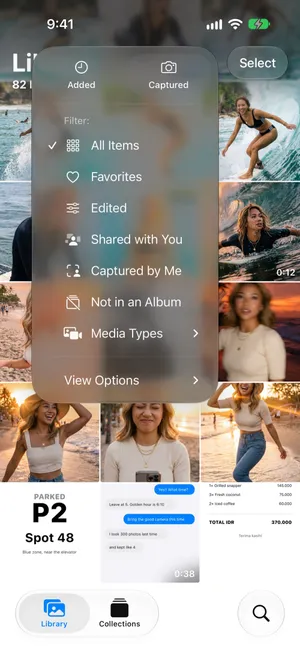
- Tap the sort button at the top of the library, next to Select.
- At the top of the menu, tap Captured to sort by the date each photo was taken, or Added to sort by the date it was added to your library.
| Captured | Added | |
|---|---|---|
| Order | The date the photo or video was taken | The date it arrived in your library |
| A photo saved from a chat today, taken in 2023 | Sits with your 2023 photos | Sits with today’s items |
| Good for | Browsing your life in order | Finding what you just saved, downloaded or received |
Captured is the one most people want: it puts a photo saved from a friend’s message next to the photos you took that day, not next to today’s screenshots. Pick Added when you are looking for something you saved recently but cannot remember when it was taken. Apple notes that with Added, the most recent items appear at the bottom of the library.
The same menu also filters the library, for example to Favorites or to one Media Type such as videos. Sorting and filtering only change the view, never the photos.
Browse by year and month
Scrolling back three years one row at a time is slow. Zoom out instead:
- In Library, swipe down on the grid until a bar appears at the bottom with Years, Months and All.
- Tap Years to see one card per year, or Months to see each month, grouped by events such as a trip or a birthday.
- Tap a card to jump into that time, and All to come back to every photo.
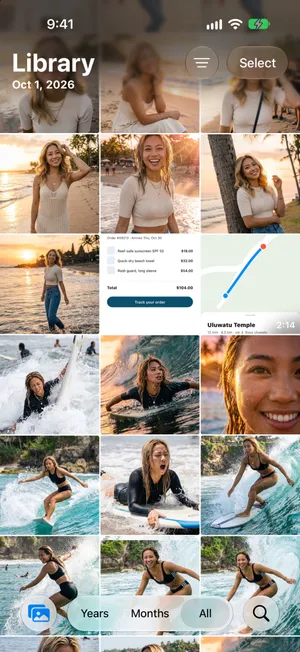
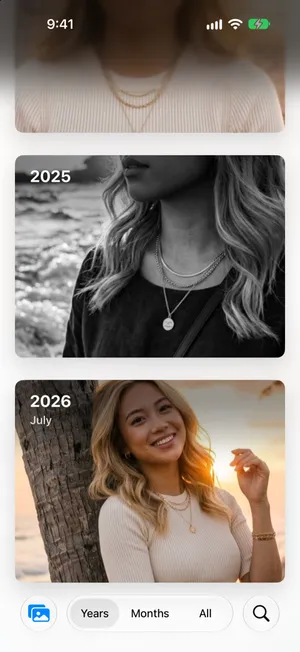
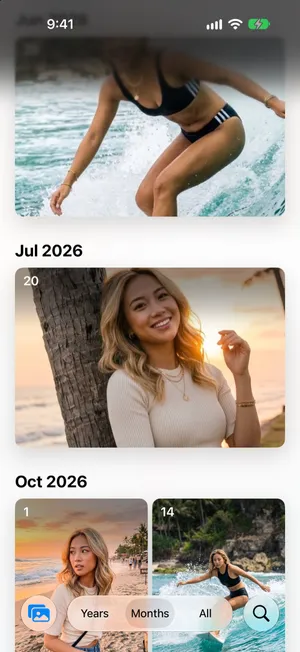
Years and Months are curated: according to Apple, they show your best shots and leave out clutter such as similar photos, screenshots and receipts. So if a photo seems to be missing there, switch to All. Nothing is deleted or hidden from your library.
For the last few days, Collections › Recent Days has one card per day. Tap a day to see the photos from it.
Fix a photo with the wrong date
A photo that shows up in the wrong place in a date-sorted library almost always has the wrong date. Common causes:
- Scans and photos of old prints carry the day you scanned them, not the day they were taken.
- Images saved from apps and websites often have no date taken at all, so Photos uses the day you saved them.
- Photos from another camera whose clock was never set.
- Travel. A photo taken abroad shows the local time of the place, so it can sort a few hours away from what you expect.
To fix one photo:
- Open it and swipe up, or tap the info button. The details show the date and time it was taken.
- Tap Adjust next to the date.
- On Adjust Date & Time, pick the day in the calendar, set the Time and, if needed, the Time Zone. The Original and Adjusted dates are shown at the top.
- Tap Adjust.
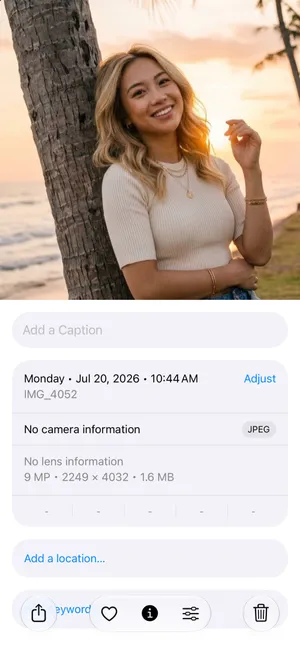
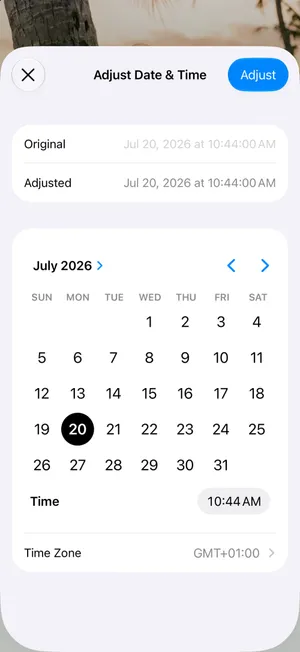
To fix a whole batch, such as a roll of scanned prints, tap Select in the library, select the photos, tap the More button, then Adjust Info › Adjust Date & Time. To undo a change, Apple’s guide says to go back to the same screen and tap Revert.

The same menu has Adjust Location, useful when a photo has no place and you want it on the map with the rest of a trip.
Make date albums only when you need them
You do not need an album for each year or month: the library already does that, and Years and Months jump straight there. Albums are worth it for what dates cannot express, such as one trip that spans two months, or the best photos of the year.
If you do want them, name them so they sort well in your album list, for example “2026 Bali” rather than “Bali”. The guide to organizing photos on iPhone covers albums and folders, and organizing vacation photos walks through one album per trip.
Go through your photos by date with PrunePic
Browsing by date is also the easiest way to clean up: you remember which photos from a given week matter. PrunePic shows your library one photo at a time, and its cleaning modes let you choose the order under Organize by: Newest first to keep up with recent photos, or Oldest first to start with the backlog from years ago.
Every card shows the date it was taken in its bottom left corner, and you can choose what both corners show in the card settings. On This Day, part of PrunePic Pro, goes the other way round: it shows the photos taken on today’s date in past years, a small batch each day.
PrunePic reads the dates Photos already has. It does not change them: fix a wrong date in the Photos app, as above.
Common mistakes
- Leaving the sort on Added. Saved and received images then land among today’s photos. Switch to Captured.
- Thinking Years or Months lost photos. They are curated views. Tap All to see everything.
- Fixing dates one by one. Select the whole batch and use Adjust Info › Adjust Date & Time once.
- Building an album per month. Years and Months already give you that view, without the upkeep.
The bottom line
Pick Captured in the sort menu for a true timeline, swipe down on the library for Years and Months, and fix stray photos with Adjust in their details. Keep albums for the things a date cannot say, like a trip or a project.
Frequently asked questions
How do I organize iPhone photos by year?
Open Photos, swipe down on the library grid and tap Years in the bar at the bottom. Each year gets a card; tap one to jump into it. Years shows a selection of your best shots, so tap All to see every photo again.
What is the difference between Captured and Added?
Captured sorts by the date a photo or video was taken. Added sorts by the date it arrived in your library, so a photo saved from a chat today appears with today's items even if it was taken years ago. With Added, the most recent items are at the bottom.
Why are my iPhone photos not in chronological order?
Usually because the library is sorted by Added, or because some items carry the wrong date: scans, images saved from apps or websites, and photos from a camera whose clock was wrong. Switch the sort to Captured, then fix individual dates with Adjust in the photo's details.
Can I change the date of a photo on iPhone?
Yes. Open the photo, swipe up or tap the info button, and tap Adjust next to the date. Choose the date and time, change the time zone if needed, and tap Adjust. To change several photos at once, select them, tap the More button, then Adjust Info and Adjust Date & Time.
Does changing the sort order change my photos?
No. Captured and Added only change the order you see in the Photos app. The photos, their dates and your albums stay as they are. Only Adjust Date & Time changes a photo's date, and Revert undoes it.
How do I find photos from a specific date?
Use Years and Months to jump close, or Recent Days in Collections for the last few days. Apple's guide also lists dates among the things you can type in Search, such as a month or a year.
Keep reading
- FeaturesChoose what each photo card shows while you cleanPrunePic shows the date and file size on every photo card, and the length on videos. Pick other details for each corner, separately for photos and videos.
- FeaturesRelive your On This Day photos, then keep only the bestPrunePic's On This Day gathers the iPhone photos and videos you took on today's date in past years. Relive each one, keep the best and trash the misses.
- FeaturesPhoto cleanup modes for screenshots, videos and tripsClean your iPhone camera roll by category: screenshots, videos longest first, a batch, a trip or today's memories. Photos you reviewed stay out of every mode.
 GuidesHow to organize photos on iPhoneOrganize iPhone photos with albums and folders without creating duplicates, see what Photos already sorts for you, and file a big library in short sessions.
 GuidesHow to organize vacation photos on iPhoneAfter a trip: find its photos with the Photos map, Recent Days or Trips, clear the misses, and save the keepers in one album named after the trip. iOS 27.
 GuidesHow to clean up your iPhone photosClean up iPhone photos without burning out: a 10-minute first pass, simple rules for what to keep, a way to never lose your place, and a routine that keeps it clean.