
How many photos do I have on my iPhone?
Open Photos and look under the Library title: the line reads your total, for example 12,345 Items, photos and videos together. For photos and videos counted separately, open Settings, tap General, then About: the Photos and Videos rows add up to that total. Collections > Media Types counts screenshots, bursts and screen recordings, and the Months view shows a count on every month.
See how many photos you have on iPhone1 minute
- Open the libraryOpen Photos. The library opens on the grid of your photos; if it shows Years or Months, tap All at the bottom.
- Read the countUnder the Library title, the line reads the total, for example 12,345 Items. It counts photos and videos together, and it updates as you delete.
- Split photos from videosOpen Settings, tap General, then About. The Photos and Videos rows count them separately, and Capacity and Available show the storage right under them.
- Count by typeIn Photos, tap Collections, scroll to Media Types and tap the heading. Videos, Bursts, Screenshots, Screen Recordings and the other types your library contains each show their count.
The number is on the first screen of the Photos app, but it is easy to miss, and it does not say what it includes. Here is where it is on iOS 27, how to break it down by type and by month, what counts and what does not, and how to turn it into the number people usually want next: how much space those photos take. The screens are the same on iOS 26.
The count is under the Library title
Open Photos. The library opens on the grid of your photos, with the title Library at the top and, right under it, the total: 82 Items in our test library. The word is Items because the figure counts photos and videos together.
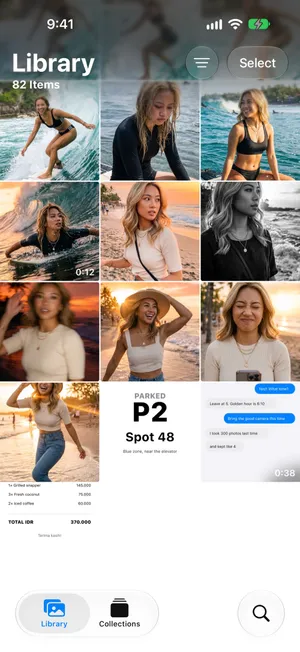
If the screen shows big cards for years or months instead of a grid, you are in the Years or Months view: tap All in the bar at the bottom. The count appears at the top of the grid; if you have scrolled, swipe down to the top, or tap the Library tab again. The sort order does not change the number, and it updates as you delete.
Photos and videos counted separately: Settings › General › About
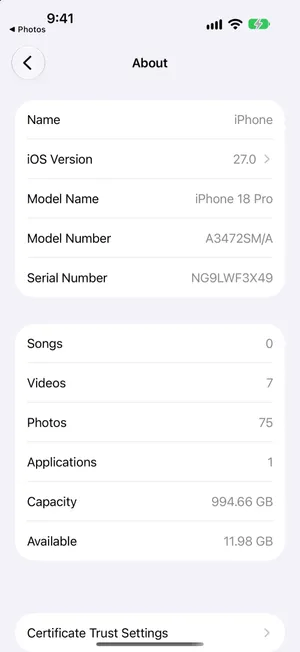
The one place that splits the two is not in the Photos app. Open Settings, tap General, then About, and scroll to the second group: Videos and Photos each have a row with their count, and the two add up to the library total, 7 and 75 for our 82 items. Capacity and Available sit right under them, so this screen also answers the next question, how much room is left.
With iCloud Photos on: two more counts in Settings
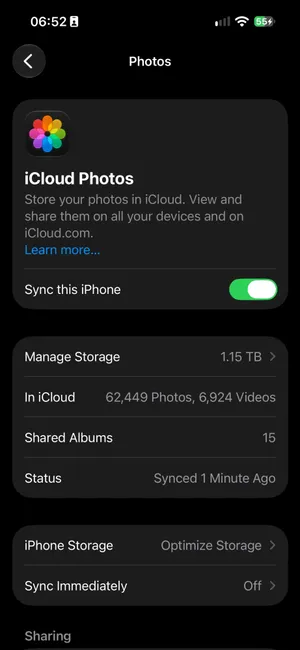
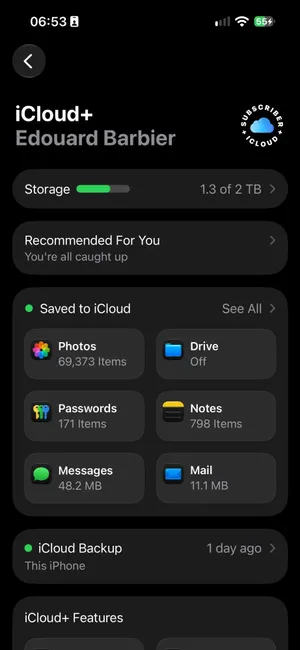
If your library syncs with iCloud, Settings counts it twice more, and one of these also separates photos from videos. Open Settings, tap your name, then iCloud, then Photos: the In iCloud row reads, for example, 62,449 Photos, 6,924 Videos, with Status showing when the last sync finished. Go back one screen to iCloud and the Photos tile under Saved to iCloud gives the total, 69,373 items for the same library. These count what iCloud holds, which is the whole library once syncing has finished, so they match the Library title on the iPhone.
Count by type: Media Types
For the split between photos, videos and screenshots, tap Collections, scroll down to Media Types and tap the heading. Each type your library contains has a row with its count: Videos, Bursts, Screenshots and Screen Recordings in our test library, and on a real iPhone also Live Photos, Portraits, Selfies, Panoramas, Slo-mo, Time-lapse, Cinematic or Spatial when you have some.
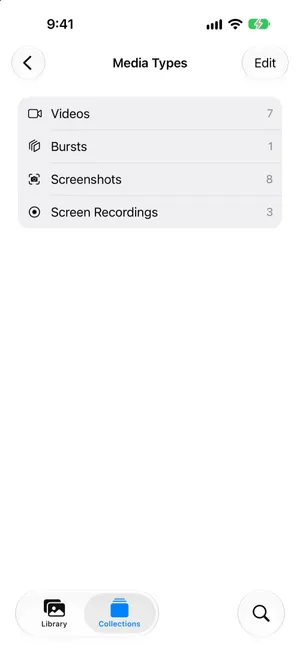
Two things to know when you read these rows. A type lists what matches it, so a screen recording is also one of the videos: adding the rows together double-counts. And there is no Photos row here; for that number, use the About screen above, or subtract the Videos row from the library total.
Count by month
Open the library and tap Months in the bar at the bottom. Every month card carries its count in the corner, such as 30 for a trip month. The Years cards do not show a count. This view answers a different question than the total: where the photos pile up, which is where a cleanup pays off first. Our guide to sorting iPhone photos by date covers the Years, Months and All views in detail.
What the number includes, and what it leaves out
| In the count? | |
|---|---|
| Photos and videos in your library | Yes, together |
| Live Photos, bursts, screenshots, screen recordings | Yes, once each |
| Photos whose originals are in iCloud (Optimize Storage) | Yes |
| Photos in albums | Yes, once: albums hold references, not copies |
| Hidden photos | No, they only appear in the Hidden collection |
| Recently Deleted | No, until you recover them |
| Photos in a Shared Album you did not save | No, they live in the album only |
| Photos in an iCloud Shared Library | Yes in the Both Libraries view; only yours in Personal Library |
The last row matters if you share a library with family: the filter button at the top of the library switches between Both Libraries, Personal Library and Shared Library, and the count follows the view. Apple’s guide to iCloud Shared Photo Library explains the views.
From a count to the space it takes
The count says nothing about size, because a 48 MP photo takes ten times the space of a screenshot and a minute of 4K video takes as much as 60 photos. For the space, open Settings > General > iPhone Storage and look at the Photos row, which shows what the library uses on this iPhone. Divide it by the Items count for your average size per item, then use that average to work out how much more fits: our guide to how many photos a 128 GB iPhone holds walks through the math and the settings that change it. If that screen says the iPhone is almost full, start with iPhone storage full.
The count in PrunePic, and how to make it go down
PrunePic keeps the same numbers one tap away. Tap the person button at the top left of the feed to open Overview: Your Camera Roll shows live counts for All Items, Photos, Screenshots and Videos, with a one-line tip on where to start. See Full Breakdown adds the other types your library contains, such as Live Photos, Selfies, Screen Recordings and Bursts.
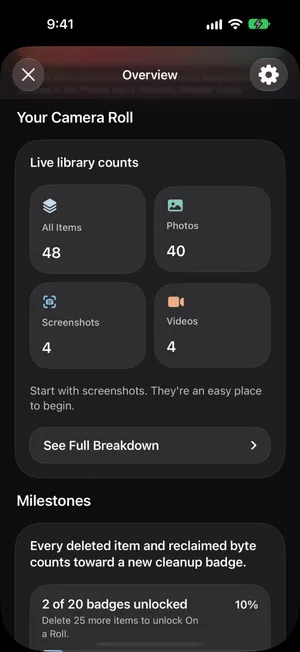
These are counts, not sizes, like the ones in Photos. The difference is what comes next: pick a cleaning mode for the type you want to shrink, then swipe left to send a photo to the PrunePic Trash, up to keep it, right to add it to Favorites or an album. Everything you swipe away waits in the trash until you empty it, and the cleanup insights total what you deleted and the space it took. Your photos never leave your device.
Common mistakes
- Adding the Media Types rows together. A screen recording is also one of the videos. Use the library total.
- Looking for the count in iPhone Storage. That screen shows the space Photos uses, never the number of items; the counts in Settings are in General › About.
- Counting Recently Deleted as gone. Deleted items leave the count right away but keep their space for 30 days.
- Comparing the iPhone and the Mac before syncing finishes. With iCloud Photos on, both show the same library, but only once the upload is complete.
The bottom line
The total is under the Library title in Photos, photos and videos together; Settings › General › About counts the two apart, the iCloud screens in Settings count the synced library, Media Types splits it by kind and the Months view spreads it over time. The number leaves out hidden and deleted items and counts your iCloud library whether or not the originals are on the phone. To turn it into gigabytes, look at the Photos row in iPhone Storage, and if the total is bigger than you would like, our guide to cleaning up the camera roll is the place to start.
Frequently asked questions
Does the Items count include videos?
Yes. The figure under the Library title counts photos and videos together. To separate them, open Settings > General > About: the Photos row and the Videos row count them apart and add up to the library total. Collections > Media Types in Photos also shows the number of videos.
Does the count include hidden and deleted photos?
No. Hidden photos only appear in the Hidden collection, and deleted photos wait in Recently Deleted; neither is in the library grid, so neither is in the count. Both collections show their own item count once you unlock them.
Does it count photos stored in iCloud?
With iCloud Photos on, yes. Every photo in your iCloud library is in the library on the iPhone, whether its full-size original is on the phone or only in iCloud with Optimize Storage. The count is the size of your library, not of what is physically on the iPhone. Settings > [your name] > iCloud > Photos shows the iCloud side of the same number, photos and videos apart, next to In iCloud.
How do I see how many photos I have on my Mac?
Open Photos on the Mac, click Library in the sidebar and scroll to the bottom of the grid: the last line counts your photos and your videos. With iCloud Photos on, it is the same library as the iPhone, so the numbers match once syncing is finished.
How much space do my photos take?
The count does not say. Open Settings > General > iPhone Storage and look at the Photos row for the space the library uses on this iPhone. Divide it by the Items count for your average size per photo; our guide to how many photos a 128 GB iPhone holds walks through the math.
Does PrunePic show how many photos I have?
Yes. Tap the person button at the top left of the feed to open Overview: Your Camera Roll counts All Items, Photos, Screenshots and Videos, and See Full Breakdown adds the other types your library contains, such as Live Photos, Selfies, Screen Recordings and Bursts. These are counts, not sizes.
Keep reading
- FeaturesTrack your photo cleanup progressSee how many photos and videos you deleted with PrunePic and their total file size, with charts by media type, live library counts and 20 cleanup badges.
- FeaturesSwipe to delete photos, one at a timePrunePic shows your iPhone photos and videos one at a time. Swipe left to delete, up to keep, right to favorite. Nothing is gone until you empty the trash.
- FeaturesPhoto cleanup modes for screenshots, videos and tripsClean your iPhone camera roll by category: screenshots, videos longest first, a batch, a trip or today's memories. Photos you reviewed stay out of every mode.
 GuidesHow many photos can a 128GB iPhone hold?With 100GB free, estimate 25,000–33,000 24MP photos on a 128GB iPhone. Compare file-size assumptions, a mixed library and 256GB capacity.
 GuidesiPhone storage full: what to do right nowiPhone storage full and blocking photos or updates? Get space back in minutes, find out why deleting photos did not help, and stop it filling up again.
 GuidesHow to clean up your iPhone photosClean up iPhone photos without burning out: a 10-minute first pass, simple rules for what to keep, a way to never lose your place, and a routine that keeps it clean.