
HEIC to JPG converter
Drop your HEIC photos below and download them as JPG, one by one or all at once in a zip. The conversion runs in your browser, so your photos are never uploaded, and it is free with no sign-up or limit.
How to convert HEIC to JPG
- Add your photos. Drag HEIC files onto the box above, or tap Choose files. You can add several at once, and more later.
- Pick the quality. 90% suits almost everything. Go higher if you will edit the photos, lower for smaller files to email.
- Download. Save each JPG with the button next to it, or tap Download all for a zip of every converted photo.
Files that are not HEIC, such as a JPEG or a PNG dropped by mistake, are listed with a short reason and skipped. The rest of the batch carries on.
What is a HEIC file?
HEIC is the format iPhones use for photos. The name stands for High Efficiency Image Container: it is a HEIF image whose picture is compressed with HEVC, the same codec iPhones use for video. A HEIC photo looks the same as a JPEG but takes noticeably less space, and it can hold things JPEG cannot, such as depth data for Portrait mode and the extra information behind HDR photos.
The catch is compatibility. Apple devices open HEIC everywhere, but plenty of websites, older Windows PCs, printing services and online forms still expect JPG. That is when you need a HEIC to JPG converter.
Why your iPhone saves photos as HEIC
Space. iPhones have saved photos as HEIC by default since iOS 11 in 2017. Apple lists about 3 MB for a 24 MP photo in HEIF and 4.8 MB for the same photo in JPEG, so the same storage holds roughly one and a half times as many photos. On a phone with tens of thousands of pictures, that is many gigabytes. Our guide on how many photos a 128GB iPhone holds has the numbers for each format.
HEIC is also required for some camera features. On the Formats screen, Apple notes that Cinematic video, 4K at 60 fps or higher, and HDR video need High Efficiency.
How to make your iPhone take JPG photos instead
If you need JPG files all the time, you can change the format the Camera saves new photos in:
- Open Settings and tap Camera.
- Tap Formats.
- Choose Most Compatible. New photos are saved as JPEG and new videos as H.264.
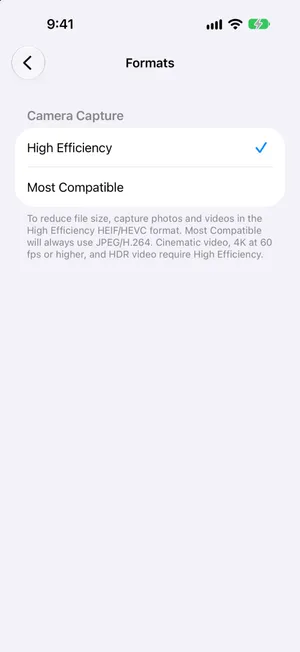
This only affects photos you take from now on; the ones already in your library stay HEIC. It also makes every new photo bigger, which adds up fast. Most people are better off keeping High Efficiency and converting only the photos they need to share, as the guide to freeing up iPhone storage recommends.
If the problem is copying photos to a computer, check one more setting: Settings › Apps › Photos › Transfer to Mac or PC. With Automatic, the iPhone converts photos to a compatible format such as JPEG when you import them over a cable. Keep Originals always copies the HEIC files as they are.
Other ways to convert HEIC to JPG
| Where | How | Good for |
|---|---|---|
| Any browser | This page: drop the files, download the JPGs | A few photos or a big batch, on any computer |
| Mac | Open the photo in Preview, then File › Export and choose JPEG. In Photos, File › Export gives the same choice | Photos already on a Mac |
| Windows | Install Microsoft's HEIF Image Extensions (and, on many PCs, HEVC Video Extensions) from the Microsoft Store, open the photo in Photos and save a copy as JPG | Regular HEIC files on a PC |
| iPhone | Settings › Camera › Formats › Most Compatible for future photos; Transfer to Mac or PC › Automatic for cable imports | Avoiding HEIC from the start |
Your photos stay on your device
Most online converters upload your photos to their server, convert them there and send the JPG back. This one does not. When you add a photo, your browser downloads a HEIC decoder (the open-source libheif, compiled to WebAssembly) and does all the work itself. The photos are read from your disk, converted in memory and saved back to your downloads folder. No server ever receives them, and nothing is kept once you close the page.
It is the same promise we make in our iPhone app, PrunePic: it reviews your photos on the iPhone itself and never uploads them.
What the JPG keeps, and what it leaves out
- Kept: the full picture at its original resolution, the right way up.
- Left out: the date taken, location and camera details. Remove them anyway before sharing? Then this is a bonus. Importing into a photo library? The JPGs will be dated by when you converted them.
- Live Photos: the HEIC holds the still photo only. The short video lives in a separate .MOV file, which this tool does not convert.
- HDR: JPG is a standard dynamic range format, so HDR photos look like they do on a non-HDR screen.
Need PNG or PDF instead?
The HEIC to PNG converter keeps every pixel exactly, and theHEIC to PDF converter puts several photos in one document. Both use the same decoder as this page; the image converter takes any format.
Converting a whole camera roll?
If you are exporting years of photos to a PC or a new service, convert the ones worth keeping, not the 40 near-identical shots of the same sunset or the screenshots you took once and forgot. Clearing those first makes the export smaller and faster, and frees space on the iPhone too. PrunePic was made for that: it shows your photos one at a time, and you swipe left to delete or up to keep, with everything waiting in a trash you can undo until you empty it. To see how much space photos take first, follow how to check iPhone storage.
Related free photo tools
- Free toolHEIC to PDF converterConvert iPhone HEIC photos to PDF in your browser: each photo as a PDF, or all of them in one. Free, no upload, no sign-up.
- Free toolHEIC to PNG converterConvert iPhone HEIC photos to PNG in your browser, without compression loss. Free, no upload, no sign-up, many files at once.
- Free toolWebP to JPG converterConvert WebP images to JPG in your browser, with an adjustable quality and no upload. Free, many files at once.
Frequently asked questions
Is this HEIC to JPG converter free and safe?
Yes. It is free, with no sign-up, no watermark and no limit on the number of photos. It is safe because your photos are never uploaded: the conversion runs in your own browser, and the converted JPG files are created on your device.
Can I convert several HEIC files to JPG at once?
Yes. Drop or choose as many HEIC photos as you like. They are converted one after another, and Download all saves every JPG in a single zip file.
Does converting HEIC to JPG reduce quality?
Very little at the default quality of 90%, which most people cannot tell apart from the original. JPEG compression always discards some detail, so choose 95% or 100% if you plan to edit the photos further. The JPG keeps the full resolution of the HEIC photo.
Why is the JPG bigger than the HEIC file?
HEIC compresses photos more efficiently than JPEG. Apple lists about 3 MB for a 24 MP HEIF photo and 4.8 MB for the same photo in JPEG, so a JPG one and a half to two times the size of the HEIC is normal. Lower the quality slider for smaller files.
What is the difference between HEIC and HEIF?
HEIF is the image format; HEIC is the name of HEIF files whose photos are compressed with HEVC, which is what iPhones save. Both use the .heic or .heif extension, and this converter reads both.
Does the JPG keep the date and location of the photo?
No. The converted JPG contains the picture only, without the camera details, date taken or location stored in the HEIC file. That is handy before sharing a photo, but if you import the JPGs into a photo library, they will be sorted by the date you converted them.
Can I use it on my iPhone?
Yes, in Safari. When you pick photos from your library, iPhone usually converts them to JPEG itself, because the Format in the photo picker's Options is set to Automatic. The converter then lists them as ready and you can download the JPGs straight away, one by one or in a zip. To have new photos taken as JPEG from the start, change Settings > Camera > Formats to Most Compatible.
Does it work offline?
Once the converter has started, yes. The decoder downloads when you add your first photo; after that you can turn off Wi-Fi and keep converting, which is a simple way to check that nothing is sent anywhere.
Keep reading
 GuidesHow to free up storage on iPhoneFind what fills your iPhone in Settings, then clear the biggest items first: videos, Messages attachments, unused apps and Recently Deleted. Steps for iOS 27.
 GuidesHow many photos can a 128GB iPhone hold?With 100GB free, estimate 25,000–33,000 24MP photos on a 128GB iPhone. Compare file-size assumptions, a mixed library and 256GB capacity.
 GuidesHow to check iPhone storageSettings > General > iPhone Storage shows the bar, the biggest apps and what Photos takes. How to read it, why it differs from iCloud, and the quick wins. iOS 27.
- FeaturesSwipe to delete photos, one at a timePrunePic shows your iPhone photos and videos one at a time. Swipe left to delete, up to keep, right to favorite. Nothing is gone until you empty the trash.