
How to store photos without iCloud
To store iPhone photos without iCloud, copy the full-size originals to a Mac or PC and keep a second copy on an external drive, or back them up to Google Photos if you accept Google holding them. If iCloud Photos is on with Optimize Storage, your iPhone may hold only smaller versions, so download the originals before you turn anything off. Paying for iCloud is still a fair choice if you do not want to look after copies yourself.
Move your photos out of iCloud without losing the originals
- Check where your originals areOpen Settings, tap your name, tap iCloud, then Photos. If Sync this iPhone is on and iPhone Storage is set to Optimize Storage, the full-size originals may be only in iCloud.
- Download the originals to a computerOn a Mac, open Photos, choose Photos › Settings › iCloud, then Download Originals to this Mac. On a PC, download from iCloud.com/photos or use iCloud for Windows.
- Check the copyCompare the count in Photos on your computer with your iPhone's. A folder of exported files can show more because Live Photos export as two files, so open old and recent photos and videos from the copy to see that they are there and full size.
- Make a second copyCopy the library or the exported files to an external drive, so they exist in two places outside iCloud.
- Only then stop syncingIn Settings › [your name] › iCloud › Photos, turn off Sync this iPhone. If asked, choose Download Photos & Videos to keep full copies on the iPhone (it needs room), or Remove from iPhone if your checked copy is enough. Leave Turn Off and Delete Photos alone until you are sure you want your library out of iCloud.
A typical version of this question: the iPhone is nearly full, paying for cloud storage feels like the only way out, and an external drive or Google Photos might be an escape. All of those can work. They differ in how much you have to do yourself and in what can go wrong. Settings paths are for iOS 27 and follow Apple’s guides. We did not capture the computer screens, so those steps stay short and link to Apple.
First, check where your originals actually are
This is the trap that catches people, so look before you change anything. Open Settings, tap your name, then iCloud, then Photos.
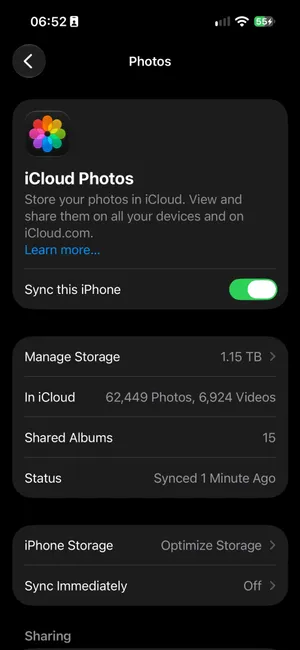
With Optimize Storage, Apple says iCloud holds the original, high-resolution versions, while the iPhone keeps space-saving versions and frees space as needed. Your photos all look present on the phone, but the full-size files may be only in iCloud. That has several consequences:
- Apple’s turn-off guide puts downloading your originals first, and warns that optimized photos are not the original resolution.
- A USB import to a PC can miss them. Apple says that with iCloud Photos on, you need the originals on the iPhone first, or you may not get full-resolution copies.
- When you turn off syncing, iOS can ask you to choose. Download Photos & Videos keeps full copies on the phone if there’s room. Remove from iPhone takes them off the phone without keeping a copy there.
- Turn Off and Delete Photos deletes your library from iCloud 30 days later.
iCloud Photos is sync, not a backup. A photo you delete is deleted everywhere you use iCloud Photos. And iCloud Backup leaves out photos already in iCloud Photos, so it is not a second copy either. Why a deletion reaches every device has the detail.
If iCloud Photos is off, or iPhone Storage is set to Download and Keep Originals, the originals are on the phone and you can skip the worry. Just check that photos are what fills your iPhone at all: iPhone storage full starts there.
Your options compared
| Option | Good fit if | Effort | Main risk |
|---|---|---|---|
| Mac or PC | You have a computer with room, or a drive to attach to it | Some setup, then regular imports | A synced Mac or iCloud for Windows follows your deletions; an exported copy doesn’t |
| External drive | You want a copy you own, with no subscription | The most: you copy and check by hand | One drive can fail or get lost |
| Google Photos | You want automatic uploads and access from your phone | Low after setup | Your photos are on Google’s servers, and deletions can reach them |
| Paying for iCloud | You want it to work across your Apple devices with no upkeep | The lowest | A monthly cost, and it is still sync rather than a backup |
These are not exclusive. A computer plus a drive gives you two copies, and either one pairs well with a cloud service.
Mac or PC: Apple’s own route
On a Mac with iCloud Photos on, your library syncs by itself, so there is nothing to import. To get full-size files, open Photos, choose Photos › Settings › iCloud and pick Download Originals to this Mac. You need room for the whole library. If the Mac does not have it, Apple shows how to move the library to an external drive formatted APFS or Mac OS Extended (Journaled), and to keep that drive connected before you open Photos.
On a Mac without iCloud Photos, connect the iPhone with a cable and use the Import screen in Photos. Apple’s transfer guide has the steps.
On a Windows PC, the same guide covers a cable import with the Apple Devices app and Microsoft Photos, but it needs the originals on the iPhone, which a nearly full iPhone may not have room for. The other routes do not depend on the phone:
- iCloud.com/photos lets you select up to 1,000 items at a time and download them, using Unmodified Originals under More Download Options.
- iCloud for Windows can pin items with Always keep on this device. Apple warns that a deletion on another device removes them from the PC even when pinned, and recommends copying them to a different folder.
The Mac has the same weakness. While it syncs, it follows your library, deletions included. That is why Apple says to back up your library locally even if you use iCloud Photos, with Time Machine or by copying it to an external drive.
External drive: yours, but it needs regular copies
The computer is the better way to fill a drive when the library is big, because the iPhone does not need room for the originals. You can also plug a drive straight into the iPhone:
- Connect the drive with a suitable cable or adapter. Apple’s requirements: a single data partition formatted APFS, macOS Extended, exFAT, FAT32 or FAT. Hard drives often need their own power source.
- Set iPhone Storage to Download and Keep Originals, as Apple’s archive guide says. This is the catch on a full iPhone: the originals have to fit on the phone first.
- In Photos, tap Select, choose your items, tap the Share button, then Export Unmodified Originals. Pick your drive under Locations and tap Save.
That suits small batches, not a whole library. Three more things to know:
- One drive is not a backup. Once you delete the photos from your library, the drive holds the only copy, and drives fail, get dropped and get lost. Keep a second copy on another drive or service, ideally stored somewhere else. Apple’s archive guide also suggests a different drive for your backup.
- Pick the right drive for a live library. For the Photos library itself, Apple advises against USB flash drives, SD cards and network or cloud-shared storage, and says you can’t store it on the drive you use for Time Machine.
- Copying frees nothing. Space comes back only after you delete the photos from your library, and with iCloud Photos on, Apple says that deletion also removes them from iCloud and your other devices. Photos on a drive are also no longer in your Photos app, so you see them only with the drive connected.
Google Photos: easy, but your photos go to Google
Google Photos is the least work, and it is a real option. Be clear about what it is:
- Your photos go to Google’s servers. Google says backup saves them to your Google Account, and only you can view them unless you share them. That is a different thing from keeping them on hardware you own.
- It is not free past the allowance. Each Google Account includes up to 15 GB, shared with Gmail and Google Drive. When it runs out, backups stop. Google says content may be removed, with notice, if you stay over the limit for two years or more, and also after two years of inactivity in Google Photos.
- Quality is a choice. Original quality keeps your resolution and uses the most storage. Storage saver resizes photos above 16 MP and videos above 1080p, so it is not a copy of your originals.
- Deleting can reach the cloud. Google says that deleting a backed-up item in the app also removes the device copy, on every device with backup on. Keeping a photo in Google Photos while removing it from the phone is a separate step, Free up space.
- Free up space can reach iCloud. Google’s page does not mention iCloud, but it removes photos from your iPhone’s library, and with iCloud Photos on, Apple says a deletion on your device also removes the photo from iCloud. Google’s page also says you need to clear the same items from Recently Deleted in Photos before they stop using space.
Google’s help pages do not say how backup handles originals that are only in iCloud, so if Optimize Storage is on, open a few backed-up photos at photos.google.com and check them before you rely on them.
Apple can also send a copy for you. At Apple’s Data & Privacy site, you can transfer a copy of your iCloud Photos to Google Photos, and your iCloud library stays as it is. It needs two-factor authentication, Advanced Data Protection turned off and enough Google storage. Most transfers take three to seven days and some up to 30. It does not carry Live Photos, shared albums, Smart Albums or some metadata, and only the latest edit of each photo goes, so treat it as a convenient copy and not an exact archive.
Paying for iCloud is still fine for some people
If you have no computer, use several Apple devices and want no upkeep, iCloud is hard to beat for convenience. Optimize Storage keeps room on the phone with nothing to plug in, and the whole library stays available over the internet. When we checked Apple’s plans page on November 7, 2026, US prices were $0.99 a month for 50 GB, $2.99 for 200 GB and $9.99 for 2 TB, with 5 GB included free.
Before paying, see whether old backups and forgotten videos are the real problem: iCloud storage full walks through it. A bigger plan also does not by itself clear the iPhone, as iPhone storage and iCloud storage are two different things explains. And paying does not change what iCloud Photos is, so keep one copy outside it for anything you could not bear to lose.
Leaving iCloud in the right order
The steps at the top of this page are the order. Two of them deserve more care.
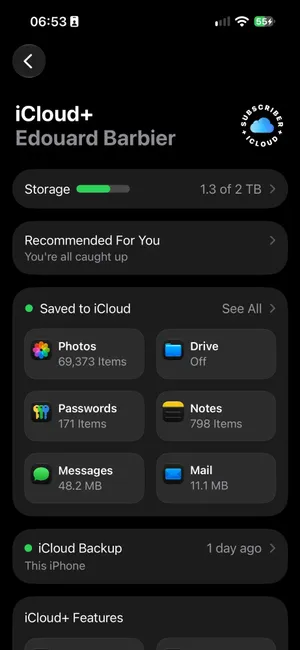
Check the copy before you trust it. Compare the count in Photos on your computer with the total on your iPhone, which appears on the Photos tile in iCloud settings. A folder of exported files can show more than that total, because Live Photos export as two files, so a higher number doesn’t prove nothing is missing. See how many photos you have for the other places to look. Then open a few very old photos, a few recent ones and some long videos from the copy.
Decide what happens after you stop syncing. Turning off Sync this iPhone stops that phone only, and new photos stop uploading, so they need your own routine: pick a day each month to import and copy them. What each choice does, and how to delete from the phone alone, is in how to delete photos from iPhone but not iCloud. Removing the library from iCloud for good is covered in how to delete photos from iCloud.
Store less: where PrunePic fits
PrunePic does not back anything up. It does not copy your library to a drive, a computer or a server. It is only useful here for shrinking what you have to store, because every option above gets easier with a smaller library.
- Videos mode shows only your videos, longest first, with the file size on each card.
- Screenshots mode shows only screenshots, which rarely need storing anywhere. Both modes are part of PrunePic Pro.
- The PrunePic Trash holds what you swipe until you empty it and iOS asks you to confirm.
PrunePic deletes through Apple’s Photos framework, so with iCloud Photos on, a deletion also reaches iCloud and your other devices. Your photos never leave your device. If you want the same job done with only built-in tools, start with finding large videos.
Common mistakes
- Turning something off first. Get the originals down, check them, then change settings.
- Treating one copy as safe. One drive, one computer or one synced library can each fail or lose photos on its own.
- Using Free up space or a cleanup with iCloud Photos on, expecting iCloud to keep the photos. It will not. A deletion on the phone reaches iCloud.
- Deleting in a hurry when iCloud is over its limit. Apple says those deletions are removed at once, so you could not recover them from Recently Deleted.
The bottom line
You are not stuck paying for iCloud, but leaving it moves the work to you. A computer plus an external drive gives you copies you own, Google Photos trades control for convenience, and iCloud stays reasonable if you want no upkeep. Whichever you choose, get the originals down before you turn anything off, and keep at least two copies of what matters.
Frequently asked questions
Can I store my iPhone photos on an external drive instead of iCloud?
Yes, but the drive becomes a place you look after by hand. Copying frees nothing on the iPhone until you delete the photos from your library, the photos are then no longer in the Photos app, and a single drive can fail or get lost. Keep a second copy somewhere else.
Is iCloud Photos a backup?
No. It keeps one library in sync, so a photo deleted on one device is deleted on all of them. Apple advises keeping a local backup of your library even if you use iCloud Photos.
Does turning off iCloud Photos delete my photos?
Turning off Sync this iPhone leaves your library in iCloud. You then choose Download Photos & Videos, which keeps full copies on the phone if there's room, or Remove from iPhone, which takes the photos off the phone without keeping a copy there. Turn Off and Delete Photos is different: Apple deletes the photos from iCloud 30 days later. Download your originals before doing either.
Is Google Photos free?
Only up to Google's storage allowance. Each Google Account includes up to 15 GB, shared with Gmail and Google Drive. When it runs out, backups stop until you free space or buy more.
If I delete a photo in Google Photos, does it leave my iPhone?
Yes, with backup on. Google says deleting in the app also removes the copy on your device and on other devices with backup on. And with iCloud Photos on, Apple says a deletion on your device also removes the photo from iCloud.
Can Apple move my iCloud photos to Google Photos for me?
Apple can send Google Photos a copy from its Data & Privacy site, and your iCloud library stays as it is. Most transfers take three to seven days and some up to 30. Live Photos, shared albums, Smart Albums and some metadata are not included, and only the latest edit of each photo is sent.
Does PrunePic back up my photos?
No. PrunePic does not store or copy your library anywhere. It helps you decide what to delete, which shrinks what you need to store. Your photos never leave your device.
Keep reading
- FeaturesReview long videos and delete the ones you no longer needPrunePic's video cleaner for iPhone puts your longest clips first, shows each one's length and file size, and lets you watch it full screen before you swipe.
- FeaturesUndo any swipe before a photo is deletedPrunePic never deletes a photo when you swipe. Undo it, swipe back or Put Back from the PrunePic Trash, then delete the rest in one batch you confirm in iOS.
 GuidesiCloud storage full? How to free up spaceSee what fills your iCloud, delete old backups, shrink your photo library and clean Messages and Mail before upgrading. Steps for iPhone with iOS 27.
 GuidesHow to delete photos from iPhone but not iCloudWith iCloud Photos on, a deletion on your iPhone deletes everywhere. Here are the two safe ways to clear photos from your iPhone and keep them in iCloud.
 GuidesiPhone storage full: what to do right nowiPhone storage full and blocking photos or updates? Get space back in minutes, find out why deleting photos did not help, and stop it filling up again.
 GuidesHow to find and recover deleted photos on iPhoneFind deleted pictures in Recently Deleted on iPhone, recover photos and videos, and check missing items or iCloud copies. Steps and screenshots for iOS 27.