
My iPhone won't take a photo because storage is full
To take photos again right away, free a gigabyte or two without touching your photos: offload one big app you won't need today in Settings › General › iPhone Storage, then empty Recently Deleted in Photos. Then delete a few long videos you don't need. The Camera's Optimize button helps only if iCloud Photos is on and your iCloud plan has room, and it frees space gradually, not in the next minute.
You raise the iPhone, tap the shutter, and nothing is saved: the Camera shows an alert that your iPhone storage is full. Right now you do not need a tidy library. You need room for the next photos, freed in a way that does not delete something you will want later. Here is what to do, in the order that is fastest and safest, written for iOS 27; the steps are the same on iOS 26.
The quick answer
Two or three minutes, in this order:
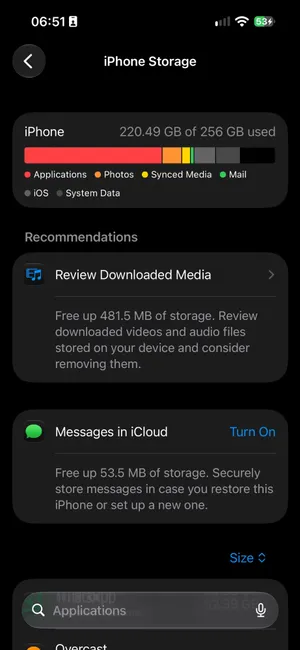
- Offload one big app you will not use today. Open Settings, tap General, then iPhone Storage, and wait for the list to load; apps are sorted by size. Tap a large one, such as a game, then Offload App. The app is removed, its documents and data stay, and its icon stays on the Home Screen; tap it to reinstall when you have room and a connection, as long as the app is still in the App Store. Nothing in your photo library is touched.
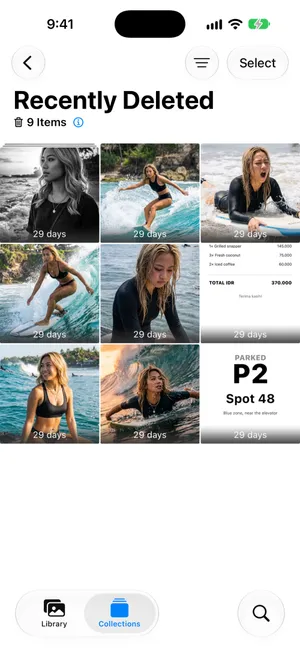
- Empty Recently Deleted. In Photos, tap Collections, open Recently Deleted under Utilities, tap View Album and unlock. Tap Select, then the More button, then Delete All. Everything you deleted in the last 30 days is still using space until you do this. Look through it first: after this step, those items are gone for good, as Apple’s guide to deleting photos explains.
- Try the Camera. For a few photos, that is usually enough. If you are about to film, keep going.
- Delete a few long videos you don’t need. Tap Collections, scroll to Media Types and open Videos. Long clips are the big ones: a minute of 4K at 30 fps takes about 190 MB. Delete the ones you are sure about, then empty Recently Deleted again to get their space now. Our guide to finding large videos shows how to spot them.
What the Camera alert is telling you
People search for “cannot take photo”, but on iOS 27 the Camera’s alert comes in two versions, and which one you see says something about your setup.
- iPhone Storage Full appears, judging by its wording, when iCloud Photos is off. It says you do not have enough storage to take more photos and suggests deleting unneeded apps, videos or music, with a Manage button that leads to the storage screen. Your photos exist only on this iPhone, so be careful what you delete: back them up to a computer before clearing them in bulk.
- Optimize iPhone Storage appears when iCloud Photos is on; judging by its wording, this is when the iPhone keeps full-size originals. It offers to keep the originals in iCloud and smaller versions on the iPhone, with an Optimize button. That is Apple’s Optimize Storage setting, described on its iCloud Photos page.
The video versions say the same with “record video”, and the Camera also has a plainer alert: “There is not enough available storage to take a photo. You can manage your storage in Settings.” The wording above is from iOS 27’s own Camera text. Apple’s page on managing photo and video storage covers the same ground from Apple’s side.
Tapping Optimize is a sensible setting to have, but it is not a quick fix. The iPhone replaces originals with smaller versions gradually, as it needs space, and only for photos that are already safely in iCloud. If your iCloud storage is full too, new photos cannot upload, so Optimize cannot free their space. Use the quick steps above to take photos today, and let Optimize keep the iPhone clear afterwards.
Why this happens
A full iPhone is rarely full of photos alone. Open iPhone Storage and the bar usually tells the story; Apple’s storage page explains each category. The usual causes:
- Video. Photos are a few megabytes each; video is measured in hundreds of megabytes per minute. The sizes in Settings › Camera › Record Video range from about 45 MB a minute at 720p to 800 MB a minute at 4K and 120 fps.
- Recently Deleted. Deleting frees nothing for 30 days. That is the most common reason the alert comes back right after a cleanup.
- Messages. Years of photos and videos in group chats live inside Messages, not in your library.
- Apps and downloads. Games, offline maps, music and shows downloaded for a trip.
- System Data. Caches, logs and other resources iOS is using; Apple says the size changes with the system’s needs. You cannot delete the category itself, and no cleaner app can. Our guide to iPhone storage full covers what to do when System Data is the big block.
What not to do in a hurry
- Don’t delete photos in bulk to make room if iCloud Photos is on. A deletion on the iPhone is a deletion in iCloud and on your other devices. Recently Deleted keeps items for 30 days, unless your iCloud storage is over its limit, in which case iOS removes them at once. To clear the iPhone but keep the copies, read how to delete photos from iPhone but not iCloud first.
- Don’t buy more iCloud storage to fix the Camera. It adds room in iCloud, not on the iPhone. It helps only together with Optimize Storage, and only gradually.
- Don’t install a cleaner app right now. Any app needs free space to install, and none can clear System Data. The built-in steps are faster in the moment.
- Don’t empty Recently Deleted without a look. It is your only way back for 30 days; our guide to recovering deleted photos explains what you lose after that.
What it costs you if it keeps happening
The obvious cost is the photo you miss. The less obvious one: app and iOS updates that cannot download. And the cleanups done in a hurry are the ones people regret, because the fastest thing to delete is often a video that mattered.
For the complete list of what to clear once the moment has passed, see how to free up storage on iPhone.
How PrunePic helps
PrunePic is for the cleanup afterwards, so the alert does not come back. In the moment, the built-in steps above are quicker, and PrunePic needs room to install like any app (39.7 MB on the App Store).
What it does differently from the Photos app is go through your library one item at a time and remember where you stopped: swipe left to delete, up to keep, right to favorite. See swipe to delete photos.
- The big clips first. Videos mode shows only your videos and can sort them longest first, with each clip’s length and file size on the card, and plays a clip before you decide.
- Nothing deleted in a hurry. What you swipe left waits in the PrunePic Trash, which shows how much space the waiting items take. Put anything back, then empty it; iOS asks you to confirm, and the items move to Recently Deleted, where you delete them again to get the space back the same day.
The free plan lets you send up to 100 photos a day to the trash, and keep as many as you like, in the Everything mode; keeping, favoriting and album saves never count. Videos mode and no daily limit are part of PrunePic Pro. Your photos never leave your device.
Checklist
- Settings › General › iPhone Storage: offload one big app you won’t use today.
- Photos › Collections › Recently Deleted: check it, then Select, More, Delete All.
- Try the Camera.
- Still not enough: Photos › Collections › Videos, delete a few long clips you are sure about, and empty Recently Deleted again.
- Before filming a lot: check Settings › Camera › Record Video; 1080p takes about a third of the space of 4K.
- Later, with iCloud Photos on and room in your plan: Settings › [your name] › iCloud › Photos, then iPhone Storage, and choose Optimize Storage.
- Later still: clear Messages attachments and old videos for good, as described in iPhone storage full.
Frequently asked questions
What does the iPhone Storage Full alert in the Camera mean?
It means the iPhone has no room left to save a new photo or video. On iOS 27, the Camera shows iPhone Storage Full and suggests deleting unneeded apps, videos or music, with a Manage button. When iCloud Photos is on, the alert is titled Optimize iPhone Storage instead; judging by its wording, this is when the iPhone keeps full-size originals. It offers to keep originals in iCloud and smaller versions on the iPhone.
Should I tap Optimize when the Camera asks?
It is a good long-term setting, but it will not get the Camera working in the next minute. Optimize Storage swaps full-size photos for smaller versions gradually, as the iPhone needs room, and only for photos already uploaded to iCloud. If your iCloud storage is full too, new photos cannot upload, and Optimize cannot free space for them. Free space by hand first, then turn it on.
How much free space does the Camera need?
Apple does not publish a minimum. What you need depends on what you shoot: the sizes in Settings › Camera › Record Video put a minute of 4K at 30 fps at about 190 MB and a minute of 1080p at 30 fps at about 65 MB, so ten minutes of 4K is close to 2 GB. Leave a few gigabytes free if you film, more before an event.
I deleted photos and the Camera still says storage is full. Why?
Deleted photos and videos move to Recently Deleted and keep their space for 30 days. Open Photos, tap Collections, open Recently Deleted under Utilities, unlock it, tap Select, then the More button and Delete All. The storage figure in Settings can take a moment to update afterwards.
Will deleting videos to make room also delete them from iCloud?
Yes, if iCloud Photos is on: a deletion on the iPhone removes the item from iCloud and your other devices too. It waits in Recently Deleted on all of them for 30 days, except when your iCloud storage is over its limit, where deleted items are removed at once. To keep copies, offload an app instead, or read how to delete photos from iPhone but not iCloud before deleting.
My iCloud has free space. Why is my iPhone still full?
iCloud storage and iPhone storage are separate. With iCloud Photos on, the iPhone keeps its own copy of your library, full size unless Optimize Storage is chosen, so free space in iCloud does not make room on the iPhone by itself. Optimize Storage is what lets iCloud hold the originals while the iPhone keeps smaller versions, and it works gradually.
Can I make photos smaller so more fit?
Check that Settings › Camera › Formats is set to High Efficiency, the default, which saves photos as HEIF and videos as HEVC. Lowering Record Video from 4K to 1080p cuts each minute of video to about a third of the size. Neither setting shrinks what is already in your library.
Keep reading
- FeaturesReview long videos and delete the ones you no longer needPrunePic's video cleaner for iPhone puts your longest clips first, shows each one's length and file size, and lets you watch it full screen before you swipe.
- FeaturesUndo any swipe before a photo is deletedPrunePic never deletes a photo when you swipe. Undo it, swipe back or Put Back from the PrunePic Trash, then delete the rest in one batch you confirm in iOS.
 GuidesiPhone storage full: what to do right nowiPhone storage full and blocking photos or updates? Get space back in minutes, find out why deleting photos did not help, and stop it filling up again.
 GuidesHow to free up storage on iPhoneFind what fills your iPhone in Settings, then clear the biggest items first: videos, Messages attachments, unused apps and Recently Deleted. Steps for iOS 27.
 GuidesSort iPhone videos by size? How to find the biggest onesThe Photos app cannot sort videos by size. Here is how to find the biggest ones anyway: the Videos collection, the info panel, a shortcut and Files. iOS 27.
 ScenariosMy iPhone storage is full and I leave tomorrowYou are about to travel and the iPhone says storage is almost full. Here is the fastest order to free up space tonight without losing photos you want to keep.