
I'm selling my iPhone: what do I do with my photos?
Make sure a complete copy of your photos exists somewhere else, in iCloud Photos, a backup, a computer or your new iPhone, then sign out of your Apple Account and use Erase All Content and Settings: it removes every photo from the phone and leaves the copies in iCloud untouched. Do not delete them one by one: with iCloud Photos on, that deletes them from iCloud and your other devices too.
The buyer is lined up, or the trade-in box has arrived, and the iPhone still holds years of photos. The instinct is to delete them before the phone leaves your hands. Don’t: that is the one move that can cost you the photos you meant to keep. What protects your photos is a copy somewhere else; what protects your privacy is erasing the phone. Here is the order, written for iOS 27; it is the same on iOS 26.
The quick answer
- Make sure your photos are somewhere else. In iCloud Photos, in a fresh backup, on a computer, or already on your new iPhone. The next section shows how to check.
- Do not delete photos in the Photos app. With iCloud Photos on, a deletion on this iPhone is a deletion everywhere.
- Unpair your Apple Watch, if you have one.
- Sign out of your Apple Account: Settings › [your name], scroll down, Sign Out. Apple then offers to erase the iPhone as well; either way, erase it next.
- Erase the iPhone: Settings › General › Transfer or Reset iPhone › Erase All Content and Settings. If Find My is on, you may be asked for your Apple Account password.
- Hand it over once it shows the setup screen.
Steps 3 to 5 are Apple’s own checklist, what to do before you sell, give away or trade in your iPhone, which also covers AppleCare, the eSIM and removing the phone from your trusted devices.
Why deleting photos by hand is the wrong move
Apple’s checklist says it plainly: do not manually delete your photos, contacts or other content while you are signed in to iCloud, because they are deleted from iCloud and from all your devices signed in to iCloud. If iCloud Photos is on, selecting your whole library and deleting it, as our guide to deleting all photos shows how to do, empties iCloud too. Recently Deleted would give you 30 days to undo it, except when your iCloud storage is over its limit, in which case iOS removes deleted items at once.
Erasing is both safer and more thorough. It removes everything from the phone, Recently Deleted, the Hidden album, and photos saved in Files, Notes or Messages included, without touching what is stored in iCloud. And it turns off Find My and Activation Lock, which the buyer needs anyway.
Make sure your photos are somewhere else first
If you use iCloud Photos, open Settings, tap your name, then iCloud, then Photos. Two lines matter:
- Status should say Synced. If it says it is uploading, leave the phone on Wi-Fi and power and come back later.
- In iCloud counts the photos and videos iCloud holds. Compare it with the Photos and Videos rows in Settings › General › About; our guide to counting the photos on your iPhone explains both screens. The figures should be close.
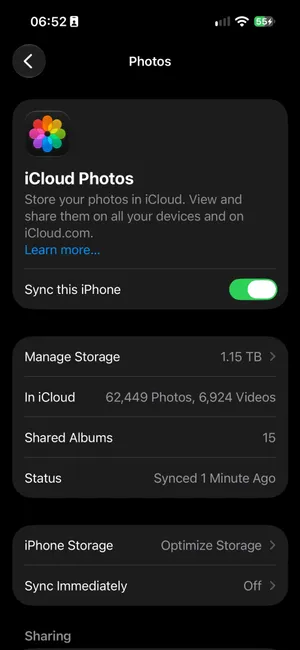
Then open Photos on another device signed in to the same account, or on iCloud.com, and look at a few old photos and a long video. If they open, the copy is there.
If you do not use iCloud Photos, the photos exist only on this iPhone until you copy them. If iCloud Backup is on, a backup made today includes them (Settings › [your name] › iCloud › iCloud Backup › Back Up Now); with iCloud Photos on, the backup leaves photos out because they are already in iCloud. For a copy you can open, connect the iPhone with a cable and import everything with the Photos app on a Mac or on Windows, as Apple explains in transferring photos and videos, or save batches to a drive with Save to Files, as Option 3 of our guide to deleting photos from iPhone but not iCloud shows. Open a few of the copies, videos included, before you erase anything.
If you are moving to a new iPhone, Quick Start transfers your photos along with everything else. Check that the new phone shows your library, and that its count matches, before you erase the old one.
Photos in other apps’ clouds, such as Google Photos or a messaging app’s backup, are not affected by erasing either; they stay in those accounts.
What it costs if you skip a step
- No copy, then erase: the photos are gone. Only an iCloud or computer backup made beforehand can bring them back, and Recently Deleted goes with the phone.
- Deleting by hand with iCloud Photos on: the photos leave iCloud and your other devices. You have 30 days in Recently Deleted to put them back, as our recovery guide explains, if you notice in time.
- Handing it over without erasing: your photos and accounts are still on it, and while Find My and Activation Lock tie the phone to your Apple Account, the buyer cannot set it up. Apple’s checklist explains how to remove a phone you no longer have.
How PrunePic helps
You do not need any app to sell an iPhone; Apple’s steps above are the whole job. Where PrunePic helps is a few days before, if you would rather not carry ten years of screenshots and forgotten videos into iCloud and onto your next phone.
It shows your library one photo or video at a time: swipe left to delete, up to keep, right to favorite or file into an album. Nothing is deleted on a swipe. Everything waits in the PrunePic Trash, where you can put anything back, until you empty it; iOS asks you to confirm and moves the items to Recently Deleted. With iCloud Photos on, those deletions apply in iCloud too, which in this case is what you want: a lighter library to restore. The free plan lets you send up to 100 photos a day to the trash and keep as many as you like, and your photos never leave your device.
Do this before you check the iCloud count and well before the erase, not on the day you hand the phone over.
Checklist
- Settings › [your name] › iCloud › Photos: Status says Synced.
- Compare In iCloud with the Photos and Videos counts in Settings › General › About.
- No iCloud Photos? Back up, then import everything to a computer, or move it to the new iPhone with Quick Start.
- Open a few copies, including a long video, on another device.
- Unpair your Apple Watch.
- Settings › [your name] › Sign Out.
- Settings › General › Transfer or Reset iPhone › Erase All Content and Settings.
- Wait for the setup screen, then hand it over.
Frequently asked questions
Do I need to delete my photos before selling my iPhone?
No. Erase All Content and Settings, in Settings › General › Transfer or Reset iPhone, removes every photo and video from the phone along with everything else. Apple advises against deleting photos by hand while you are signed in to iCloud, because that removes them from iCloud and your other devices as well.
Will erasing my iPhone delete my photos from iCloud?
No. Erasing removes the content from the phone itself; what is stored in iCloud stays there, and your photos appear again on any device signed in to the same Apple Account with iCloud Photos on. Signing out of your Apple Account before erasing makes sure the phone is no longer linked to it.
How do I know all my photos are in iCloud?
Open Settings, tap your name, then iCloud, then Photos. Status should say Synced, and In iCloud shows how many photos and videos iCloud holds. Compare that with the Photos and Videos counts in Settings › General › About; they should be close. If In iCloud is well below, or the status says it is still uploading, keep the phone on Wi-Fi and power until it finishes.
Can the buyer recover my photos after I erase the iPhone?
Apple says Erase All Content and Settings removes your photos, contacts, music, apps and cards from the device and turns off Find My and Activation Lock. Recently Deleted is erased with everything else. Your photos remain only where you kept copies: iCloud, a backup, a computer, a drive or your new phone.
I don't use iCloud Photos. How do I keep my photos?
Back up the iPhone to iCloud or a computer today, which includes the photos when iCloud Photos is off, and for a copy you can open, copy them to a computer with a cable: the Photos app on a Mac or on Windows imports everything on the phone. Or move them straight to your new iPhone with Quick Start before you erase the old one. Open a few of the copies, including videos, before erasing.
I already sent the iPhone without erasing it. What now?
Ask the new owner to erase it with Erase All Content and Settings. If you cannot reach them, Apple's checklist says to remove the iPhone from your list of trusted devices and change your Apple Account password; if the phone was lost or stolen, erase it from Find Devices on iCloud.com.
Should I clean up my photos before switching to a new iPhone?
It helps if your library is full of screenshots and old videos you do not want: whatever is in the library moves to the new iPhone and stays in iCloud. Clean up a few days before, so iCloud has synced the deletions, and remember that Recently Deleted keeps deleted items for 30 days unless you empty it.
Keep reading
- FeaturesSwipe to delete photos, one at a timePrunePic shows your iPhone photos and videos one at a time. Swipe left to delete, up to keep, right to favorite. Nothing is gone until you empty the trash.
- FeaturesUndo any swipe before a photo is deletedPrunePic never deletes a photo when you swipe. Undo it, swipe back or Put Back from the PrunePic Trash, then delete the rest in one batch you confirm in iOS.
 GuidesHow to delete photos from iPhone but not iCloudWith iCloud Photos on, a deletion on your iPhone deletes everywhere. Here are the two safe ways to clear photos from your iPhone and keep them in iCloud.
 GuidesHow to delete all photos from iPhonePhotos has no Select All for the whole library. Three ways that work: drag to select, a two-action shortcut, or turning off iCloud Photos first. Tested on iOS 27.
 GuidesHow many photos do I have on my iPhone?The total under Library in Photos includes videos but not hidden photos. Count photos, videos and screenshots apart, see each month, and check iCloud. iOS 27.
 GuidesHow to find and recover deleted photos on iPhoneFind deleted pictures in Recently Deleted on iPhone, recover photos and videos, and check missing items or iCloud copies. Steps and screenshots for iOS 27.