
How to delete all photos from iPhone
The Photos app cannot select your whole library at once. Open the library, tap Select, then touch a photo and drag across the grid to select a run of photos, tap the trash button and confirm; repeat until the library is empty. For thousands of photos, a two-action shortcut, Find Photos then Delete Photos, does it in one run. Either way, with iCloud Photos on the photos are deleted from iCloud and your other devices too, and they wait in Recently Deleted for 30 days.
Delete all photos with the Photos app10 minutes
- Open the library and tap SelectOpen Photos. The library opens on the grid of your newest photos; if it shows Years or Months, tap All at the bottom. Tap Select at the top right.
- Drag to selectTouch the first photo and, without lifting your finger, drag along the row and then down the grid. Every photo you pass gets a checkmark. Lift your finger, scroll, and drag again from the next photo to keep going.
- Delete the selectionTap the trash button at the bottom right and confirm with Delete [n] Items. The photos move to Recently Deleted. Repeat from the top until the library is empty.
- Empty Recently DeletedTap Collections, scroll to Utilities and open Recently Deleted. Tap View Album and unlock, tap Select with nothing selected, then the More button and Delete All. Only then is the space free.
Starting over, selling the iPhone, or just done with 20,000 photos you never look at: there are good reasons to want everything gone. The Photos app makes it harder than it should be, because the library has no Select All. Here are the three ways that work on iOS 27, tested in the Simulator, plus the checks to run first so you do not delete your only copy. The steps are the same on iOS 26.
Before you delete everything: three checks
- Do you have a copy? iCloud Photos is not a backup: it keeps the same library on every device, so deleting here deletes everywhere, and iCloud Backup does not include photos that are in iCloud Photos. If anything in the library matters, import it to a computer first. Apple’s guide to transferring photos to a Mac or PC covers the cable and the Windows steps.
- Is iCloud Photos on? Check Settings > [your name] > iCloud > Photos. If it is, read Method 3 before you delete anything, because it may be what you actually want.
- Are you handing the iPhone to someone else? Then skip this guide. Settings > General > Transfer or Reset iPhone > Erase All Content and Settings removes your photos along with everything else, and Apple’s erase guide lists what to do before you tap it.
iPhone storage
Space on the phone itself
- Fixed by the model you bought: 128 GB, 256 GB and up
- Shared by apps, photos, messages and iOS
- Shown in Settings > General > iPhone Storage
iCloud Photos links them
Originals are stored in iCloud. With Optimize Storage, the phone keeps smaller versions and downloads originals when you open them. Deleting a photo removes it from both.
iCloud storage
Space in your Apple Account
- 5 GB free, more with an iCloud+ plan
- Shared by iCloud Photos, backups, iCloud Drive and Mail
- Shown in Settings > your name > iCloud
Method 1: drag to select in the Photos app
There is no Select All for the library, but a drag selects a whole run of photos in one move:
- Open Photos. The library opens on the grid of your newest photos. If it shows Years or Months instead, tap All at the bottom.
- Tap Select at the top right. The bottom bar changes to a share button, a Select Items pill and a trash button.
- Touch the first photo and, without lifting your finger, drag along the row and then down the grid. Every photo you pass gets a checkmark, and the pill counts them: Show Selected (11).
- Tap the trash button and confirm. The button counts your selection, for example Delete 11 Items, and if some of them are in albums Photos says so.


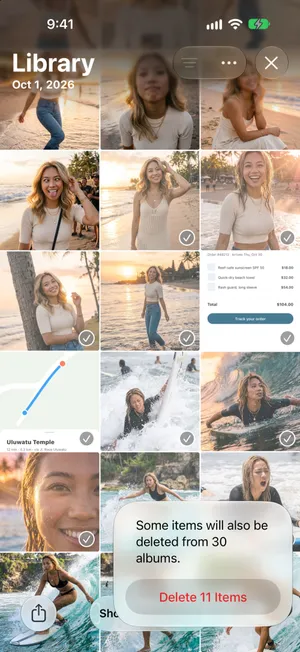
Lift your finger, scroll, and drag again from the next photo to continue. A few hundred photos take a few minutes this way. For a library of thousands, the shortcut below does it in one run.
Two tricks inside Photos help before you start. The Screenshots and Videos collections under Media Types do have Select All, so you can clear them first in one tap each: our guide to deleting all screenshots shows the steps. And the Months view shows how many items each month holds, so you can see how much is left.
Method 2: a shortcut that deletes every photo
The Shortcuts app can select what Photos cannot. Two actions are enough:
- Open Shortcuts and tap the add button. If it offers to describe the shortcut, tap Edit to build it yourself.
- Search for Find Photos and add it. With no filter, it finds every photo and video in your library.
- Search for Delete Photos and add it below. It deletes what the first action found.
- Tap the play button. Shortcuts asks you to confirm before deleting anything, and the items go to Recently Deleted like any other deletion.
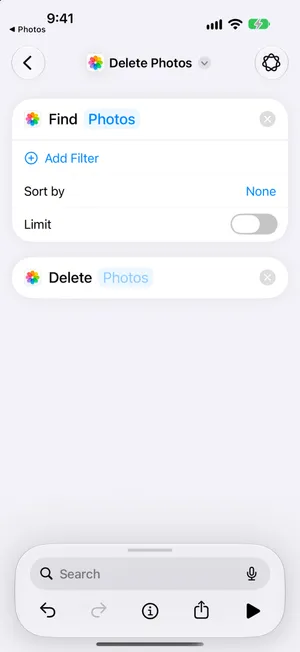
To keep your videos, tap Add Filter on Find Photos and set Media Type is Image. To delete only old photos, add a Date Taken filter instead. A large library can take a while to process; keep the iPhone unlocked until the shortcut finishes.
Method 3: keep them in iCloud and clear the iPhone
If the goal is a clean iPhone rather than a clean library, you do not need to delete anything. With iCloud Photos on, turning off syncing on this iPhone leaves the whole library in iCloud and on your other devices:
- Open Settings, tap your name, then iCloud, then Photos.
- Turn off Sync this iPhone.
- When iOS asks, choose Remove from iPhone. The photos leave this iPhone and stay in iCloud.
The full version, including what happens when you turn syncing back on, is in our guide to deleting photos from iPhone but not iCloud. If what you want is space rather than an empty library, Optimize Storage, under iPhone Storage on the same screen, keeps everything and frees space on its own.
Then empty Recently Deleted
Whichever method you used, the photos are not gone yet. They wait in Recently Deleted for 30 days, still using space on the iPhone, and with iCloud Photos on, in iCloud too.
- Tap Collections, scroll to Utilities and open Recently Deleted.
- Tap View Album and unlock with Face ID, Touch ID or your passcode.
- Tap Select without choosing any photo, tap the More button, then Delete All.

There is no undo after Delete All. If you are unsure about anything, leave Recently Deleted alone: iOS empties it on its own after 30 days, and our recovery guide explains what can and cannot come back. One exception to the 30 days: when your iCloud storage is over its limit, Apple removes deleted photos immediately.
What deleting everything misses
All three methods are all-or-nothing. The drag selects every photo in a run, the shortcut finds every photo in the library, and turning off iCloud Photos clears the whole iPhone. None of them helps with the more common wish: delete almost everything, but keep the hundred photos that matter. Picking those out of a grid of thumbnails means deselecting them one by one while the rest stay checked, and one slip selects a keeper.
Delete almost everything with PrunePic
PrunePic shows your library one photo at a time, full screen. Swipe left to send a photo to the PrunePic Trash, up to keep it, right to add it to Favorites or an album. For a near-total cleanup, open the Everything mode, choose oldest first, and swipe left through everything that can go. A photo that deserves to stay takes one swipe up, and it never comes back in a later session.

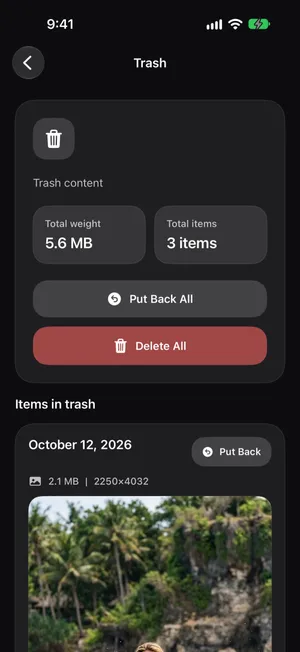
Nothing is deleted on a swipe. The photos wait in the PrunePic Trash, where you can put any of them back, until you tap Delete All and iOS asks you to confirm. From there they follow the same path as any deletion: 30 days in Recently Deleted, then gone. The free plan includes 10 decisions a day; PrunePic Pro removes the limit, which a library of thousands needs. Your photos never leave your device.
Common mistakes
- Deleting the only copy. iCloud Photos mirrors deletions. Import to a computer first if anything matters.
- Expecting the space back at once. Deleted photos keep their space for 30 days in Recently Deleted. Empty it if you need the space now.
- Forgetting the other devices. With iCloud Photos on, the iPad and the Mac lose the photos too.
- Erasing photos before selling, one by one. Erase All Content and Settings does it all, and removes your account from the iPhone as well.
- Running the shortcut without a filter when you meant to keep videos. Find Photos with no filter includes every video.
The bottom line
Select, drag, delete, repeat: that is the Photos app’s way, and it works for a few hundred photos. For thousands, a shortcut made of Find Photos and Delete Photos empties the library in one run. If you just want a clean iPhone, turn off iCloud Photos on it instead and keep the library in iCloud. Then empty Recently Deleted to get the space back, or read how to free up storage on iPhone if space was the point. And if what you really want is to keep a few hundred and lose the rest, cleaning up your camera roll one swipe at a time is the safer route.
Frequently asked questions
Is there a Select All in the iPhone Photos app?
Not for the whole library. Select All appears inside albums and inside collections such as Screenshots and Videos, and Recently Deleted offers Delete All and Recover All, but the library grid itself only offers Select and drag-selecting. A shortcut made of Find Photos and Delete Photos is the closest thing to selecting everything.
Does deleting all photos from my iPhone delete them from iCloud?
Yes, if iCloud Photos is on. iCloud Photos keeps one library in sync, so a deletion on the iPhone reaches iCloud and every other device right away. To clear the iPhone and keep the photos in iCloud, turn off Sync this iPhone in Settings > [your name] > iCloud > Photos first and choose Remove from iPhone.
How do I delete all photos from my iPhone but keep them on my computer?
Import them first. Connect the iPhone to a Mac or PC with a cable, open Photos on the Mac or the Photos app on Windows, import everything, and check that the import is complete by opening a few of the imported photos. Then delete on the iPhone. Apple's guide to transferring photos covers both computers.
Will deleting all photos free up space right away?
No. Deleted photos and videos stay in Recently Deleted for 30 days and still use space on the iPhone. To get the space back now, open Recently Deleted, tap Select, then the More button and Delete All. The exception: if your iCloud storage is over its limit, deleted items skip Recently Deleted and are removed at once.
Why can't I delete some photos?
Photos synced from a computer with Finder or iTunes cannot be deleted on the iPhone: they have no trash button and show up in the From My Mac section. Remove them by syncing again with those folders deselected, or by turning off photo syncing in Finder. Photos in a shared album that someone else created can only be removed by that person.
Is there a faster way than drag-selecting thousands of photos?
The shortcut in this guide deletes every photo in one run. If you want to keep some photos, PrunePic shows them one at a time so you can keep the few that matter and send the rest to its trash with a swipe, then empty the trash in one go.
Keep reading
- FeaturesUndo any swipe before a photo is deletedPrunePic never deletes a photo when you swipe. Undo it, swipe back or Put Back from the PrunePic Trash, then delete the rest in one batch you confirm in iOS.
- FeaturesPhoto cleanup modes for screenshots, videos and tripsClean your iPhone camera roll by category: screenshots, videos longest first, a batch, a trip or today's memories. Photos you reviewed stay out of every mode.
 GuidesHow to clean up your iPhone photosClean up iPhone photos without burning out: a 10-minute first pass, simple rules for what to keep, a way to never lose your place, and a routine that keeps it clean.
 GuidesHow to delete photos from iPhone but not iCloudWith iCloud Photos on, a deletion on your iPhone deletes everywhere. Here are the two safe ways to clear photos from your iPhone and keep them in iCloud.
 GuidesHow to find and recover deleted photos on iPhoneFind deleted pictures in Recently Deleted on iPhone, recover photos and videos, and check missing items or iCloud copies. Steps and screenshots for iOS 27.
 GuidesHow to free up storage on iPhoneFind what fills your iPhone in Settings, then clear the biggest items first: videos, Messages attachments, unused apps and Recently Deleted. Steps for iOS 27.