
How to delete old photos on iPhone
Open Photos, swipe down on the library, tap Months and jump to the period, then, in the full grid, tap Select, drag across the photos and tap the trash button. There is no Delete by Year button. To clear everything before a date, a shortcut with a Date Taken filter does it in one run. To keep the good ones, review oldest first, one photo at a time.
Delete photos from an old year in the Photos app10 minutes
- Sort by date takenOpen Photos, tap the sort button at the top of the library and tap Captured, so old photos sit where they were taken.
- Jump to the periodSwipe down on the grid until Years, Months and All appear at the bottom. Tap Months, then tap a card near the period you want.
- Make sure you see every photoYears and Months leave out clutter. If you only see a selection of photos, tap All to get the full grid.
- Select the photosTap Select, touch a photo and drag along the row and down the grid. Lift, scroll and drag again to continue.
- Delete themTap the trash button and confirm. The photos go to Recently Deleted for 30 days.
Your 2019 photos are probably a mix of a trip you loved, 400 screenshots and things you photographed to remember for a week. Clearing old photos is a good idea, and also the riskiest kind of cleanup, because these are the ones you cannot take again. So there are two jobs here: getting to them fast, and deciding how much care they deserve. The steps are for iOS 27 and are the same on iOS 26.
Two checks before you touch old photos
Do you have a copy? iCloud Photos is not a backup: it keeps the same library everywhere, so deleting here deletes everywhere. If there is any chance you will want these photos, import them to a computer or an external drive first. Apple’s guide to transferring photos to a Mac or PC covers the cable route.
Do you need the space, or a tidier library? If it is space, old photos may not be the answer. A single minute of 4K video takes as much room as dozens of photos, so finding your large videos often frees more in five minutes. And to clear the iPhone while keeping everything in iCloud, you do not need to delete at all: see how to delete photos from iPhone but not iCloud.
Method 1: jump to a year and drag to select
The Photos app has no delete-by-date button, but you can reach any year in a few taps:
- In Library, tap the sort button next to Select and pick Captured, so photos sit at the date they were taken.
- Swipe down on the grid until Years, Months and All appear at the bottom.
- Tap Months, then tap a card close to the period you want. Years gets you there faster over a long span.
- Check that you are in the full grid. Years and Months are curated and leave out similar shots, screenshots and receipts, so if you only see a selection, tap All.
- Tap Select, touch a photo and drag along the row and then down the grid. Lift, scroll and drag again to continue.
- Tap the trash button and confirm.



This works well for a few hundred photos. If the drag scrolls instead of selecting, start by moving sideways along a row. Our guide to selecting all photos covers that and the other selection tricks. If a photo looks misplaced, it probably has the wrong date, which sorting photos by date shows how to fix.
Method 2: a shortcut for everything before a date
For a whole period at once, the Shortcuts app can do what Photos cannot:
- Open Shortcuts and tap the add button. If it offers to describe the shortcut, tap Edit to build it yourself.
- Add the Find Photos action, tap Add Filter and set a Date Taken filter for the period you want to clear.
- Add Delete Photos below it.
- Tap the play button. Shortcuts asks you to confirm before deleting, and the items go to Recently Deleted.
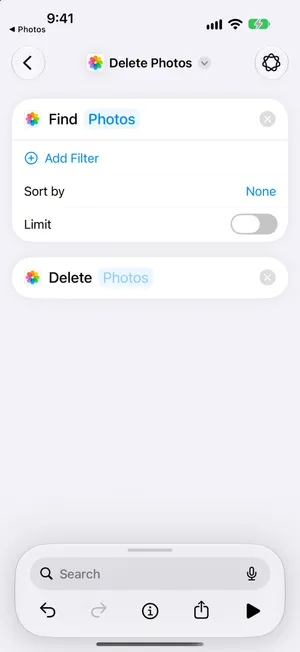
Check the filter twice: with no filter, this shortcut targets every photo and video you have. It is also blind, with no way to look at what it found unless you add a step for that, and it does not know the difference between a screenshot and the only photo of your grandmother. Use it for a period you are truly done with, and only with a copy elsewhere. The general version is in how to delete all photos from iPhone.
Method 3: go through them oldest first
The first two methods delete by date, whatever is in the photo. Most old libraries call for something gentler: keep the handful that matter, drop the rest. In a grid of thumbnails, that is slow and easy to get wrong.
You can do it in the Photos app by opening the first old photo and swiping across, tapping the trash button on what you do not want. It costs nothing, but the app does not record where you stopped, so note the last month you finished.
PrunePic, our app, is built for this one-by-one pass. Tap the broom button, pick Everything, choose Oldest first under Organize by and start: one photo at a time, full screen, with its date on the card. A swipe left sends it to the PrunePic Trash, up keeps it, right adds it to Favorites or an album.

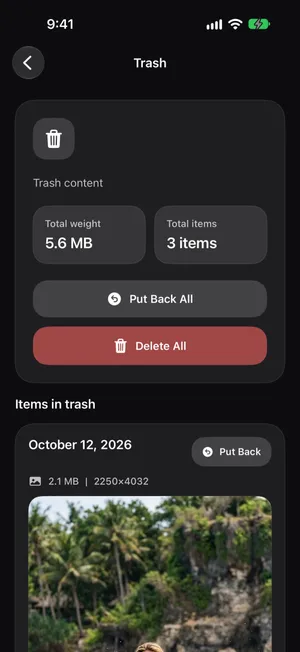
- What you decided stays decided. A photo you kept never comes back. PrunePic reopens on newest first, though, so choose Oldest first again at the start of each session, and it picks up at the oldest photo you have not reviewed.
- Nothing is deleted on a swipe. Photos wait in the PrunePic Trash until you empty it, and iOS asks you to confirm.
- It costs some patience with a big backlog. The free plan lets you send up to 100 photos a day to the trash and keep as many as you like, so clearing thousands of old photos in a hurry needs PrunePic Pro or the methods above. No mode shows everything from a chosen year, so PrunePic reaches 2021 only after what comes before it. To jump straight to a year, Method 1 is the way. Trips & Moments, a Pro mode, can look in a past year, but only shows the trips and moments it finds there.
With Pro, On This Day shows you today’s date in past years, a pleasant way to work through old photos a few at a time.
What to keep from old photos
Old photos are worth a slower decision than last week’s. A quick rule set:
| Usually delete | Think twice |
|---|---|
| Screenshots of things long finished: tickets, codes, directions | The only photo of a person or a pet |
| Near-identical takes, except the best one | Places you no longer live, and rooms that have changed |
| Photos of a parking spot, a whiteboard, a price tag | Blurry photos of a moment with no sharper version |
| Memes and images saved from apps | Documents you may need again |
When in doubt, keep it. A photo you keep can go next year. One you delete is gone after 30 days at most.
Then finish the job
The photos are not gone yet. They wait in Recently Deleted for 30 days, still using space, which is why storage does not move at first. If you need the space now and are sure, open Collections › Utilities › Recently Deleted, unlock it, tap Select, then the More button and Delete All. After that there is no undo. If you delete something by mistake before then, here is how to recover deleted photos. One exception: if your iCloud storage is over its limit, Apple removes deleted items at once.
- 1You swipe leftThe photo is queued. It is still in your library.
- 2PrunePic TrashPut it back any time. Undo reverses your last swipe.
- 3You empty the trashiOS asks you to confirm the deletion.
- 4Recently DeletedKept in the Photos app for up to 30 days. You can still recover it.
- 5Gone for goodAfter 30 days, or when you delete it from Recently Deleted.
Common mistakes
- Selecting from a curated view. Years and Months leave things out. Work from the full grid, or you will miss most of the clutter.
- Running the shortcut with no filter. Without Date Taken, it targets your whole library.
- Sorting by Added. A photo received last week sits with last week’s items even if it was taken in 2015. Use Captured.
- Treating iCloud as the safety net. With iCloud Photos on, the deletion reaches iCloud too.
The bottom line
To clear a period you are done with, jump to it with Months, get to the full grid, then drag and delete, or run a Date Taken shortcut for a large span. To save the good ones, go through them oldest first, in Photos or with PrunePic. Keep a copy of anything you cannot retake, since these are the photos you will never get again. For the bigger picture, see our camera roll cleanup method.
Frequently asked questions
Can I delete all photos from a certain year on iPhone?
Not with one button. Jump to the year with Months, get to the full grid, tap Select and drag across its photos. To do it in one run, build a shortcut with Find Photos, a Date Taken filter and Delete Photos.
How do I get to my oldest photos quickly?
In the library, tap the sort button and pick Captured, then swipe down on the grid and tap Years. Scroll to the top card, your earliest year, and tap it. Years is curated, so tap All if you want every photo.
Will deleting old photos on my iPhone delete them from iCloud?
Yes, if iCloud Photos is on. A deletion on the iPhone reaches iCloud and your other devices. Keep a copy elsewhere first if you may want them later, or read how to delete photos from iPhone but not iCloud.
Should I delete old photos to free up space?
Only after you check what takes the space. A few long videos can take as much room as thousands of photos, and Optimize Storage frees space without deleting anything if you use iCloud Photos. Old photos are also the ones you cannot retake, so keep a copy before you clear them.
Why are some old photos showing up as new, or new ones as old?
The library may be sorted by Added, or the photos may carry the wrong date. Scans and images saved from other apps often show the day you saved them. Switch the sort to Captured, and fix a date with Adjust in the photo's details.
Can I undo deleting old photos?
For 30 days, in Collections, Utilities, Recently Deleted, unless your iCloud storage is over its limit, in which case deleted items are removed at once. After Delete All in Recently Deleted, there is no undo.
Keep reading
- FeaturesPhoto cleanup modes for screenshots, videos and tripsClean your iPhone camera roll by category: screenshots, videos longest first, a batch, a trip or today's memories. Photos you reviewed stay out of every mode.
- FeaturesRelive your On This Day photos, then keep only the bestPrunePic's On This Day gathers the iPhone photos and videos you took on today's date in past years. Relive each one, keep the best and trash the misses.
- FeaturesSwipe to delete photos, one at a timePrunePic shows your iPhone photos and videos one at a time. Swipe left to delete, up to keep, right to favorite. Nothing is gone until you empty the trash.
 GuidesHow to sort iPhone photos by dateSort your iPhone library by the date photos were taken or added, browse by year and month, and fix photos that show the wrong date. Tested on iOS 27.
- GuidesHow to select all photos on iPhoneThe iPhone library has no Select All button. Drag across the grid instead, use Select All inside albums and collections, or use a Shortcut, iCloud.com or a Mac.
 GuidesHow to find and recover deleted photos on iPhoneFind deleted pictures in Recently Deleted on iPhone, recover photos and videos, and check missing items or iCloud copies. Steps and screenshots for iOS 27.