
My new iPhone arrives this week: should I clean up my photos first?
You don't have to delete anything before moving to a new iPhone, but a few days of cleanup beforehand means less to copy or download and a lighter library from day one. Delete only what you are sure you don't want, a few days ahead, and keep the old iPhone untouched until the new one shows your whole library. With iCloud Photos on, every deletion also applies in iCloud and on your other devices.
The new iPhone ships on Friday, and the old one holds every screenshot, blurry concert video and burst you have taken since your last upgrade. It is tempting to start fresh. You can, but the order matters more than the cleaning: a copy of everything first, deletions only of what you are sure about, and the old phone kept as it is until the new one has your whole library. Everything here is written for iOS 27; it is the same on iOS 26.
The quick answer
- Find out how your photos will move. Open Settings, tap your name, then iCloud, then Photos. If Sync this iPhone is on, you use iCloud Photos: your library is in iCloud and the new iPhone gets it from there. If it is off, the photos live only on this phone and travel with the transfer.
- Clean up a few days ahead, not on transfer day. Delete what you are sure you don’t want: old screen recordings, long videos you will never watch, screenshots of things long done. Leave anything you hesitate over for later; it moves just as well.
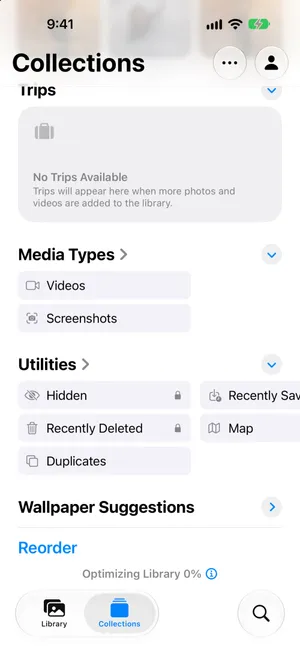
- Empty Recently Deleted once you are certain nothing in it is needed: Photos › Collections › Recently Deleted.
- Note your counts. Settings › General › About lists Photos and Videos. With iCloud Photos, also note In iCloud on the Photos screen from step 1, and wait until Status says Synced.
- Transfer with Quick Start, from an iCloud backup or from a computer, as Apple explains in using Quick Start.
- Compare the counts on the new iPhone, give it a night if the library is still downloading, and only then erase the old one.
Why iCloud Photos changes the answer
With iCloud Photos on, there is one library, kept in iCloud and shown on every device signed in with your Apple Account. Apple’s iCloud Photos page puts it plainly: what you change on one device changes everywhere. So cleaning before or after the transfer is the same cleanup of the same library; doing it before simply means the new iPhone has less to download and starts lighter. It also means a deletion is a deletion everywhere, not just on the old phone. Our guide to deleting photos from iPhone but not iCloud explains the options if you want a copy outside iCloud first.
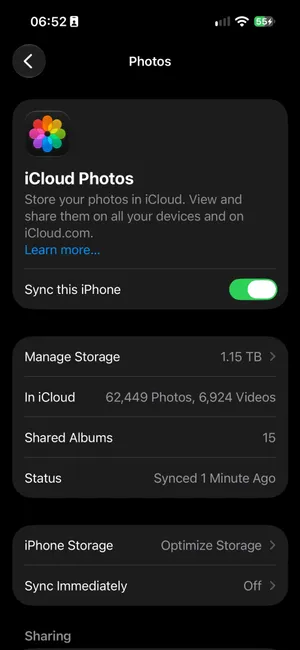
With iCloud Photos off, your photos exist only on the old iPhone. Apple says iCloud Backup then includes the photos and videos in your library, and a Quick Start transfer copies them across with everything else. Here, cleaning before the transfer genuinely saves time: every gigabyte you delete is one less to back up and copy. But a backup or a transfer is also your safety net, so make one before you delete anything you might regret, and for a copy you can open, import the library to a computer as Apple describes in transferring photos to a Mac or PC.
What to clean, and what to leave alone
Cleaning before a transfer is not the moment to sort a whole library. Go for the large, obvious things:
- Long videos. They are usually the biggest items. In Photos, tap Collections, open Videos under Media Types and look for the longest clips (the length shows on each thumbnail); our guide to finding large videos has the ways to spot them.
- Screen recordings and screenshots. Media Types lists both. Our guides to deleting all screenshots and deleting screen recordings cover selecting them in bulk.
- Exact duplicates. Collections › Utilities › Duplicates finds exact copies and lower-resolution versions, and Merge keeps the best one. The duplicates guide explains what it misses.
Leave alone anything you are unsure about, photos shared with you that you may want later, and the Hidden album unless you know what is in it. None of these block the transfer, and deciding in a rush is how photos get lost. If your iCloud storage is over its limit, remember that iOS removes deleted items at once instead of keeping them in Recently Deleted for 30 days; our iCloud storage full guide covers that case.
What it costs if you get the order wrong
- Erasing the old iPhone before checking the new one. If something did not arrive, the old phone was the last copy. Compare the Photos and Videos counts first; our guide to counting the photos on your iPhone explains each screen and why the numbers can differ a little.
- Deleting in a hurry on transfer day. With iCloud Photos, you have 30 days to put things back from Recently Deleted, as our recovery guide shows, unless iCloud is over its limit. Without iCloud Photos, a photo deleted after the transfer may still be on the other phone, but only until you erase it.
- Expecting the new phone to look final straight away. With iCloud Photos, the library downloads in the background after setup, and Apple says the Duplicates scan runs while the iPhone is locked and connected to power. Apple adds that the search can take up to a few days, so give it a few nights before judging what is missing or doubled.
When you are ready to hand the old iPhone on, Apple’s checklist for what to do before you sell, give away or trade in your iPhone has the erase steps.
How PrunePic helps
None of this needs an app; Apple’s steps above are the whole transfer. Where PrunePic helps is the few days before, if you want to go through years of camera roll without a long Select session.
It shows your library one photo or video at a time: swipe left to delete, up to keep, right to favorite. Videos mode shows only your videos and can sort them longest first, with each clip’s length and file size on the card, so the size shows which ones are heaviest. Nothing is deleted on a swipe: everything waits in the PrunePic Trash, where you can put anything back, until you empty it; iOS asks you to confirm and moves the items to Recently Deleted. With iCloud Photos on, those deletions apply in iCloud too, which is what you want when the goal is a lighter library on the new phone.
The free plan lets you send up to 100 photos a day to the trash, and keep as many as you like, in the Everything mode; Videos mode is part of PrunePic Pro. Your photos never leave your device.
Checklist
- Settings › [your name] › iCloud › Photos: is Sync this iPhone on?
- No iCloud Photos? Back up the iPhone and import the library to a computer before deleting anything.
- A few days before: delete long videos, screen recordings, old screenshots and merged duplicates.
- Photos › Collections › Recently Deleted: empty it once you are sure.
- Note the Photos and Videos counts in Settings › General › About, and In iCloud if you use iCloud Photos; wait for Synced.
- Transfer to the new iPhone.
- Compare the counts on the new iPhone, after a night if it is still downloading.
- Only then follow Apple’s checklist to erase the old iPhone.
Frequently asked questions
Should I delete photos before or after transferring to a new iPhone?
Before, if you have a few days and know what you want gone: whatever is in the library on the day of the transfer is copied or downloaded to the new iPhone. Cleaning afterwards works too, and is the safer choice if the transfer is tomorrow. Do not clean up during the transfer itself.
If I delete photos on my old iPhone, will they disappear from the new one?
With iCloud Photos on both phones, yes: they share one library, so a deletion on either phone applies to iCloud and to every device signed in with the same Apple Account. Without iCloud Photos, the two phones have separate copies after the transfer, and deleting on the old one does not touch the new one.
Are my photos included in my iCloud backup?
Only when iCloud Photos is off. Apple says photos and videos already in iCloud Photos are not included in iCloud Backup, because they are stored in iCloud already. When iCloud Photos is off, the backup can include the photos and videos in your library.
Can I move to a new iPhone without bringing my photos?
If you use iCloud Photos, your photos are in your Apple Account, so they appear on any iPhone where you sign in and turn iCloud Photos on; you can leave it off on the new phone in Settings › [your name] › iCloud › Photos. Without iCloud Photos, a transfer brings the library along, so import the photos you want to keep to a computer and delete them from the old phone before you transfer.
Do deleted photos come along to the new iPhone?
They can, while they are still in Recently Deleted. Deleted items wait in Recently Deleted for 30 days unless your iCloud storage is over its limit, in which case iOS removes them at once. To be sure they don't take any room, empty Recently Deleted on the old iPhone before the transfer, once you are certain nothing in it is needed.
I see the same photos twice after setting up my new iPhone. What do I do?
Give Photos a few nights first: if the library is still downloading or the Duplicates scan is still running, the counts are not final. Then open Photos › Collections › Utilities › Duplicates and merge the sets it found. Photos keeps the best version and moves the extra copies to Recently Deleted.
Keep reading
- FeaturesSwipe to delete photos, one at a timePrunePic shows your iPhone photos and videos one at a time. Swipe left to delete, up to keep, right to favorite. Nothing is gone until you empty the trash.
- FeaturesReview long videos and delete the ones you no longer needPrunePic's video cleaner for iPhone puts your longest clips first, shows each one's length and file size, and lets you watch it full screen before you swipe.
- FeaturesUndo any swipe before a photo is deletedPrunePic never deletes a photo when you swipe. Undo it, swipe back or Put Back from the PrunePic Trash, then delete the rest in one batch you confirm in iOS.
 GuidesHow many photos do I have on my iPhone?The total under Library in Photos includes videos but not hidden photos. Count photos, videos and screenshots apart, see each month, and check iCloud. iOS 27.
 GuidesHow to delete photos from iPhone but not iCloudWith iCloud Photos on, a deletion on your iPhone deletes everywhere. Here are the two safe ways to clear photos from your iPhone and keep them in iCloud.
 GuidesHow to delete duplicate photos on iPhoneMerge duplicates with the built-in Duplicates collection in Photos, then deal with the near-identical shots it skips. Step-by-step for iOS 27.