
My iPhone is full of baby photos and I can't delete any of them
Organize baby photos by letting Photos do the filing: name your child in People & Pets, tap the heart on the best shots and keep one album for them. Before you delete any, keep a copy that does not depend on your iPhone. Then thin only the runs of near-identical takes: going from fifteen shots of a moment to one or two loses no memory.
A baby doesn’t stay still for the one good picture, so you take fifteen. Then you do it again at bath time. A few months in, your iPhone says storage is almost full, and you are looking at 40 nearly identical photos of a sleeping face, none of which you can bring yourself to delete. That hesitation is reasonable. These are photos you cannot take again, so the plan below starts with protecting them, and deleting is the last step. It is written for iOS 27 and is the same on iOS 26.
The quick answer
- Make them safe first. Keep a copy that doesn’t depend on your iPhone, such as a computer or an external drive.
- Free space elsewhere. Videos you do not need, screenshots and other apps may solve the storage problem without touching a single baby photo.
- Thin the runs, keep the moments. From fifteen takes of one moment, keep the one or two with the clearest face.
- Heart the best ones. Favorites takes one tap, and it makes the rest of the plan easy.
- Let Photos do the filing. Name your child in People & Pets, and keep one album for the very best.
Why this happens
Babies are slow to pose, quick to change, and the phone is always in your hand. Taking fifteen shots costs nothing at that moment, and it is sensible: the only way to catch a smile is to keep shooting. Nobody goes back at 11 at night to choose among them, so they stack up week after week. Videos add to it faster, because a minute of 4K video takes as much space as dozens of photos.
Family makes it harder. Photos sent by grandparents and group chats can save a second copy of the same moment to your library, and a photo saved from a chat is often lower quality than the original.
Make them safe before you delete anything
This comes first because it’s what lets you relax about the rest:
- iCloud Photos is not a backup. It keeps one library in sync, so a photo deleted on your iPhone goes from iCloud too, and it stays recoverable for 30 days. Apple can remove deleted items at once if your iCloud storage is over its limit.
- Make a copy of your own. Import to a computer with a cable, as in Apple’s guide to transferring photos to a Mac or PC, or save the best to an external drive with Save to Files. Every few months is a reasonable rhythm.
- Open a few of the copies, videos included, to check they work.
Then look at where your storage has gone. Settings › General › iPhone Storage shows which apps take the most, and our guide to freeing up iPhone storage goes through the order. For long clips, see finding large videos. If you use iCloud Photos, Optimize Storage keeps full-size originals in iCloud and smaller versions on the phone, with nothing deleted.
How to thin baby photos without regretting it
Use a rule that doesn’t require you to judge how much a moment matters, because they all matter:
| Keep | Let go |
|---|---|
| At least one photo of every moment | The other near-identical takes of that moment |
| The take with the clearest face or the best expression | Motion blur, unless it is the only one |
| First times, even badly framed | Accidental shots of the floor or a pocket |
| Everyday things that will change: the room, the crib, a favorite toy | Screenshots of apps, feeds and sleep charts you are done with |
| Anyone else in the photo, especially grandparents | Second copies saved from a group chat, if you have the original |
Bursts are an easy place to start: the burst guide shows how to pick the best frame in each. Exact copies can go through Collections › Utilities › Duplicates, which merges them and is covered in our duplicates guide. When two photos seem equal, keep both and move on. A few extra photos won’t hurt.
Find them again without filing everything
Don’t build a folder system at 3 a.m. Most of the filing is already done:
- People & Pets. In Collections, name your child and Photos gathers their photos into one view. Faces change quickly at this age, so you may need to confirm some or merge two groups.
- Dates. Swipe down on the library and tap Months to jump to any month. Sorting by date explains the view, and how to fix a date on a scanned or forwarded photo.
- Favorites. A tap on the heart, and Collections › Favorites becomes your best-of.
- One album a year. Make an album such as “Emma, first year” for the best ones. An album only points to photos, so it uses no extra space. It also gives you most of a photo book when the first birthday comes.
For sharing, a Shared Album lets family see what you choose without seeing everything else. If a partner takes half the photos, the family photos page covers how to bring both phones together.
What it costs you if you ignore it
Mostly storage alerts at bad moments, as when the Camera refuses to take a photo just as something happens. Beyond that, the best photos get buried under the near-identical ones, and you scroll past them. The risk to avoid is the opposite one: deleting in a hurry to make room, without a copy.
How PrunePic helps
PrunePic, our app, shows one photo at a time, full screen, which is how you see a difference between two shots of a sleeping baby that a grid of thumbnails hides. Send a take to the PrunePic Trash with a swipe left, keep it with a swipe up, or swipe right and drop it on an album, such as your first-year album.
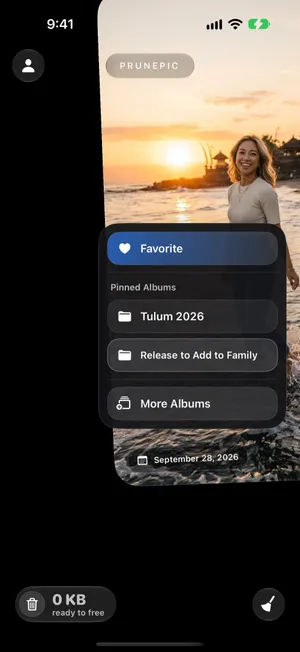
Two things make it feel safer for photos like these. Nothing is deleted on a swipe: a photo waits in the PrunePic Trash, you can put it back, and iOS asks for confirmation when you empty it. And a photo you have decided on doesn’t come back, so you can stop anywhere and pick up later, which suits days that get interrupted. With PrunePic Pro, On This Day brings up today’s date in past years, a nice way to revisit old baby photos and thin them a few at a time.
With PrunePic Pro, Duplicates groups near-identical takes from a period you pick, such as the last 30 days, and suggests one to keep only when it is clearly sharper or the faces clearly better. The judgment stays yours. The free plan lets you send up to 100 photos a day to the trash, and your photos never leave your device.
Checklist
- Import your photos to a computer or a drive, and open a few to check the copy.
- Check Settings › General › iPhone Storage and free space outside your photos first.
- Name your child in Collections › People & Pets.
- Delete long videos you no longer need. Keep the ones of real moments.
- Merge copies in Utilities › Duplicates, and reduce bursts to their best frames.
- Thin the most recent month, keeping at least one photo of every moment.
- Heart the best ones and add them to this year’s album.
- Repeat one month at a time, whenever you have a few minutes.
Frequently asked questions
How do I organize baby photos on iPhone?
Name your child in Collections, People & Pets, so you have one view of them that Photos fills. You may need to confirm or merge faces as a baby changes. For the best ones, keep one album, or one per year or per month, and heart the favorites. Use the date view for everything else, rather than filing every photo by hand.
Should I delete baby photos to free up storage?
Usually not first. Long videos, screenshots and clutter elsewhere free more with less risk. When you do thin the baby photos, remove the near-identical takes of a moment and leave the moment itself. Keep a copy of the originals if you have any doubt.
What is the safest way to back up baby photos?
Keep them in at least two independent places: for example, iCloud Photos and a computer or external drive. iCloud Photos syncs deletions, so a photo deleted on your iPhone goes from iCloud too, and it is not a backup on its own. Import from your iPhone with a cable every few months.
How can I share baby photos with family without sending everything?
A Shared Album works well: you pick what goes in, and invited family can view, comment and, if you allow it, add their own. Your other photos stay private. An iCloud Shared Photo Library suits a partner, because both of you can add and edit everything in it; our page on family photos covers what to agree first.
How do I make a photo book from my baby photos?
Keep an album for the book through the year and add your favorites to it each month. When it is time to order, you only have to cut that album down instead of searching a year of photos. Our guide on choosing photos for a photo book walks through it.
How many baby photos should I keep?
There is no right number, and storage is cheaper than regret. Keep any moment you would want to see again. For a run of near-identical takes, keep the one or two where the face is clearest, unless a small difference is what makes the moment.
Keep reading
- FeaturesSort photos into albums while you swipePrunePic is a photo organizer for iPhone that files keepers as you clean: swipe right, drop the photo on a pinned album, or search your albums or create a new one.
- FeaturesSwipe to delete photos, one at a timePrunePic shows your iPhone photos and videos one at a time. Swipe left to delete, up to keep, right to favorite. Nothing is gone until you empty the trash.
- FeaturesRelive your On This Day photos, then keep only the bestPrunePic's On This Day gathers the iPhone photos and videos you took on today's date in past years. Relive each one, keep the best and trash the misses.
- GuidesHow to make a photo book from your iPhone photosTurn thousands of iPhone photos into a book: choose the story, shortlist in three passes, cut an album down to size, then upload it. With a page-count table.
 GuidesHow to delete burst photos on iPhoneFind every burst in the Bursts collection, keep only the frames you like and send the rest to Recently Deleted. Step-by-step for the Photos app in iOS 27.
 GuidesHow to organize photos on iPhoneOrganize iPhone photos with albums and folders without creating duplicates, see what Photos already sorts for you, and file a big library in short sessions.