
Our family photos are scattered across everyone's iPhones
Use an iCloud Shared Photo Library for the people who live together and take family photos every day, and Shared Albums for everyone else. Copy what is irreplaceable and clean up your own photos before you share them, then keep your family's best in a few albums. A Shared Library holds up to six people, and each person keeps a private library alongside it.
Your partner has the good photos from the school play. You have the holiday. Your teenager has the only picture of the dog at the beach, and your parents have ten years of scanned prints on an old iPad. Nobody has lost anything, exactly, but when you want the best photos of the year, they are in four places. The fix is mostly a matter of choosing the right tool, and then doing things in the right order. This is written for iOS 27; the setup is the same on iOS 26, and we note where the menus differ.
The quick answer
- Keep one copy outside iCloud, because a deletion in a shared space reaches everyone.
- Clean up next, each on your own phone. Everything you move into a shared space becomes everyone’s clutter.
- Choose the right tool: a Shared Library for your household, Shared Albums for everyone else.
- Decide who holds the storage. The person who creates a Shared Library pays for all of it in iCloud.
- Keep a few albums, not a filing system. Dates, people and places are already sorted.
Shared Library or Shared Album?
| iCloud Shared Photo Library | Shared Album | |
|---|---|---|
| Best for | People who live together | Grandparents, relatives, one event |
| How many people | You plus up to five others | Invited people, or anyone with the link if you choose |
| What goes in | Everything you choose, and new photos from the Camera if you turn that on | Only what you pick |
| Who can delete | Everyone, though only the contributor can remove an item for good | The owner and people allowed to manage it; others can delete what they added |
| Your private photos | Stay in your Personal Library | Unaffected |
| Storage | The creator’s iCloud plan | Apple sets separate limits for Shared Albums |
Many families need both. You can belong to only one Shared Library at a time, so it suits your household, while Shared Albums work for your extended family and for one-off events such as a wedding or a reunion.
Set up a Shared Library, in the right order
Before anything else, each person copies what is irreplaceable, then cleans up on their own iPhone. In a Shared Library, a screenshot from your phone sits in everyone’s view. Our camera roll cleanup method has a ten-minute first pass, and if the backlog looks impossible, start here.
Then, according to Apple’s guide to the iCloud Shared Photo Library:
- The person with the largest iCloud plan creates the library, since it uses their storage. iCloud Photos must be on, with iOS 16.1 or later.
- Go to Settings › Apps › Photos and tap Shared Library.
- Choose up to five people to invite, or invite them later.
- Choose which past photos and videos to move in, or move them later. You don’t have to move everything: start with a period such as the last year, or with photos of the people in your family.
- Each person opens the invitation and chooses what to bring.
To add new photos automatically, turn on Sharing from Camera under Shared Library. You can choose Share Automatically, which adds photos when you are near other participants, Share Manually or Share When At Home. The Camera app then has a Shared Library button, so you can switch photo by photo.
To switch what you see, tap Library, then the Sort and Filter button, then Library View, and choose Personal Library, Shared Library or Both Libraries. On iOS 26, the same choice is under the Sort and Filter button in Library, or the More button in Collections.
Talk before you clean. Every participant can delete. A deleted item leaves the library for everyone and goes to Recently Deleted, where only the person who contributed it can remove it for good. Agree that each person only deletes their own photos, or that one person handles the tidying. Whichever app you use, deleting a shared item works this way.
If someone leaves or the library is deleted, the rules differ. Apple says a participant who leaves can keep a copy of everything or only what they contributed. If the creator deletes the library, people who were in it for more than seven days get everything in their Personal Library, and people who joined more recently get only what they contributed. Worth knowing before you hand over the only copy of your photos.
Use Shared Albums for everyone else
Grandparents don’t need your 40,000 photos. A Shared Album lets you send them only what they would like. Per Apple’s guide, open Collections, scroll to Shared Albums, tap Shared Albums, tap the add button, name the album and choose your photos. On iOS 27, Sharing Options lets you approve participants or share by link, and you can make an album temporary, which is useful for one event. Apple says iCloud Photos must be on to use Shared Albums on your iOS 27 devices, except to create a temporary album; people you invite can join through the link, even on a non-Apple device. Participants can add their own photos and comments if the album allows it. Apple says iOS 27 adds full-resolution sharing, while on iOS 26 and earlier a Shared Album holds a copy that may not contain everything the original does. To keep a photo someone shared, save it to your own library: tap it, tap the share button, then Save Image or Save Video.
Organize as little as you can get away with
Family photo projects fail when they turn into filing projects. Photos already sorts most of it:
- By date: swipe down on the library and tap Years or Months. Sorting by date has the details.
- By person: Collections › People & Pets. Name each family member once.
- By place: Collections › Trips and the map. See organizing vacation photos.
Then add just a few albums for what Photos can’t know: “Family best of 2026”, “Grandma’s prints”. Our guide to organizing photos on iPhone shows how to make albums and folders. An album also gets you most of the way to a family photo book.
Scanned prints usually show the day you scanned them, so they land in the wrong place in your timeline. Adjust the date on the ones that matter.
What it costs you if you skip a step
- Sharing before cleaning: everyone’s screenshots become everyone’s problem, in the creator’s storage.
- No copy outside iCloud: a deletion in a shared space reaches all of you, and iCloud Photos is not a backup. Import your photos with a cable to a computer every few months, or copy them to an external drive.
- No plan for the storage: the library depends on one person’s iCloud plan. Apple says that if the creator runs out of iCloud storage, people can no longer add content, and edits, favorites and metadata stop syncing.
How PrunePic helps
PrunePic, our app, helps with the cleanup step: each person getting through their own photos before anything is shared. One photo at a time, a swipe left sends it to the PrunePic Trash, up keeps it, and right adds it to Favorites or drops it on an album, such as “Family best of 2026”, which is a regular Photos album. Each decision is saved, so short sessions add up, and the Everything mode can run newest or oldest first.
It is not a sharing tool and doesn’t merge libraries. It works on one iPhone at a time, and each person’s progress stays on their own phone, so use it before you move photos into a Shared Library rather than after. The free plan lets you send up to 100 photos a day to the trash.
Checklist
- Each person copies anything irreplaceable to a computer or a drive.
- Each person clears screenshots, duplicates and long videos on their own iPhone.
- Choose the Shared Library’s creator, and check that their iCloud plan has room.
- Create the library in Settings › Apps › Photos › Shared Library, starting with a limited period.
- Agree on who is allowed to delete what.
- Turn on Sharing from Camera for the people who want it.
- Make Shared Albums for grandparents and relatives.
- Name family members in People & Pets, and keep a few albums for your best photos.
- Put a reminder in your calendar to back everything up every three months.
Frequently asked questions
What is the easiest way to share photos with family on iPhone?
An iCloud Shared Photo Library is best for a household: up to six people add to one library, automatically if they like. A Shared Album is better for grandparents and relatives, because you choose what goes in and they do not see the rest of your library.
What is the difference between a Shared Library and a Shared Album?
A Shared Library is a second library that up to six people add to, edit and delete from, and it can fill itself from the Camera. A Shared Album is a set of photos you hand-pick and invite people to, where they can view, comment and, if allowed, add photos.
Who pays for the storage in an iCloud Shared Photo Library?
The person who creates the library. Apple says the creator provides the iCloud storage for all shared content, and other participants can access it without using their own iCloud storage.
If someone deletes a photo from our Shared Library, is it gone for everyone?
It leaves the library for everyone. Every participant can add, edit and delete. Apple says a deleted item goes to Recently Deleted, and only the person who contributed it can permanently remove it from there. Agree on who cleans what before you start.
Do you need Family Sharing to use a Shared Library?
It is not among Apple's requirements, which are iCloud Photos and iOS 16.1 or later. The exception is children: Apple says users under 13 can only join or create one with members of their Family Sharing group, and that age varies by country or region.
How do I keep all our family photos safe?
Keep one copy outside iCloud. iCloud Photos and Shared Libraries sync deletions, so they do not protect against a mistake. Import the photos to a computer or an external drive every few months, and make sure each family member has done the same for what is only on their phone.
Keep reading
- FeaturesSort photos into albums while you swipePrunePic is a photo organizer for iPhone that files keepers as you clean: swipe right, drop the photo on a pinned album, or search your albums or create a new one.
- FeaturesSwipe to delete photos, one at a timePrunePic shows your iPhone photos and videos one at a time. Swipe left to delete, up to keep, right to favorite. Nothing is gone until you empty the trash.
- FeaturesPhoto cleanup modes for screenshots, videos and tripsClean your iPhone camera roll by category: screenshots, videos longest first, a batch, a trip or today's memories. Photos you reviewed stay out of every mode.
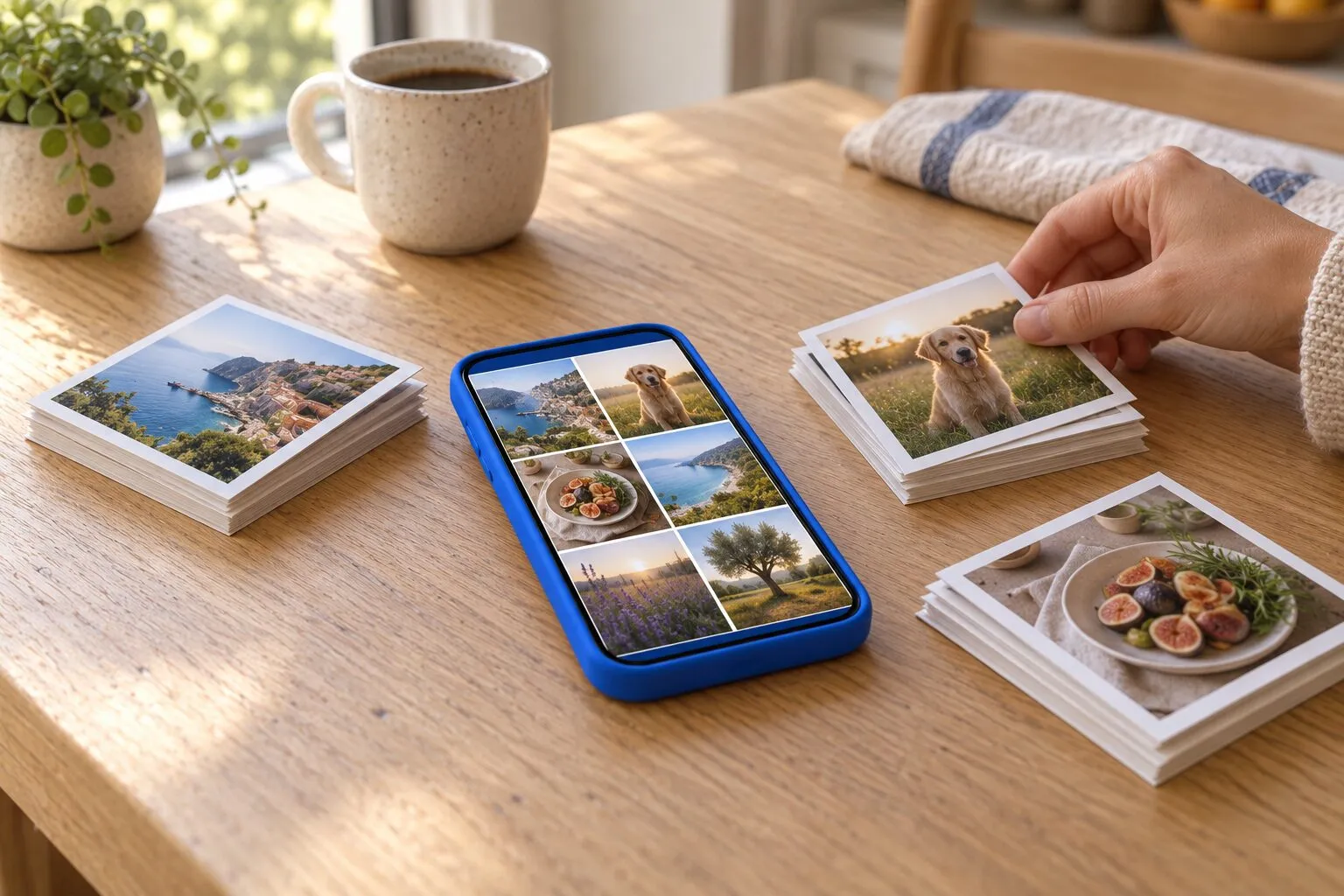 GuidesHow to organize photos on iPhoneOrganize iPhone photos with albums and folders without creating duplicates, see what Photos already sorts for you, and file a big library in short sessions.
 GuidesHow to clean up your iPhone photosClean up iPhone photos without burning out: a 10-minute first pass, simple rules for what to keep, a way to never lose your place, and a routine that keeps it clean.
- GuidesHow to make a photo book from your iPhone photosTurn thousands of iPhone photos into a book: choose the story, shortlist in three passes, cut an album down to size, then upload it. With a page-count table.