
I have too many photos on my iPhone and don't know where to start
Start by deciding what the problem is, because you may not need a big cleanup at all. Short of storage? Look at videos first. Can't find anything? Search, People & Pets and Trips already sort your library. Feeling buried? Clear screenshots and exact duplicates, then keep up with new photos a few minutes a day. You never have to finish the backlog for this to help.
You open Photos to find one picture and scroll past a thousand you don’t remember taking. You have thought about sorting it out more than once, and each time the size of it made you close the app. That is the usual story, and the size is why the usual plan, a big cleanup some weekend, doesn’t work. Here is a plan built around never needing that weekend. It is written for iOS 27 and is the same on iOS 26.
The quick answer
- Find out how many you really have. Settings › General › About shows the count, and our guide to counting your photos explains the numbers.
- Decide what you want. More storage, or a library you can enjoy? Those call for different first moves, as the table below shows.
- Copy what you would hate to lose, to a computer or a drive, before you delete anything.
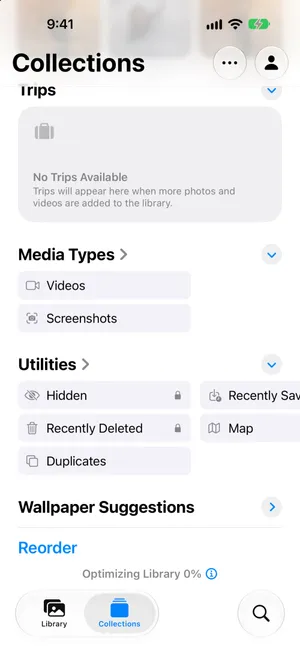
- Take the easy wins. Open Collections in Photos and go to Media Types and Utilities: screenshots and duplicates need few decisions, and videos free the most space.
- Set a small habit. The camera roll cleanup method has the routine and how long a backlog takes.
- Leave the rest for later, or forever. A backlog you never finish does no harm.
Why this feels impossible
An iPhone makes taking a photo free and deleting one work. Each photo costs a second to take and a decision to remove, and decisions are tiring. Bursts, similar shots, screenshots and images from group chats pile up on their own, and every one looks small until there are 30,000 of them.
The Photos app doesn’t help you feel any progress. It doesn’t record which photos you have already looked at, so after three sessions you can’t tell what you’ve covered. Without that, a cleanup feels endless, and people give up. So start with a different question: what would actually be better if you did this?
Decide what you’re actually after
| What you want | Start with | Skip for now |
|---|---|---|
| Storage back, fast | Long videos, then everything else in iPhone Storage | Going through photos one by one |
| To find photos again | Search, People & Pets and Trips, already in Photos, plus a few albums. See organizing photos | Building a big album structure |
| To stop feeling buried | Screenshots and duplicates first, then a daily habit, newest first | Your oldest years |
| To clear out a past era | Deleting old photos, year by year, with a copy kept first | Recent months |
If space isn’t the issue, deleting isn’t the point either. A big library is fine if you can find what you want in it.
What it costs you if you ignore it
Often, not much, at least at first. The real costs show up slowly: a storage full alert at the wrong moment, an iCloud plan that keeps growing, and the good photos buried so deep that you stop looking at them. That last one is the one people tend to regret. The point of taking all those pictures was to see them again.
What can cost you more is rushing. Deleting thousands of photos in one tired evening is how people lose photos they wanted. With iCloud Photos on, the deletion reaches every device, so keep a copy of what you would hate to lose first: iCloud Photos syncs deletions and isn’t a backup.
If your photos feel like a burden and you want to delete them all
Some people get to the point where the whole library feels like a weight, and wiping it sounds like relief. It’s your library, and that’s a fair thing to want. We can’t tell you how it would feel afterwards, and a cleanup isn’t a treatment for anything. If the weight is about more than your phone, raise it with someone you trust or a doctor.
What you’d lose. Apple says deleted photos stay in Recently Deleted for 30 days, then with iCloud Photos on they’re gone from your iPhone, iCloud and your other devices. Over the iCloud limit, they go at once. It wouldn’t only be the clutter, either. It would include people you may want to see again someday, a voice in a short video, and the photo of a document you’ve forgotten you need. You may not know yet which of those you’d miss.
A smaller step. Separate the relief from the risk. Copy everything to a drive, then delete one old year with the year by year method. With iCloud Photos on, that also deletes it from iCloud and your other devices, which is why the copy comes first. Then live with that for a month. If it’s seeing the photos that bothers you, Photos can hide them from your library without deleting anything.
When deleting a lot is reasonable. You have a copy you’ve opened and checked, and you want a clear phone. Most of it is screenshots, chat images and accidental shots. Or you’ve looked at a period of your life and truly don’t want it around, in which case that’s your call, ideally after a few days of sleeping on it. Our guide to deleting all your photos shows how to do it without surprises.
How PrunePic helps
PrunePic, our app, is built for the part the Photos app leaves to you: looking at one photo at a time and remembering you did. It helps most once you have settled on a habit:
- It remembers. Every decision is saved, so a photo you kept never comes back, and each session starts with photos you haven’t reviewed.
- You get to choose the order. The Everything mode runs newest or oldest first.
- Nothing is deleted on a swipe. Photos wait in the PrunePic Trash. You empty it when you are ready, iOS asks you to confirm, and the items stay in Recently Deleted for 30 days, unless your iCloud storage is over its limit, in which case they are removed at once.
The free plan lets you send up to 100 photos a day to the trash and keep as many as you like, enough for a light daily habit; past that, trashing stops for the day while keeping doesn’t. Clearing a large backlog quickly, or going straight to screenshots and videos, takes PrunePic Pro. For exact copies, Duplicates in the Photos app is free; PrunePic Pro’s own Duplicates mode also groups near-identical and similar shots. And you may not need any app: PrunePic vs Apple Photos sets out when the built-in tools are enough.
Checklist
- Copy the photos you would hate to lose to a computer or a drive.
- Look at your photo count and at Settings › General › iPhone Storage.
- Clear Screenshots under Collections › Media Types, after checking for tickets and codes you still need.
- Merge copies in Collections › Utilities › Duplicates.
- Check Media Types › Videos for long clips you do not need.
- Empty Recently Deleted only if you need the space now and are sure about everything in it.
- Pick a few minutes a day for new photos, and always work in the same order.
- Stop when the time is up. Anything you did not reach can wait.
Frequently asked questions
How many photos is too many on an iPhone?
There is no limit that causes trouble by itself. It becomes too many when storage runs out, when you can no longer find a photo, or when you stop looking at your library because it feels like a chore. If none of those apply, you can leave it alone.
Does having too many photos slow down my iPhone?
A large library by itself is not usually the problem. What causes trouble is nearly full storage. Check Settings, General, iPhone Storage: if you have plenty of free space, deleting photos is unlikely to make the phone faster.
Should I just delete everything and start over?
Only if you have a copy you trust somewhere else, such as a computer or an external drive. iCloud Photos is not a copy: with it on, a deletion reaches iCloud and your other devices. For most people, keeping the old photos in place and cleaning newest first is much less risky.
What should I do with thousands of photos on my phone?
Copy the ones you would hate to lose, clear the bulk clutter such as screenshots, long videos and exact duplicates, then keep up with new photos in a short daily session. Search, People & Pets and Trips in the Photos app already find most things, so you do not need to file the rest.
Do I have to go through every photo?
No. Old photos you never open cost nothing unless you are short of storage. Many people get what they want from clearing the obvious clutter and keeping up with new photos from now on. Treat the rest of the backlog as optional.
Keep reading
- FeaturesSwipe to delete photos, one at a timePrunePic shows your iPhone photos and videos one at a time. Swipe left to delete, up to keep, right to favorite. Nothing is gone until you empty the trash.
- FeaturesPhoto cleanup modes for screenshots, videos and tripsClean your iPhone camera roll by category: screenshots, videos longest first, a batch, a trip or today's memories. Photos you reviewed stay out of every mode.
 GuidesHow to clean up your iPhone photosClean up iPhone photos without burning out: a 10-minute first pass, simple rules for what to keep, a way to never lose your place, and a routine that keeps it clean.
 GuidesHow many photos do I have on my iPhone?The total under Library in Photos includes videos but not hidden photos. Count photos, videos and screenshots apart, see each month, and check iCloud. iOS 27.
 GuidesHow to delete all screenshots on iPhoneDelete every screenshot at once from the Screenshots collection in Photos, keep the few you still need, and stop them piling up again. Steps for iOS 27.
 GuidesSort iPhone videos by size? How to find the biggest onesThe Photos app cannot sort videos by size. Here is how to find the biggest ones anyway: the Videos collection, the info panel, a shortcut and Files. iOS 27.