
WhatsApp photos are filling up my iPhone
WhatsApp photos take space twice on an iPhone: once inside WhatsApp, and again in the Photos app when WhatsApp's Save to Photos setting is on, which it is by default. Turn that setting off to stop new copies, clear the big files in WhatsApp's Manage storage, then delete the saved copies in Photos and empty Recently Deleted. Deleting one copy never deletes the other.
Every family group, school chat and forwarded meme lands in WhatsApp, and since WhatsApp saves incoming photos to your library by default, a lot of them land in the Photos app too. One day the iPhone says storage is full, and WhatsApp turns out to be holding gigabytes. The fix takes three places, not one: WhatsApp’s own storage, the Photos library, and Recently Deleted. Everything below is written for iOS 27; the WhatsApp steps follow WhatsApp’s own help pages.
The quick answer
In this order, so that nothing comes back while you clean:
- Turn off Save to Photos. In WhatsApp, open Settings, tap Chats and switch off Save to Photos. WhatsApp’s help page says it is on by default. From now on, photos stay in their chat unless you save one yourself.
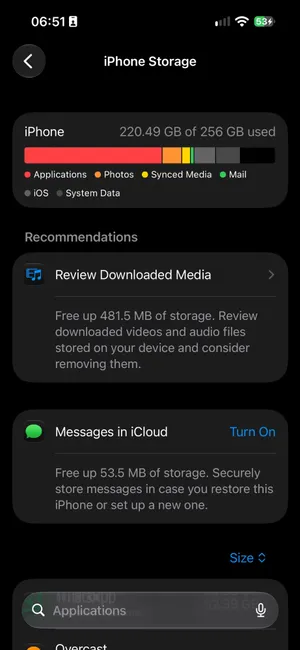
- See how big each side is. Open Settings, tap General, then iPhone Storage. WhatsApp’s row is its own copy of your chats and media; the Photos row includes everything WhatsApp ever saved to your library. Our guide to checking iPhone storage explains the screen.
- Clear WhatsApp’s copy. In WhatsApp, open Settings, tap Storage and data, then Manage storage. You can sort media newest, oldest or largest first and select several items at once. Deleting here removes items for you only.
- Clear the Photos copy. Delete the saved WhatsApp photos you do not want in the Photos app (the next section shows where they are and the one trap to avoid).
- Empty Recently Deleted. In Photos, tap Collections, open Recently Deleted under Utilities and unlock it, then tap Select and delete everything. Until then, deleted photos still use their space for 30 days.
Why WhatsApp fills an iPhone twice
When a photo arrives in a chat, WhatsApp keeps it in its own storage so the chat can show it. With Save to Photos on, it also writes a copy into your Photos library. Those are two files. WhatsApp’s storage help puts it plainly: if you have several copies of an item, you need to delete all of them to free the space.
That is why the usual first attempt fails. Deleting a chat’s media in WhatsApp leaves the saved copies in your camera roll. Deleting the saved copies in Photos leaves WhatsApp’s own. And the same photo forwarded into several chats can end up saved more than once; Photos’ Duplicates album, under Utilities in Collections, can catch identical copies of the same image, as our duplicates guide explains.
With iCloud Photos on, there is a third place: everything in your library syncs to iCloud, as Apple describes on its iCloud Photos page, so the saved WhatsApp photos also take iCloud storage. If iCloud is the one that is full, our iCloud storage full guide covers that side.
Finding the saved copies in Photos
WhatsApp usually files the photos it saves in an album named WhatsApp: in Photos, tap Collections and look under Albums. The album is only a shortcut: the saved photos are also in your main library, mixed in with your own.
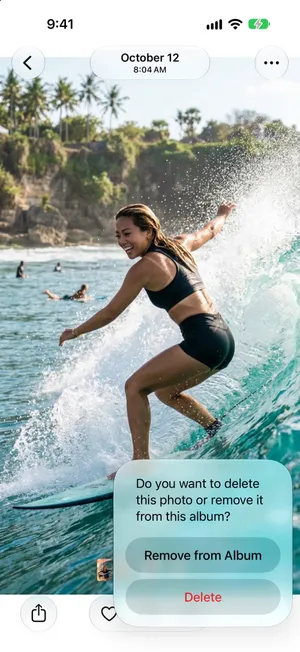
The trap is deleting from inside that album. Photos asks whether to Remove from Album or Delete. Remove from Album only takes the photo out of the WhatsApp album; it stays in your library and keeps its space. Choose Delete to remove it from the library, which also removes it from every album, as our guide to organizing photos explains.
To delete many at once, open the album, tap Select and drag across the grid, then tap the trash button and confirm. The delete-all guide shows the selection gestures. Before you delete in bulk, look for the ones worth keeping: the family photos and the screenshot of a ticket that only exists in that chat.
What it costs you if you ignore it
Busy groups never stop sending, and every photo they send takes space twice while Save to Photos is on. Left alone, the result is the usual full-iPhone list: the Camera cannot save new photos once storage runs out, updates cannot download, and the Storage Almost Full alert keeps coming back no matter how many apps you remove.
Deleting carelessly has its own cost. Bulk-deleting the WhatsApp album also deletes the photos you saved on purpose. Recently Deleted keeps them for 30 days if you change your mind, as our recovery guide explains, except when your iCloud storage is over its limit, in which case iOS removes deleted items at once. And WhatsApp’s help notes that media you delete in the app stays in your chat backup until the next backup runs.
How PrunePic helps
PrunePic does not clean WhatsApp itself, and it cannot pick out which photos came from WhatsApp; for WhatsApp’s own copies, Manage storage is the tool. What it helps with is the copies in your library, where the problem with the WhatsApp album is that the photos you want and the ones you don’t are mixed together.
- One at a time instead of select-all. PrunePic shows your library one photo at a time, newest first, so this week’s forwarded photos come up first: swipe left to delete, up to keep, right to favorite. The family photo stays; the fifth copy of the same meme goes.
- A trash you check before anything is deleted. Everything you swipe left waits in the PrunePic Trash, with the number of items and the space they take. Put anything back, then empty it; iOS asks you to confirm and the items go to Recently Deleted.
- Your place is kept. Every decision is saved as you swipe, so a photo you reviewed does not come back the next day, which helps when a busy group keeps adding more.
The free plan lets you send up to 100 photos a day to the trash in the Everything mode; keeping a photo or adding it to Favorites never counts. Your photos never leave your device.
Checklist
- WhatsApp › Settings › Chats: turn off Save to Photos.
- Settings › General › iPhone Storage: note the size of WhatsApp’s row and the Photos row.
- WhatsApp › Settings › Storage and data › Manage storage: sort by largest and delete what you do not need.
- Photos › Collections › Albums › WhatsApp: delete what you do not need, choosing Delete, not Remove from Album.
- Photos › Collections › Duplicates: merge identical copies saved more than once.
- Photos › Collections › Recently Deleted: Select, then delete everything to get the space back.
- Check iPhone Storage again; the figures take a moment to settle.
Frequently asked questions
If I delete a WhatsApp photo in the Photos app, is it deleted from the chat?
No. The copy in Photos and the copy inside WhatsApp are separate files. Deleting the one in Photos frees its space in your library (after Recently Deleted is emptied) and leaves the photo in the chat. To free both, delete it in Photos and in WhatsApp's Manage storage.
If I delete media in WhatsApp, does it disappear from my camera roll?
No. Deleting media in WhatsApp's Manage storage removes WhatsApp's own copy, for you only; other people in the chat keep theirs. A copy that was already saved to Photos stays in your library until you delete it there.
How do I stop WhatsApp from saving photos to my iPhone?
In WhatsApp, open Settings, tap Chats and turn off Save to Photos. WhatsApp's help page notes that the setting is on by default. It only affects new media: photos already saved stay in the Photos app until you delete them.
Do saved WhatsApp photos count against my iCloud storage?
Yes, if iCloud Photos is on. Anything in your Photos library syncs to iCloud, including photos WhatsApp saved there, so they use iCloud storage as well as space on the iPhone. Deleting them in Photos removes them from iCloud and your other devices too, after Recently Deleted.
Why did my storage not go down after I deleted WhatsApp photos?
Usually one of three things. The photos are still in Recently Deleted in Photos, which keeps them for 30 days. You removed them from the WhatsApp album instead of deleting them, which leaves them in your library. Or you cleared the Photos copies while WhatsApp still holds its own; check its row in Settings › General › iPhone Storage.
Keep reading
- FeaturesSwipe to delete photos, one at a timePrunePic shows your iPhone photos and videos one at a time. Swipe left to delete, up to keep, right to favorite. Nothing is gone until you empty the trash.
- FeaturesUndo any swipe before a photo is deletedPrunePic never deletes a photo when you swipe. Undo it, swipe back or Put Back from the PrunePic Trash, then delete the rest in one batch you confirm in iOS.
 GuidesHow to check iPhone storageSettings > General > iPhone Storage shows the bar, the biggest apps and what Photos takes. How to read it, why it differs from iCloud, and the quick wins. iOS 27.
 GuidesiPhone storage full: what to do right nowiPhone storage full and blocking photos or updates? Get space back in minutes, find out why deleting photos did not help, and stop it filling up again.
 GuidesHow to delete duplicate photos on iPhoneMerge duplicates with the built-in Duplicates collection in Photos, then deal with the near-identical shots it skips. Step-by-step for iOS 27.
 GuidesHow to find and recover deleted photos on iPhoneFind deleted pictures in Recently Deleted on iPhone, recover photos and videos, and check missing items or iCloud copies. Steps and screenshots for iOS 27.