
I switched from Android and now my iPhone photos are doubled
Open Photos, tap Collections, then Duplicates under Utilities, and merge each set: Photos keeps the best version and moves the extra copies to Recently Deleted. Copies usually appear when photos arrive twice, for example from Move to iOS and again from Google Photos or a computer. Let the duplicate search finish, stop the second source, then empty Recently Deleted.
You moved from Android, the new iPhone looks right, and then you scroll the library and see the same beach photo twice, sometimes three times. Nothing is broken: the same photos simply arrived by two routes. The fix is to find out which routes, stop the second one, and let the Photos app merge what came in twice. Everything below is written for iOS 27.
The quick answer
- Keep the Android phone as it is until the iPhone shows everything you expect. It is your copy of the originals while you clean.
- Stop the second source. If you installed Google Photos on the iPhone, do not save photos from it to the iPhone while you clean. If you synced photos from a computer, leave that sync alone for now (the next section explains why).
- Give Photos time. After a big transfer, the iPhone needs to search the new library for duplicates. Leave it locked and charging overnight, for a few nights if the library is large.
- Merge. Open Photos, tap Collections, then Duplicates under Utilities. Check each set, tap Merge, then Merge [number] Items. Apple’s guide to merging duplicates has the same steps.
- Empty Recently Deleted. Merged copies wait there and still use space. Open Recently Deleted under Utilities, unlock it, tap Select and delete them.
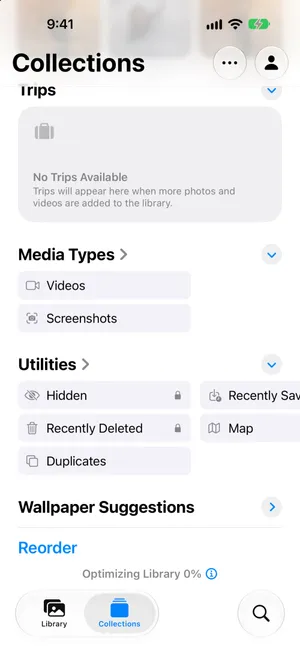
The step-by-step version of the merge, with what Photos counts as a duplicate and why the collection can be missing, is in our guide to deleting duplicate photos.
Why switching from Android doubles photos
Apple’s Move to iOS transfer brings across your camera photos and videos and your photo albums, along with contacts, messages and the rest. On its own, it copies each photo once. The doubles come from a second route on top of it:
- Google Photos on the iPhone. Many people install Google Photos after the switch to see their old backup. Photos you save or download from it to the iPhone are new files in the Photos library, next to the ones Move to iOS already brought. If your backup used Google’s Storage saver quality, Google’s backup quality page says photos above 16 MP were resized to 16 MP and videos above 1080p to 1080p, so the downloaded copy can be smaller than the original.
- A computer on top of the transfer. Apple’s manual transfer route copies the Android DCIM folder to a computer and syncs it to the iPhone. Done after Move to iOS, it adds the same photos again.
- A second attempt. If only part of the transfer came through, Apple’s advice is to erase the iPhone and start the transfer again. Copying photos by hand on top of the half-finished transfer instead brings the photos that made it the first time in twice.
- Chat apps. Move to iOS also transfers WhatsApp messages and media. If WhatsApp then saves photos to your library, the same picture can sit in Photos more than once; our page on WhatsApp photos filling an iPhone covers that side.
One thing that looks like a duplicate but is not: a photo that appears in your library and in an album. An album only points to the photo, so deleting it from the album does not free any space.
What the Duplicates collection catches, and what it leaves
Apple counts as duplicates exact copies that may carry different metadata, plus photos that look the same but differ in resolution, file format or other small ways. That should cover most switch-to-iPhone doubles: a smaller copy saved from Google Photos looks the same as the transferred original, so Photos will often put both in one set. If a pair never shows up, compare the two and delete the smaller one by hand. Look at a set before you merge it; when the copies are not identical, Photos can offer to merge only the exact copies, the careful choice for photos you care about.
What it does not catch:
- Similar shots. Five frames of the same moment are different photos, on Android as on iPhone, and stay as they are.
- Photos synced from a computer. These are managed from the computer, not from the iPhone. Apple’s Finder sync page explains that synced photos follow the albums on the computer: to remove them from the iPhone, turn off syncing for those albums in the Finder (or the Apple Devices app on a PC). Sync from a computer is only available when iCloud Photos is off.
- A search that has not finished. Until the new library has been searched, the collection shows Finding Duplicates… or nothing at all. Apple says that if no duplicates were found, the Duplicates collection does not appear.
What it costs you if you leave the copies
Every copy takes space on the iPhone, and the Photos row in Settings › General › iPhone Storage counts all of them, as Apple’s storage article explains; our guide to checking iPhone storage explains the screen. With iCloud Photos on, both copies also upload to iCloud, as Apple describes on its iCloud Photos page, and the free 5 GB that Apple includes with iCloud fills quickly. If iCloud is already full, our iCloud storage full guide covers it.
Cleaning has its own risks. With iCloud Photos on, a merge or a deletion applies on every Apple device signed in to the same Apple Account. Deleted items stay in Recently Deleted for 30 days, as Apple’s guide to deleting photos says, so you can still recover a mistake, as our recovery guide shows, unless your iCloud storage is over its limit, in which case iOS removes deleted items at once. And merging in Apple’s Photos app does not clean your Google Photos backup: that normally stays in your Google account until you delete it there.
To check that nothing went missing before you erase the Android phone, compare its photo count with the iPhone’s; our guide to counting the photos on your iPhone shows where to look, and expect the iPhone’s number to drop as you merge.
How PrunePic helps
For exact copies and smaller versions of the same photo, the Duplicates collection in Photos is the tool: it merges them, and it is free. PrunePic Pro’s Duplicates mode scans a period you pick and also groups near-identical and similar shots for you to compare. Where PrunePic helps is what the merge leaves behind: years of Android photos that arrived all at once, with the similar shots, old screenshots and photos you no longer want mixed in.
- One photo at a time, full screen. Swipe left to send a photo to the PrunePic Trash, up to keep it, right to favorite it or save it into an album. Pinch to zoom in up to 4x and check focus or faces before you choose.
- In date order. The Everything mode goes through your library newest or oldest first, so the shots of one moment come up one after another. The other cleaning modes narrow it down, for example to screenshots or to videos sorted by length.
- Nothing deleted on a swipe. Everything you swipe left waits in the PrunePic Trash until you empty it; iOS asks you to confirm, and the items go to Recently Deleted for 30 days, or are removed at once if your iCloud storage is over its limit.
The free plan has a daily allowance in the Everything mode; PrunePic Pro removes it and unlocks focused modes such as Screenshots and Videos. Your photos never leave your device.
Checklist
- Keep the Android phone untouched until the iPhone has everything.
- Do not save more photos from Google Photos to the iPhone while you clean.
- Synced photos from a computer? Turn off sync for those albums in the Finder or the Apple Devices app instead of deleting them on the iPhone.
- Leave the iPhone locked and charging overnight so Photos can finish its duplicate search.
- Photos › Collections › Utilities › Duplicates: check each set and tap Merge.
- Photos › Collections › Utilities › Recently Deleted: delete the merged copies to get the space back.
- Compare photo counts on both phones, then decide what to do with the Google Photos backup.
Frequently asked questions
Why are my photos duplicated after moving from Android to iPhone?
Usually because the same photos reached the iPhone twice. Move to iOS transfers your camera photos, videos and photo albums; if you then also saved photos from Google Photos, synced them from a computer or copied photos by hand on top of a partial transfer, each of those adds a second copy. Photos you see both in an album and in your library are not copies: an album only points to the photo in your library.
Will merging duplicates delete my photos for good?
No. Photos keeps one version of each set and moves the other copies to Recently Deleted, where they stay for 30 days before they are removed for good. You can recover them during that time. The exception: if your iCloud storage is over its limit, deleted items are removed at once.
Why don't I see a Duplicates collection after the transfer?
Photos may still be searching the new library. Photos does this search in the background, mostly while the iPhone is locked and charging, and after a large transfer it can take a few days. Apple says the Duplicates collection does not appear when no duplicates were found.
If I delete the copies on my iPhone, are they deleted from Google Photos?
Merging or deleting in Apple's Photos app happens outside Google Photos, so copies already backed up to your Google account normally stay there. Check in Google Photos before you count on it. Don't remove the extra copies from inside the Google Photos app: Google says deleting there also deletes the photo from your device and, when backed up, everywhere backup is on. With iCloud Photos on, what you merge or delete in Photos is also removed from iCloud and your other Apple devices.
Why didn't my storage go down after I merged the duplicates?
The extra copies are in Recently Deleted and still use space for up to 30 days. Open Photos, tap Collections, open Recently Deleted under Utilities, unlock it, tap Select and delete the merged copies to get the space back now.
Keep reading
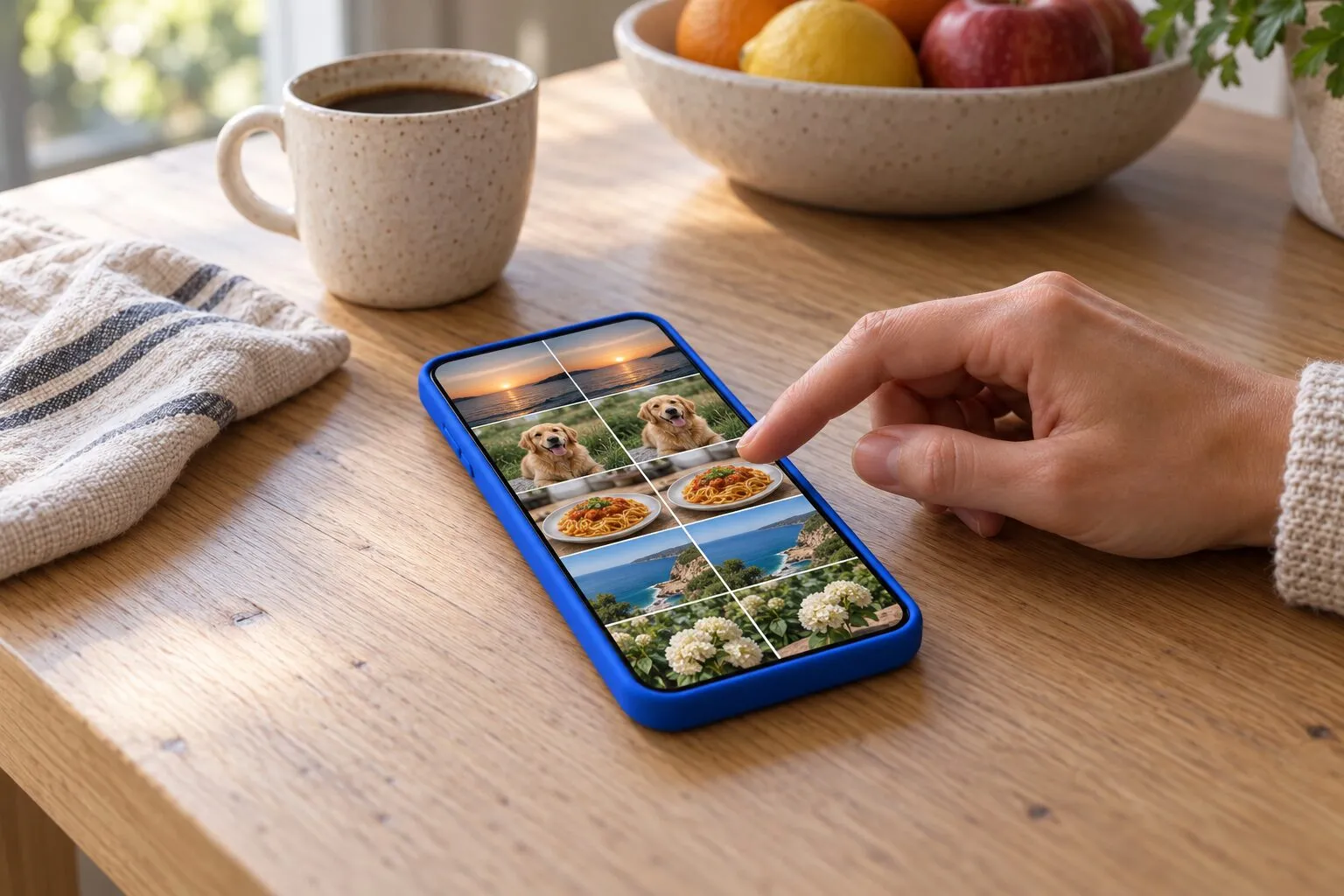 GuidesHow to delete duplicate photos on iPhoneMerge duplicates with the built-in Duplicates collection in Photos, then deal with the near-identical shots it skips. Step-by-step for iOS 27.
- ScenariosMy new iPhone arrives this week: should I clean up my photos first?Clean up before the transfer only what you are sure you don't want, and only once a copy of everything else exists. How iCloud Photos changes the answer.
 GuidesHow to find and recover deleted photos on iPhoneFind deleted pictures in Recently Deleted on iPhone, recover photos and videos, and check missing items or iCloud copies. Steps and screenshots for iOS 27.
 GuidesiCloud storage full? How to free up spaceSee what fills your iCloud, delete old backups, shrink your photo library and clean Messages and Mail before upgrading. Steps for iPhone with iOS 27.
- FeaturesSwipe to delete photos, one at a timePrunePic shows your iPhone photos and videos one at a time. Swipe left to delete, up to keep, right to favorite. Nothing is gone until you empty the trash.
- FeaturesUndo any swipe before a photo is deletedPrunePic never deletes a photo when you swipe. Undo it, swipe back or Put Back from the PrunePic Trash, then delete the rest in one batch you confirm in iOS.