
How to make a year in review photo album from your iPhone
To make a year in review photo album, go through the year one month at a time on your iPhone and pick a set number of photos from each. Add them to one album in Photos, then order the book from that album with any photo book service. For a 60-page book at about two photos per page, that's about 10 photos a month. Use the All view for this, because Years and Months leave out similar shots.
Choose the photos for a year in review album on iPhone2 hours
- Set a target for each monthDivide the number of photos in your book by twelve, then allow a few more for the months when the most happened.
- Create one album for the yearIn Photos, open Collections, tap Albums, tap the add button, choose New Album and name it after the year.
- Go through the year one month at a timeIn Library, swipe down, tap Months to find a month, then tap All and scroll to it. Mark the candidates as Favorites.
- Add each month's picks to the albumTap Select, tap or drag across your picks, then tap the More button, Add To, Album, and choose the year's album.
- Check the balance, then orderCompare the album's count with your target, take out extras with Remove from Album, and add the album's photos in your photo book service's app or website.
A year of photos on an iPhone can run to thousands, and most of the pages about yearly albums come from the companies that print them, so they lead you to their own app. This guide covers the step before that: getting a year down to the number your book needs, using only the Photos app. Any printer can take it from there. The steps are for iOS 27 and work the same way on iOS 26, apart from Shared Albums.
If you are making a book about something other than a year, such as a trip or a baby’s first birthday, our photo book guide is the one to read. It also goes deeper on how to choose photos and check their quality.
Work out your number for each month
Start with the size of the book. Taking about two photos per page as a starting point, dividing by twelve gives you a monthly target. Page counts and layouts vary by printer, so check yours.
| Book length | Photos at about two per page | About this many per month |
|---|---|---|
| 20 pages | 40 | 3 |
| 40 pages | 80 | 7 |
| 60 pages | 120 | 10 |
| 100 pages | 200 | 17 |
The number is there to stop you, not to fill a quota. Your year wasn’t evenly spread, so a two-week trip can take three months’ worth of space, and a quiet February can have two photos. If you don’t have enough for a month, use the space elsewhere. A month that has nothing much in it usually does best with an everyday photo: the kitchen, the walk to school, the car. They can mean more than you expect years later.
Start one album for the year
Everything goes into a single album, named something like “2026 book”. An album only points to your photos, so it takes no extra space, and removing a photo from it doesn’t delete anything.
- Open Collections, tap Albums, tap the add button and choose New Album.
- Name it after the year.

If you have time before the year ends, keep this album going. Adding your favorites from the past month on the first of each month takes a few minutes, and in December the book is mostly done. Our page on baby photos uses the same habit for a first-year book.
Go through the year one month at a time
The Months view is the fastest way to reach a month, but don’t choose from it. According to Apple, Years and Months are curated and leave out clutter such as similar photos, screenshots and receipts, so the shot you remember may not be there.
- In Library, swipe down on the grid until the bar with Years, Months and All appears.
- Tap Months to find the month, then tap All and scroll to the same month. All shows every photo and video. Set the sort button to Captured first, so All follows the date taken.
- Scroll through once, open each candidate and tap the heart. Don’t compare similar shots yet.
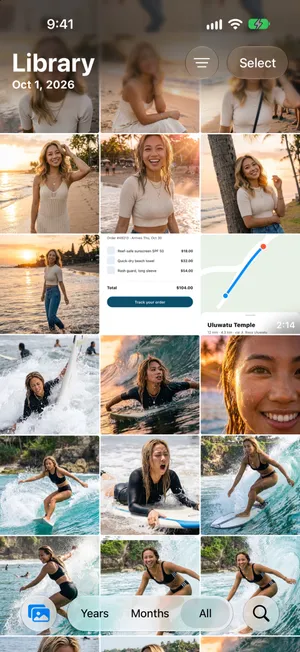
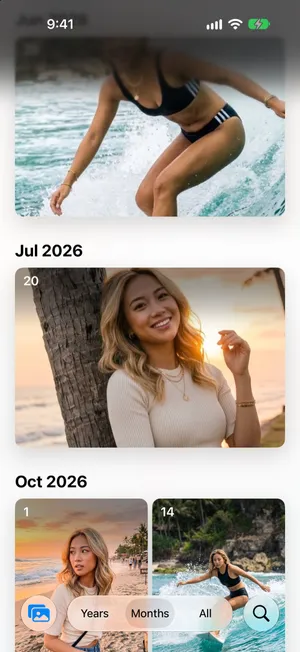
One month at a time also means you can stop. Note the last month you finished, then carry on later. Our guide to sorting photos by date has more on these views, including how to fix a photo that shows up in the wrong month.
Trips in Collections is a useful second source, because it brings a whole trip together. Memories can remind you of a weekend you had forgotten, but go back to the full library before choosing, since a Memory is a selection too.
Add each month’s picks and balance the book
When a month is done, tap Select, tap or drag across your picks, then tap the More button, Add To, Album, and choose the year’s album. If you’ve been using the heart for this, you can filter the view to Favorites first, from the sort button.
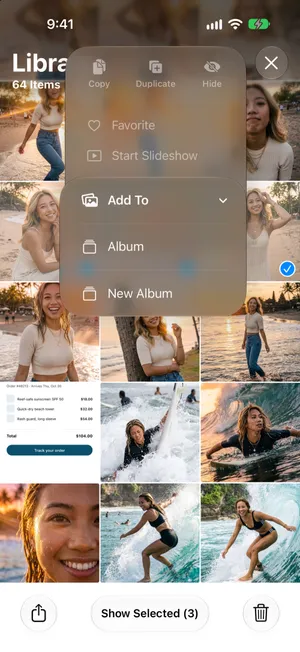
When all twelve months are in, compare the count with your target. Open the album and look at it as a whole: it often shows too many sunsets or too few people. Take out what repeats with Remove from Album. Delete in the same prompt removes the photo from your library. To see the year in order, tap the album’s sort and filter button and sort it oldest to newest, as Apple’s guide shows. Printers handle order differently, so check it in the preview.
Before you order, ask yourself a few questions a yearly book answers better than an ordinary one:
- Is everyone in it? The person who takes the photos is often missing. Check your partner’s phone, or ask family to add to a Shared Album, and save what you want to your library. Start a new album on iOS 27 for this: albums created on iOS 26 or earlier reduce photos to 2048 pixels on the long edge, which can be too small for a full page. On iOS 27 a Shared Album needs iCloud Photos on, and it counts against the owner’s iCloud storage. Our page on family photos explains how.
- Would you remember the year from it? Add a move, a new job or a goodbye, even from a poor photo.
- Have you kept any small things? A ticket, a drawing or a handwritten note, photographed flat, says a lot on a page.
- Will the words be easy to add? Most services let you add captions. Dates and places are saved with your photos, and a note to yourself now is easier than remembering next year.
Order the book
Apple’s guide for iPhone covers printing photos on a printer, and it doesn’t describe a way to order a book from the Photos app. Apple ended its own print service in 2018, and on a Mac it points to third-party project extensions. So the last step happens with a service you choose:
- Check its page counts, sizes, prices and, for a gift, its last order date.
- In its app or website, add the photos from your album. Look for an option to choose from an album.
- Check the resolution of anything that did not come from your Camera. Swipe up on a photo to see its size in pixels, and if your printer needs JPG, our HEIC to JPG converter runs in your browser.
- Read every page in the preview before you pay.
Keep the album when you’re done. It’s a record of what went in, and a good starting point if you want to reprint later.
A faster way through the year with PrunePic
PrunePic is our app. It doesn’t make or print books, and you don’t need it for this. It helps with going through a lot of photos one at a time. Swipe right and drop a photo on your pinned album, up to keep it, or left to send it to the PrunePic Trash, so the year’s album grows while you clear out the rest.
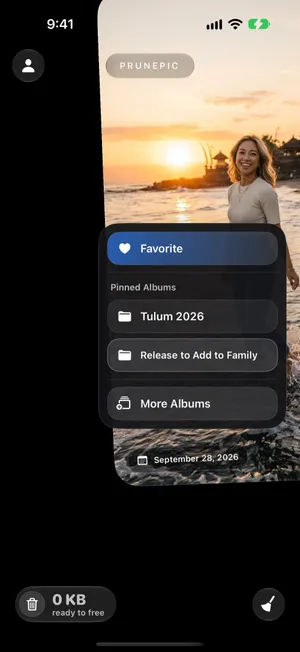
It has some limits for this job. PrunePic has no mode for one year or one month at a time, and a photo you’ve already reviewed doesn’t come back in any mode, so it won’t show you earlier keepers again. Use it if you also want to clean up your library. With PrunePic Pro, Trips & Moments shows only one trip’s photos, found from the location saved in them, and On This Day brings up today’s date in past years. The free plan lets you send up to 100 photos a day to the trash, and filing into albums doesn’t count. Your photos never leave your device.
Common mistakes
- Choosing from Years or Months only. Those views are curated, so check All before you decide a photo is gone.
- Giving every month the same space. Your year wasn’t even, and the book doesn’t need to be.
- Leaving it to December. Printers set last order dates before the holidays, so check yours before you start.
- Choosing Delete inside the album. Use Remove from Album, which leaves the photo in your library.
- Leaving out the photographer. Ask someone else for a few photos with you in them.
The bottom line
Set a number per month, make one album, go through the year a month at a time using the All view, and balance the album before you order. The Photos app does all of this, and any printing service can take it from there. Next year, add your favorites on the first of each month and the book will nearly make itself. If you’re starting from a very large library, our cleanup method can make the next one easier.
Frequently asked questions
How many photos do I need for a year in review album?
It depends on the book. At about two photos per page, a 40-page book takes about 80 photos, or roughly 7 a month, and a 100-page book takes about 200, or roughly 17 a month. Check your printer's page counts and layouts, and keep a few spares.
When should I start a yearly photo album?
January is ideal, because adding a few favorites each month takes minutes. If it's already late in the year, it still works: set aside a few short sessions, one month of photos per sitting. For a Christmas gift, check your printer's last order date and work back from it.
What do I do with a month that has hardly any photos?
Leave it short. A year has busy months and quiet ones, and a book that gives each month the same space can feel padded. Treat the monthly number as a starting point, move the spare places to the months that had a trip or a birthday, and keep at least one everyday photo from a quiet month.
Why can't I find a photo in the Years or Months view?
Apple says those views are curated: they show your best shots and leave out clutter such as similar photos, screenshots and receipts. Your photo is still in your library. Tap All in the same bar to see everything. If the order looks wrong, tap the sort button and pick Captured.
Can my family add photos to the yearly album?
Yes, with a Shared Album. Invite them, and let them add their best from their own phones through the year. Save the ones you want to your library and add them to the year's album. Start the album on iOS 27, because albums created on iOS 26 or earlier reduce photos to 2048 pixels on the long edge. On iOS 27 it needs iCloud Photos on and counts against the owner's iCloud storage. Only one person needs to do the choosing, which keeps the book from growing out of control.
Can I make the book inside the Photos app on my iPhone?
The iPhone's Photos app has no book printing that Apple documents, and Apple ended its own print service in 2018. You choose photos in Photos and order from another company's app or website. On a Mac, Apple points to third-party project extensions for Photos.
Do I need to clean up my whole library first?
No. You only need to look through one year, and only for the photos you want. If you do delete clutter along the way, it makes the next book easier, and it's better done as a separate job.
Keep reading
- FeaturesSort photos into albums while you swipePrunePic is a photo organizer for iPhone that files keepers as you clean: swipe right, drop the photo on a pinned album, or search your albums or create a new one.
- FeaturesRelive your On This Day photos, then keep only the bestPrunePic's On This Day gathers the iPhone photos and videos you took on today's date in past years. Relive each one, keep the best and trash the misses.
- FeaturesSort iPhone photos by location, one trip at a timeTrips & Moments sorts your iPhone photos by location and date into trips and moments. Swipe through one at a time and file the best shots in an album.
- GuidesHow to make a photo book from your iPhone photosTurn thousands of iPhone photos into a book: choose the story, shortlist in three passes, cut an album down to size, then upload it. With a page-count table.
 GuidesHow to sort iPhone photos by dateSort your iPhone library by the date photos were taken or added, browse by year and month, and fix photos that show the wrong date. Tested on iOS 27.
- ScenariosMy iPhone is full of baby photos and I can't delete any of themToo many near-identical baby photos, and deleting one feels wrong? Protect them, let Photos do the filing, then thin them with a rule that keeps every real moment.